Photo Sharing Link: What It Is and How to Use One
A photo sharing link lets guests upload event photos from their phones with no app or account. Learn how it works and how to set one up.
You're finishing the wedding table cards or sending the birthday invitations when someone asks where guests should send their photos. A group chat sounds easy, until you think about finding the cake-cutting pictures among messages, reactions, and reminders. A photo sharing link gives everyone a destination, but before you print it, you also need to decide who can see the pictures and how long they should remain available.
Table of Contents
- What a Photo Sharing Link Is and Why Guests Use One Easily
- Choose Your Sharing Method Before You Launch
- How to Set Up a Photo Sharing Link for an Event
- Printing a QR Code That Guests Scan the First Time
- Fallbacks for Guests Who Struggle to Upload
- Controlling Who Sees Event Photos After the Party
What a Photo Sharing Link Is and Why Guests Use One Easily
A photo sharing link is a web address that opens an event page where guests can upload pictures and, when the organizer publishes them, view a gallery. With a browser-based service like ours, guests don't need an app, an account, or a password.
A coat-check ticket is a useful comparison. The link is the ticket that lets guests drop something off in a designated place; the gallery is the room where you arrange what's been collected. Uploading and displaying are separate decisions, even when guests use the same address for both.
Say you're planning a birthday. One relative photographs the candles, another catches the surprised expression, and a friend records the singing. Without a collection point, those moments stay scattered across camera rolls and conversations instead of reaching the host.
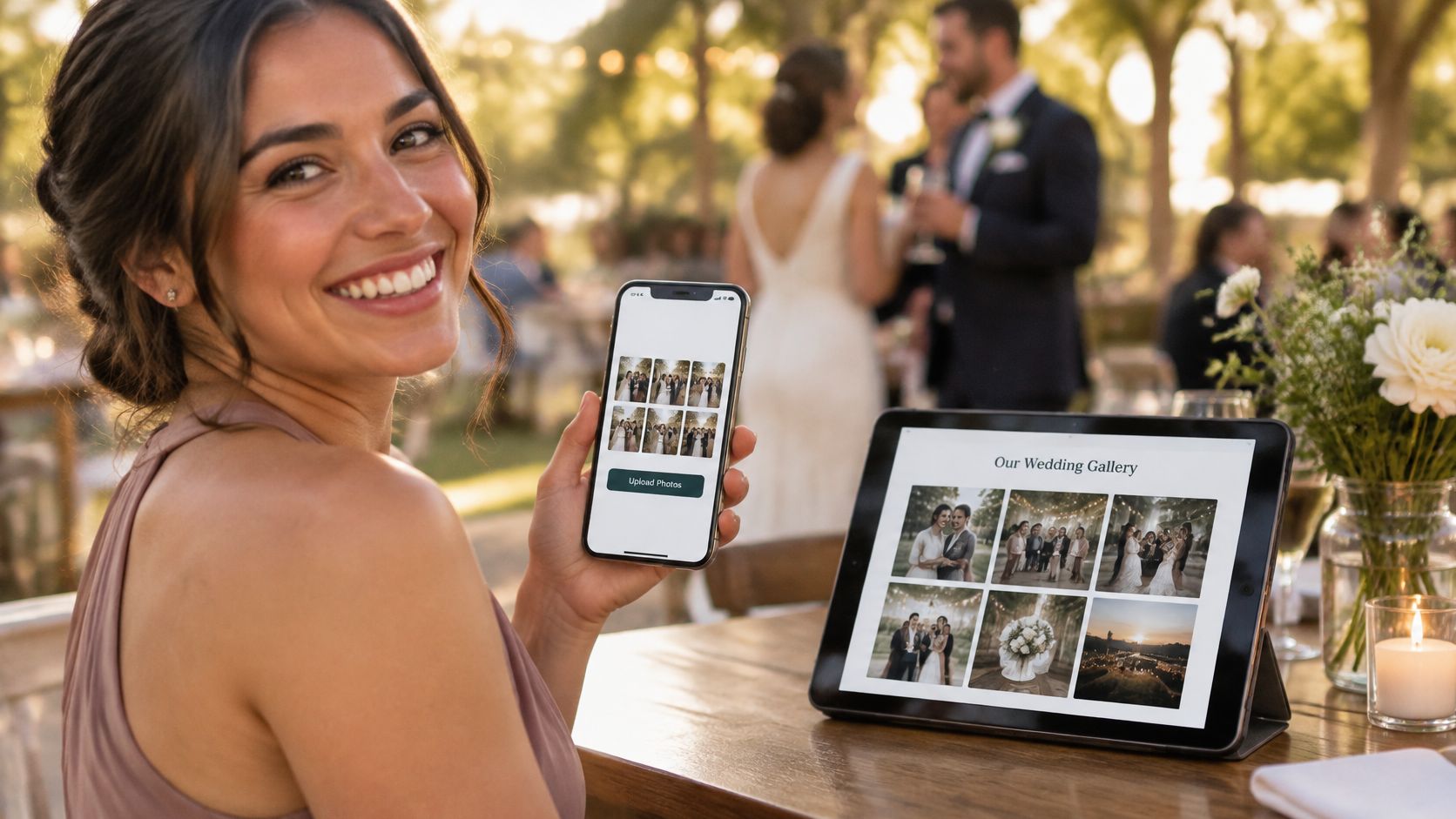
Give familiar behavior a destination
Sharing pictures online isn't a new skill for many guests. In a nationally representative survey published in 2013, Pew Research Center found that 62% of adult internet users had posted original photos or videos, reposted visual content, or done both.
The practical task is to tell guests where their event pictures belong. They open the page in their browser, select files from their phone, and leave. Meanwhile, you watch contributions arrive and decide what's suitable to share.
Couples, parents organizing a first birthday, conference communications teams, and sports clubs can all use this approach. Before choosing a tool, try this test: Can you explain what the link does and who should use it in a single sentence? If your explanation needs several caveats, simplify the arrangement before inviting guests.
Choose Your Sharing Method Before You Launch
| Method | Guest app or account | Original quality | Who controls the gallery | Best for |
|---|---|---|---|---|
| Group chat | No app beyond the chat | Often compressed | Nobody once shared | A few close friends |
| Shared cloud folder | Usually an account | Originals kept | Folder owner | Long-term family archive |
| Photo sharing link | No app or account | Originals downloadable | Organizer, can unpublish | Events with many guests and mixed ages |
These are practical starting points, not guarantees for every service. Chat attachment settings, cloud-folder permissions, and gallery download options need checking before you commit.
Choose a group chat for a small circle that already shares there. It's convenient for friends exchanging casual snapshots immediately. Send pictures as files where the app supports that if quality matters, but don't expect a conversation thread to become a carefully organized archive.
Choose a shared cloud folder for a collection someone will maintain. A family historian can organize originals into folders, keep names consistent, and manage access over time. Test the contribution permissions, though: permission to view a folder doesn't necessarily let relatives add files.
Match the method to the guests
A photo sharing link suits a larger guest list when you want a dedicated contribution page rather than another conversation. It also separates the guest's task, sending pictures, from the organizer's task, deciding what belongs in the finished collection.
Our guide to the best way to share photos can help you weigh those priorities. Think about your least confident phone user as well as the person who'll maintain the archive afterward.
EventUploader is one option for this workflow: every plan includes branded upload pages, printable QR codes, photo and video uploads, real-time upload control, secure private storage, and easy downloads. Public galleries and shareable albums are included on One Timer, Light, and Pro, but not the Free plan.
Choose before printing: Guest access, original-file downloads, and long-term storage matter more than how attractive the sign looks.
For today, make a provisional choice and create a test event. Send yourself a picture through the guest-facing page, then locate and download it as the organizer. That small rehearsal exposes permission problems before they become questions at the party.
How to Set Up a Photo Sharing Link for an Event
Set up the collection page before designing invitations or signage. You'll avoid printing an address that you later decide to change.
Start with the details guests will recognize when they arrive.
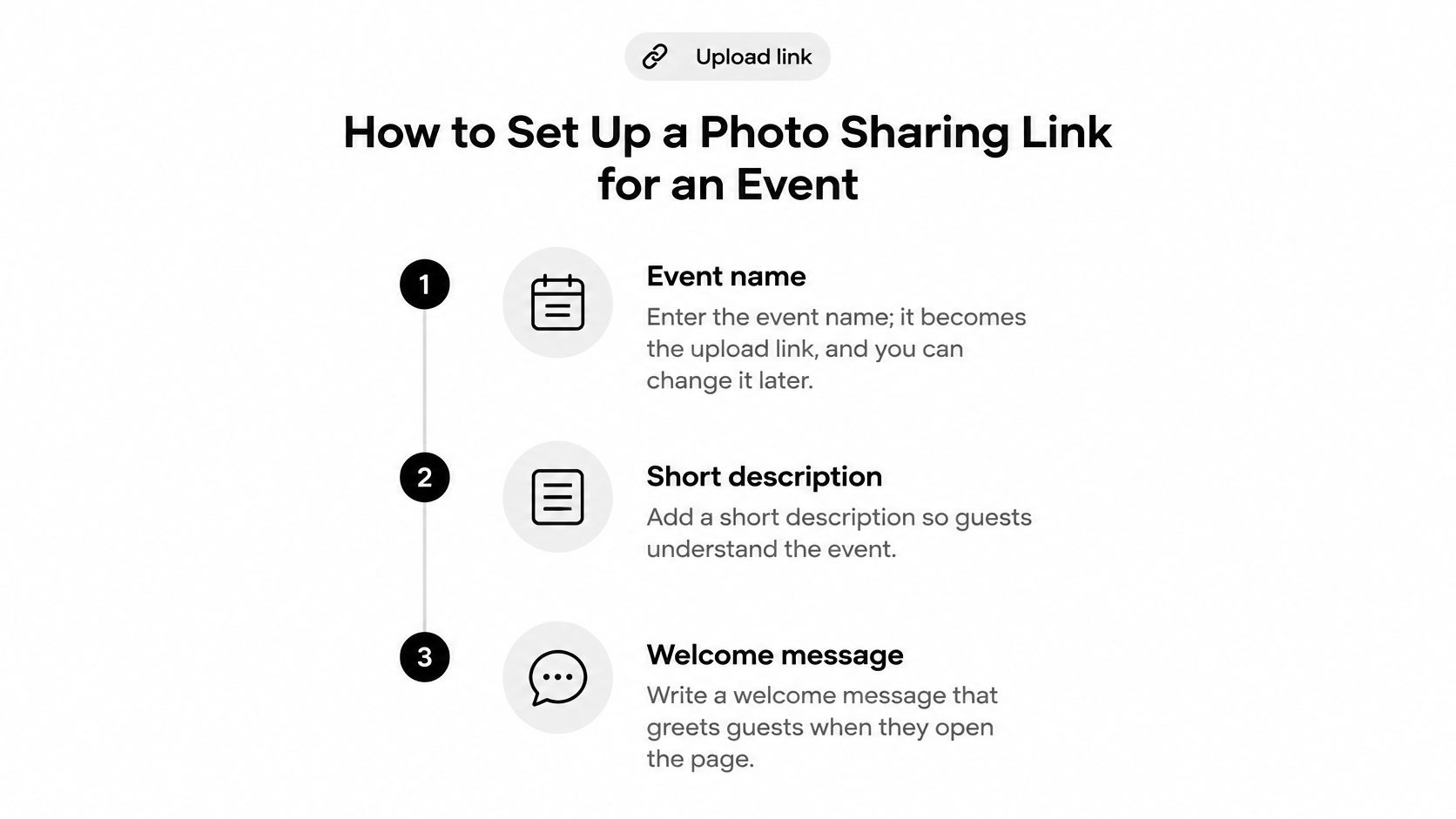
Enter the event name, description, and welcome message. In our workflow, the name creates the unique upload address, which you can change later. Keep it recognizable and explain what guests should contribute.
Add your colors and logo. Match the invitation or event signage so guests recognize the page. For a family celebration, a clear event name matters more than elaborate decoration.
Open the unique link on your phone. Test it outside your organizer dashboard, preferably in a private browser window. This catches the common mistake of testing an administrator view rather than the guest experience.
Download the QR code as a PNG. Each event has its own printable code. Changing our event URL automatically regenerates the code, so finalize the address before producing signs.
Share the address in invitations or messages. Our shared links display a branded preview card in WhatsApp, iMessage, and Slack. Include a short explanation of what you're asking guests to upload.
Watch contributions in the dashboard. Confirm that your test file arrives and that you can download it. Use the upload controls to pause collection when needed.
Prepare albums after reviewing the pictures. With gallery access included, you can group selected files into albums, publish them on the original page, or keep drafts visible only to you. Don't publish an unreviewed collection just to finish quickly.
Rehearse the guest experience
Venue planning can inform where you place instructions. If you're considering a destination celebration, Count Kálnoky's Estates' resource on private events in Transylvania provides context for discussing the setting with your venue team; separately, walk through where arriving guests will encounter your upload signs.
Test on different phones, including an older device. For gallery performance, check whether your chosen tool serves resized WebP or AVIF previews while preserving downloadable originals, rather than assuming it does. A web-image benchmark comparing JPEG, WebP, and AVIF found page-load-time improvements by a factor of 1.21 for WebP and 1.15 for AVIF versus JPEG in its test setup, not a guarantee for every gallery.
Use the walkthrough to accompany your own test upload.
Before guests arrive, confirm that the address opens, the printed code scans, and uploads are switched on.
Printing a QR Code That Guests Scan the First Time
| Level | Approximate recovery | Best for |
|---|---|---|
| L | 7% | Clean, well-lit print viewed at close range |
| M | 15% | Standard table cards and posters |
| Q | 25% | Textured paper or outdoor signs |
| H | 30% | Codes likely to be creased, glared or partly covered |
The ISO/IEC 18004 QR-code standard defines these approximate error-recovery capacities as 7%, 15%, 25%, and 30% respectively. The print situations above are practical selection guidance, not promises that a damaged code will scan.
L suits a clean, protected print with little interference. M is a reasonable starting point for ordinary event stationery. Q offers more tolerance where the surface or surroundings may interfere, while H provides the highest recovery capacity for likely damage or obstruction.
Higher correction isn't automatically better. It can require more modules for the same address, producing a denser symbol that needs more physical space.
Design for the actual viewing distance
Encode a short HTTPS address, without unnecessary tracking parameters. Print dark modules on a light, matte background and preserve the blank margin around the symbol. Don't place decorative text, borders, or photographs inside that margin.
A table card is viewed close up; a wall sign needs a larger code because guests stand farther away. For a freestanding format, The Print Warehouse Ltd's tabletop promo cards for restaurants offer a useful reference when discussing folded-card layouts with your printer. Position the code on a flat face, away from the fold.
Our guide on how to print QR codes can help with preparing the artwork.
Test the printed object, not just the image on your laptop screen.
A service with dynamic routing can keep a printed code unchanged while changing its destination, but that's different from editing the encoded address itself. Neither approach replaces server-side access controls.
Finish by scanning from the distance guests will stand, under the venue's lighting, using both iPhone and Android cameras. If people need to lean over the table or repeatedly reposition the phone, revise the print before making copies.
Fallbacks for Guests Who Struggle to Upload
A QR code and a browser page aren't universal access. A guest may have an older phone, limited data, unfamiliar browser prompts, or difficulty reading the instructions. A study involving culturally and linguistically diverse older adults in the International Journal of Communication found that automated apps and QR-based systems could challenge people with lower digital access or literacy.
Treat a failed upload as something the event team should accommodate, not something the guest has done wrong.
Pair each obstacle with another route
- Scanning fails: Print the complete short web address beside the code. Use large, high-contrast type so guests can enter it themselves or show it to someone helping.
- The page feels unfamiliar: Put a plain instruction on the card, such as opening the page and choosing photos. Provide equivalent guidance in the languages your guests speak.
- Permission prompts cause confusion: Name a relative or volunteer who can help. With the guest's consent, that person can assist on the guest's phone without browsing unrelated pictures.
- A video stalls: Try a smaller selection of files and keep the page open until completion. If venue Wi-Fi is unreliable, suggest mobile data only when the guest has enough allowance; otherwise, wait for home Wi-Fi.
- The guest wants to participate later: Send a reminder the next morning. Avoid making contribution during the celebration feel compulsory.
Make help easy to find
Put a named help contact on the sign, rather than telling guests to find an organizer. If you're already using an event support form, a logic-driven online form builder from Kiwiform is an option for structuring separate questions about uploading or requesting help. Keep a direct human contact available so the form doesn't become another obstacle.
For someone who can't participate digitally, arrange to collect printed photographs or a memory card afterward and agree how you'll return them. Don't ask guests to surrender a phone or storage device without a clear handover plan.
Redundancy matters more than simplicity alone: a typed address, willing helper, and later opportunity make the invitation to contribute more inclusive.
Controlling Who Sees Event Photos After the Party
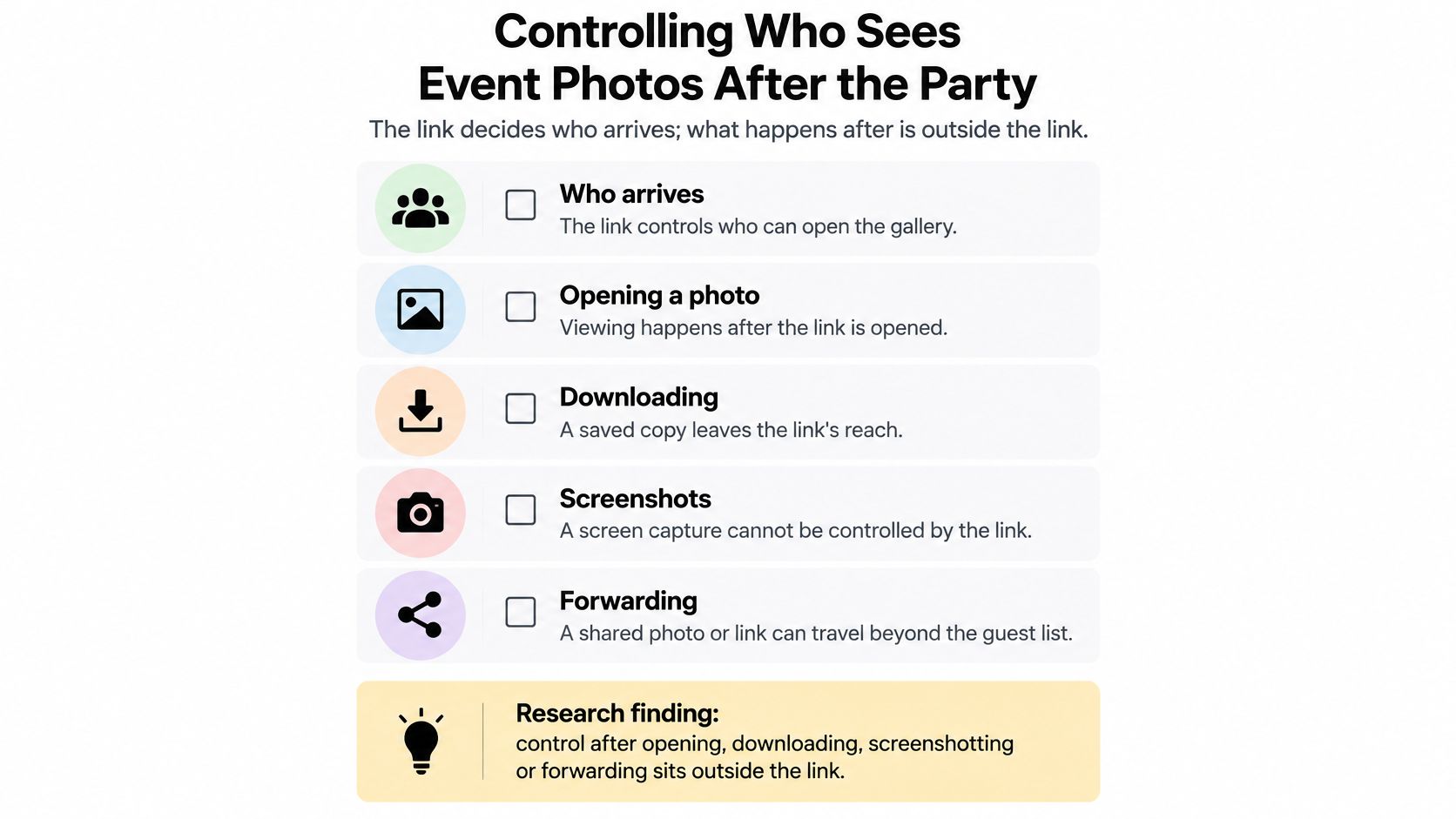
A link controls access to a page, not every later use of a picture. Once someone saves a file or captures the screen, removing the online album won't remove that separate copy.
Research on online image privacy published by ACM treats privacy as a lifecycle issue encompassing collection, sharing, storage, and onward use. It identifies risks associated with unknown recipients and persistent visibility, while recognizing that private sharing can still lead to forwarding or indefinite storage.
Private doesn't necessarily mean controlled. Plan for what recipients can do, not just whom you intend to invite.
Decide the rules before publishing
- Who may enter: Publishing an album in our workflow makes the gallery visible to everyone who has the link. Link holders aren't necessarily the same people as your original guest list.
- When collection ends: Choose an upload cutoff and a separate point for ending gallery access. Don't assume stopping contributions also stops viewing.
- What gets reviewed: Check for accidental uploads, sensitive moments, and people who asked not to appear before selecting pictures for publication.
- What stays unpublished: Keep uncertain images in organizer-only drafts. A useful contribution doesn't have to become a shared photograph.
- How access changes: You can unpublish an album at any time. Tell guests that this withdraws the online display, not copies they already hold.
- How removal works: Provide a contact and ask people to identify the image without having to explain personal circumstances publicly.
- Where originals go: Decide who keeps the exported archive, who can access that copy, and when unnecessary files will be deleted.
Give exported copies their own plan
The gallery belongs to the person who created the event, and our workflow lets that organizer download the full collection and take it elsewhere. That portability is useful, but the exported copy needs its own storage and retention decisions. Our private photo gallery guide can help you think through the audience before publishing.
For children's celebrations, seek parent or guardian consent before publishing identifiable faces. At workplace events, ask staff rather than assuming attendance means agreement to appear in a shared album.
Publish less, publish later, and remove on request.
EventUploader offers a branded upload page, printable QR code, and organizer controls for collecting event photos and videos, with shareable galleries on eligible plans. Visit EventUploader to create your event, try a guest upload, and prepare your collection page before sending invitations.