How to Download Them All from Event Galleries
Learn how to download them all from your event gallery in original quality. Master bulk exports, archive organization, and privacy controls for any platform.
The party is over, the last guests have gone home, and the event gallery is still filling your screen with memories. There are candid portraits, short videos, duplicate shots, dark frames, screenshots, and files from phones that handle media in completely different ways. The collection feels valuable, but it also feels like a problem.
“Download them all” sounds like a simple instruction. In practice, a reliable export must preserve original files, survive large batch transfers, retain useful metadata, and give you control over what gets shared afterward. The download button is only the beginning of the archive workflow.
Table of Contents
- The Reality of Bulk Event Photo Exports
- Exporting Original Quality Files with EventUploader
- Navigating Alternative Platforms and Cloud Folders
- Understanding File Integrity and Metadata Preservation
- Managing Privacy and Bystander Consent in Bulk Archives
- Organizing and Distributing Your Final Event Archive
The Reality of Bulk Event Photo Exports
A gallery can look perfectly organized online while becoming chaotic the moment you move it to your computer. A preview may load quickly because the platform has generated a smaller derivative, but that preview isn't necessarily the file your guest uploaded. Videos introduce another layer of friction. They may be much larger than photos, use formats that older devices struggle to play, or fail halfway through a browser download.
The usual failure is gradual. A host saves a few favorite images, assumes the rest can wait, then discovers that the shared link has expired, the chat history is difficult to search, or the platform only offers individual downloads. A collection tool has done its job if it gathers contributions, but the export process determines whether those contributions become a dependable long-term archive.
A gallery is not an archive
A useful archive needs more than thumbnails and a convenient viewing page. It should give you access to the original uploaded files, a clear event-level export, and enough information to identify incomplete or failed transfers. A single ZIP file can be convenient, but convenience becomes risky if the package skips large videos or breaks during creation.
The difference matters for weddings, family milestones, conferences, festivals, and sports events. Guests may upload photos, HEIC files, screen recordings, and high-resolution video from different devices. Treating every item as if it were the same image creates problems later, especially when you need to print, edit, repurpose, or preserve the material.
Practical rule: Treat the online gallery as the working collection and the exported originals as the master archive.
What a dependable export should provide
Before you click download, check whether the platform can:
- Export the whole event: You shouldn't need to select files page by page.
- Preserve originals: The export shouldn't replace uploaded files with compressed previews.
- Handle mixed formats: Photos and videos should remain distinguishable and usable.
- Report progress: Large jobs need visible status rather than an unexplained browser freeze.
- Support verification: You need a way to identify incomplete, truncated, or missing files.
That last point is often ignored. A download that ends without an error message isn't automatically complete. For memories that can't be recreated, a manifest, file count, checksum, or per-file status is more valuable than a polished gallery interface.
Exporting Original Quality Files with EventUploader
EventUploader supports individual downloads and a full event export as a ZIP file, with uploaded originals left untouched. That makes it suitable for hosts who want one collection rather than a series of manually saved previews. The exact dashboard labels can change, so follow the current controls shown in your event workspace.
A practical export sequence
- Open the event dashboard. Confirm that uploads have finished arriving and that the event is still accepting contributions only if you expect late additions.
- Review the collection. Look for obvious gaps, duplicate uploads, or files that appear to be processing. Don't close the event before checking the status of recent contributions.
- Choose the full export option. Select the control for downloading or exporting all event media rather than saving individual items.
- Start the batch job. A large export may need processing before the ZIP becomes available. Keep the dashboard open or return to it later to check the job status.
- Save the package locally. Use a stable connection and enough free storage for both the downloaded archive and its extracted contents.
- Verify before deleting anything online. Extract the ZIP, inspect photos and videos, and compare the package contents with the event dashboard.
For a deeper look at preserving file quality during downloads, see high-resolution photo downloads.
Plan for the awkward files
Original quality means the export may be inconveniently large. That's a feature of preservation, not necessarily a platform defect. A 4K video, RAW photograph, or HEIC image can require more storage and may not preview correctly in every application.
Don't judge the export by whether every file opens in the same photo viewer. First confirm that the files exist and retain their extensions. Then test representative photos and videos in the software you plan to use, such as Apple Photos, Windows Photos, VLC, or your editing application. Keep the untouched ZIP or source files separate from any converted copies.
Archive first, convert second. Make any compatibility version a derivative. Never replace the original simply because a guest's file is inconvenient to view.
Navigating Alternative Platforms and Cloud Folders
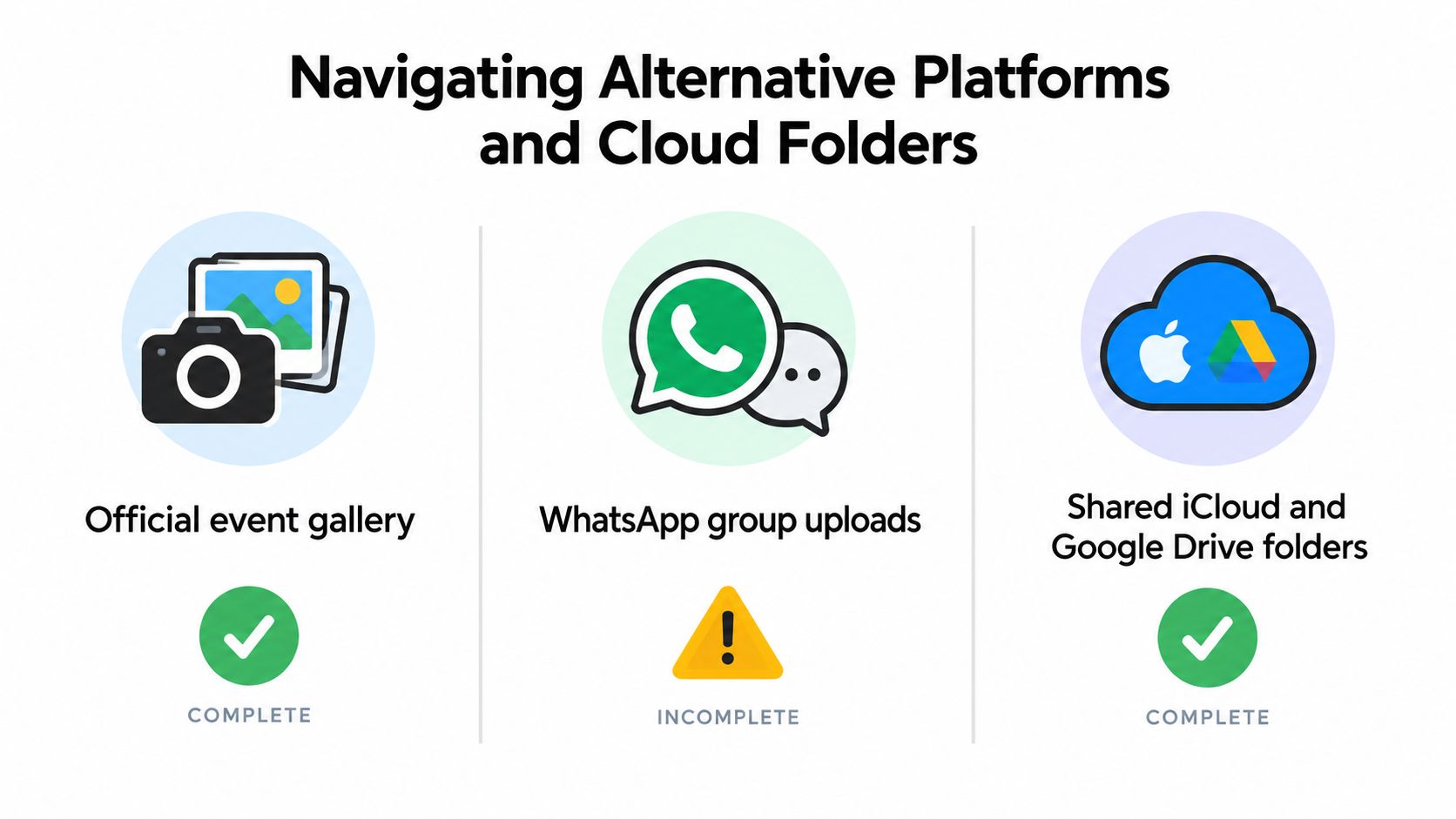
The cleanest event archive is the one guests upload to directly. Real events are less tidy. Someone sends photos in a WhatsApp group, another person adds images to a shared iCloud album, and a photographer shares a Google Drive folder after the event. Those sources can contain valuable material, but they don't behave like one controlled collection.
Why fragmented sources are difficult
Messaging apps are designed for conversation, not archival transfer. Images may be compressed, forwarded multiple times, stripped of useful metadata, or buried under replies. Saving media manually also makes it hard to know whether you've captured every file.
Shared cloud folders offer more control, but permissions can block downloads, folder structures can vary between contributors, and owners may reorganize or remove files without warning. A shared album may show a complete visual experience while still giving you no reliable record of original file names, upload status, or missing contributions.
Social platforms create a separate problem. Posts and stories are optimized for viewing and sharing, not for preserving camera originals. Even when an account export is available, it may include unrelated account data, confusing filenames, resized media, or files scattered across an awkward directory structure. The process described in downloading all pictures from Facebook illustrates why a platform export isn't always the same as an event archive.
Compare the sources before you consolidate
| Source | What works | Where it breaks |
|---|---|---|
| Official event gallery | One destination, event-level context, and a defined collection | Requires guests to use the intended upload route |
| WhatsApp group | Familiar and quick for casual sharing | Compression, conversation clutter, and manual saving |
| iCloud or Google Drive folder | Useful for photographer deliveries and selected albums | Permissions, inconsistent naming, and fragmented ownership |
| Social media | Fast public visibility | Poor control over originals, privacy, and completeness |
Use alternative sources as recovery channels, not as your primary archive. Ask contributors to upload originals to the event portal when possible. If a file arrives through chat or social media, save it into a clearly marked intake folder and record where it came from before adding it to the master collection.
Understanding File Integrity and Metadata Preservation
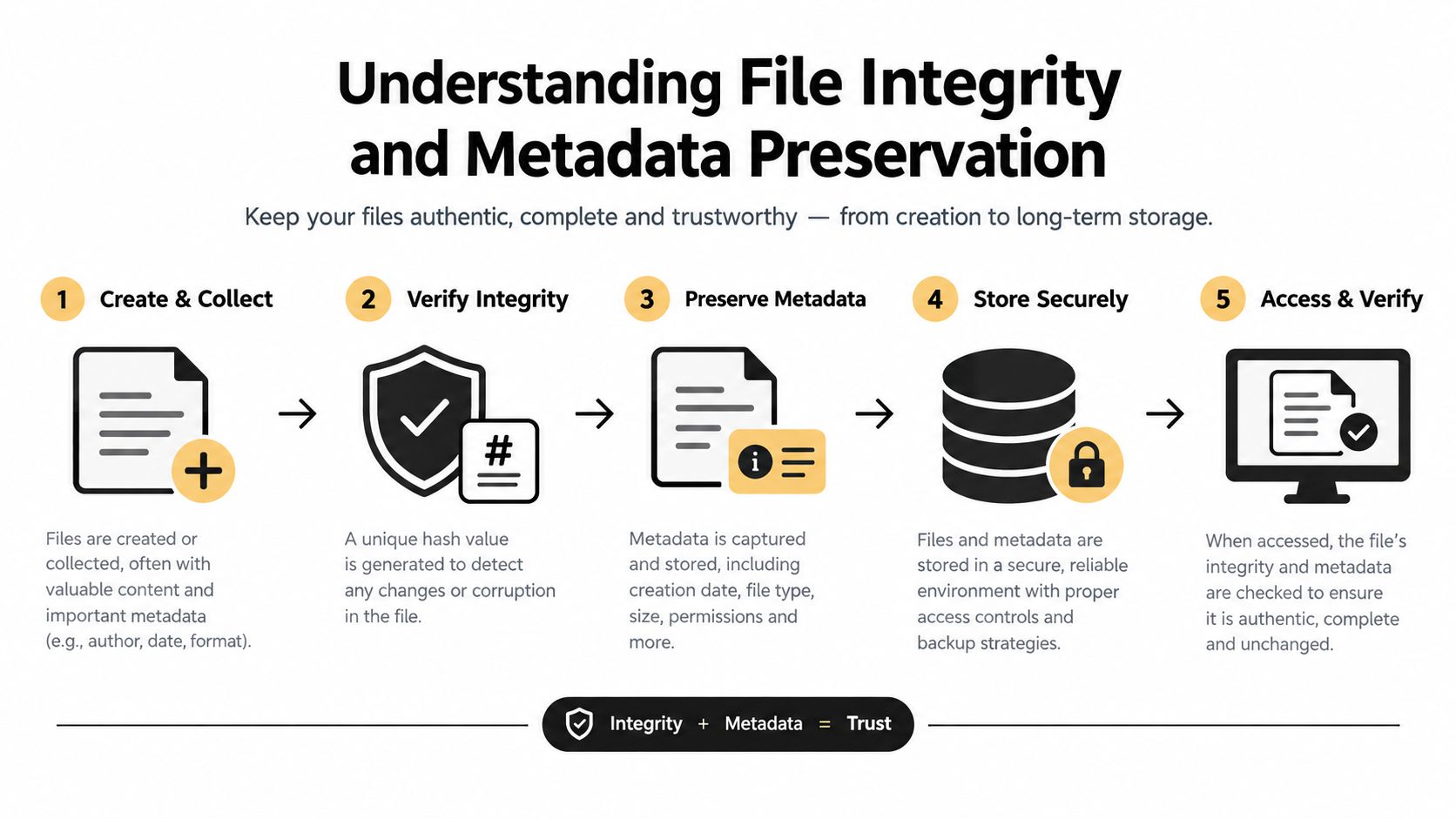
A successful download isn't just a folder full of files. It is a transfer that preserves the identity and contents of each file from upload to storage. That includes the MIME type, byte size, extension, EXIF metadata, capture timestamp, and, where appropriate, the original filename.
What metadata does for you
EXIF data can help identify when and how a photograph was captured. Depending on the device and settings, it may include location, camera model, lens information, orientation, and timestamps. That information can help with sorting and searching, but it can also create a privacy issue when you share files widely.
File identity matters just as much. A photo that has been recompressed may look fine on screen but no longer match the uploaded bytes. A video with a changed container or damaged ending may play inconsistently. A partial ZIP may contain familiar filenames while still missing content.
The integrity chain
A reliable export workflow should create an auditable path:
- Receive the original file without client-side recompression.
- Record its properties, including type, size, metadata, and a stable asset identifier.
- Store the binary safely while generating smaller previews separately.
- Package the originals through a batch process that doesn't convert formats on its own.
- Validate the result by recalculating checksums and comparing them with the upload manifest.
A cryptographic checksum is useful because it can reveal truncation, accidental conversion, duplicate content, or an incomplete archive even when the filename looks correct. Hosts don't need to calculate checksums manually for every family event, but professional photographers, venues, and corporate teams should ask whether their export process supports manifest-backed validation.
A preview proves that something can be displayed. A verified original proves that the archive contains the file you intended to keep.
Test the complete path under realistic conditions. Large files, weak cellular service, interrupted transfers, older phones, and simultaneous uploads expose weaknesses that a single desktop download won't reveal. Keep the original export intact, and create working copies for editing, renaming, format conversion, or online sharing.
Managing Privacy and Bystander Consent in Bulk Archives
Downloading everything doesn't mean you should publish everything. A complete event archive can include children, people in the background, private conversations, employee name badges, visible addresses, location metadata, and moments that guests never intended for public distribution.
A 2025 CHI study involving 486 participants and 864 image scenarios found that comfort with public photo sharing depended strongly on context. The same research also highlights a practical limitation of automated bystander detection. Systems can miss people who aren't clearly the main subject, so a machine-generated privacy pass shouldn't replace human review.
Keep three versions, not one
The safest workflow separates the archive according to purpose:
- Archival master: Original files retained for private preservation, with metadata intact unless there is a reason to remove it.
- Sharing set: Selected photos reviewed for faces, sensitive backgrounds, location data, device identifiers, and confidential information.
- Working set: Cropped, edited, resized, or converted material prepared for social posts, slideshows, or guest galleries.
This separation prevents a common mistake: distributing the untouched master because it is the easiest folder to share. Removing metadata from a sharing copy can reduce exposure, but it doesn't resolve consent for visible people. Review the image itself and remove or restrict files that shouldn't circulate.
Make consent operational
Consent should be reflected in the upload instructions, event signage, photographer agreement, and post-event sharing process. Give guests a clear way to raise concerns and define who can access the gallery after the event. For organizations handling recurring events, guidance on secure data management in Singapore offers useful context for treating access, retention, and sensitive information as operational responsibilities rather than afterthoughts.
The practical details are straightforward:
- Limit access: Share curated folders with the people who need them.
- Review backgrounds: Check badges, screens, addresses, children, and private moments.
- Strip selectively: Remove location and device metadata from public copies where appropriate.
- Honor objections: Have a process for removing a file or restricting access after publication.
- Set retention rules: Decide when temporary exports and unnecessary duplicates should be deleted.
For a clearer front-end process, use a photo consent form workflow that tells contributors how uploads may be used. It won't eliminate every ambiguity, but it gives hosts a stronger basis for responsible distribution.
Organizing and Distributing Your Final Event Archive
The export is complete, but an unstructured folder isn't a finished archive. Create a top-level folder named for the event, then separate originals from derivatives and keep videos distinct from still images. A practical structure might look like this:
- 01 Originals
- 02 Videos
- 03 Curated sharing set
- 04 Edited selections
- 05 Documents and manifests
- 06 Temporary intake
Use filenames that retain the source name when it carries useful information. If renaming is necessary, add a consistent event prefix and sequence rather than replacing every identifier with vague labels such as “IMG_0001.” Don't overwrite originals during cleanup. Copy first, then sort.
Back up before you distribute
Keep the untouched export in one protected location and a second backup somewhere separate. Verify that the backup can be opened, especially for video. Older phones, browsers, and televisions may not support every codec or container, so create compatible viewing copies while retaining the source files.
For a broader approach to taming folder chaos with Tintd, focus on naming rules, ownership, duplicate handling, and a clear distinction between active working files and closed archives. Those habits matter more than a feature-rich folder application.
Share less, but share it well
A broadly accessible gallery can encourage participation during the event, yet a full unrestricted export can duplicate sensitive content across many devices. Send guests a curated gallery or selected folder, and keep the master archive with the host, family, photographer, or designated organization. If people need downloads, make the sharing set easy to browse and explain which files are original, edited, or suitable for public use.
Before closing the project, record the event owner, storage locations, access permissions, and deletion date for temporary copies. A few minutes of documentation can prevent years of uncertainty about which folder is the authoritative archive.
EventUploader gives hosts a branded upload page, a direct link or QR code, live collection from guests, and an event-level export for original photos and videos. Set up the upload workflow before the event, verify the master download afterward, and use the same collection to publish a reviewed gallery by visiting EventUploader.