QR code photo sharing
QR code photo sharing: one code, every guest's photos
Print one QR code. Guests scan it with their phone camera and upload their photos and videos in original quality — no app, no account — and everything lands in one place for you.
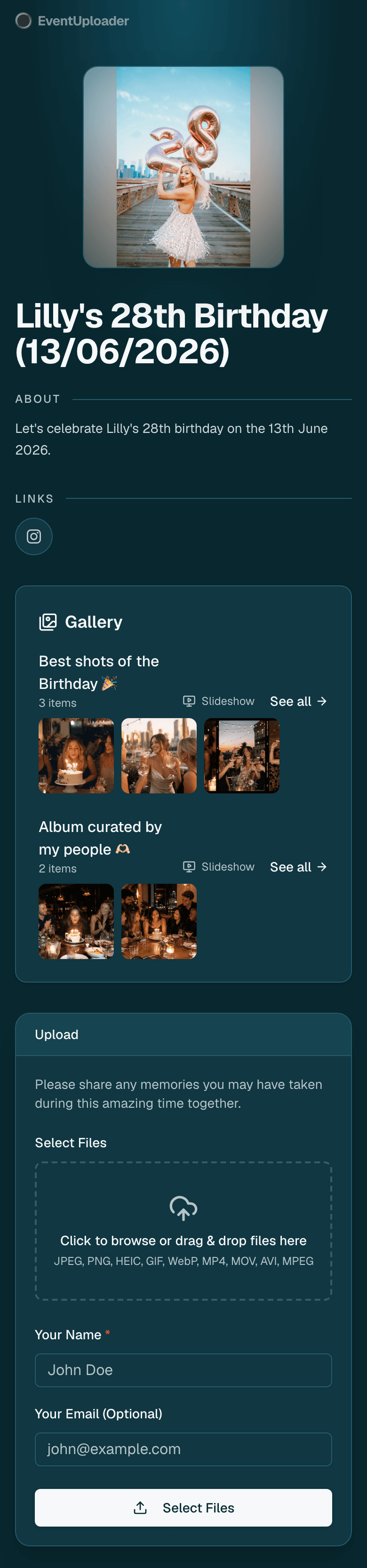

QR code photo sharing works like this: you create an upload page for your event, print its QR code and put it where guests will see it. Scanning the code opens the page in the phone's browser, where guests pick photos and videos from their camera roll and send them in a couple of taps. Nothing to install, nothing to sign up for.
Every upload arrives in your dashboard as it happens, in the quality it was shot in. You can show the photos on a screen during the event, make albums to share afterwards and download everything in one go — for a wedding, a party, a concert, a conference or any other event.
How QR code photo sharing works
- 1
Create your event
Name your event and add your logo, colours and a welcome message. It takes a couple of minutes, and the free plan needs no card.
- 2
Print or share the QR code
Download the event's QR code and put it on table cards, signs, invitations or a screen. You can also send the link in a group chat or an email.
- 3
Guests scan and upload
Guests point their phone camera at the code, choose photos and videos and send them. No app and no account; asking for a name or email is up to you.
- 4
Everything lands in one place
Uploads appear in your dashboard within seconds, in original quality. On a paid plan, show them in a live slideshow, publish albums and download everything as one ZIP.
Why guests actually use it
No app, no account
Guests scan and upload from the browser they already have, on iPhone or Android. Every extra step loses guests; this has none.
Photos and videos in original quality
Files arrive exactly as they were shot — JPEG, HEIC, PNG, MP4, MOV and more — not the compressed copies a group chat passes around.
Your event, your design
Your logo, colours and welcome message on the upload page, and on paid plans a QR code in your colours, with your shape and logo.
Live on a screen
On paid plans, a slideshow shows new uploads within seconds, so guests see their photos on the big screen while the party is still going.
Nothing is deleted
Files stay until you delete them, on every plan. Guests are never turned away when you hit your storage limit: extra uploads are kept, locked, until you upgrade.
In five languages
The upload page speaks English, French, Spanish, German and Portuguese, so international guests know exactly what to do.
QR code to an upload page, or to a shared album?
You can also make a QR code that opens a shared album or folder. It works, but each option asks something of your guests:
Google Photos shared album — Guests have to sign in with a Google account to add photos.
iCloud shared album — Only people with an Apple device can add photos; guests on Android can only look.
Google Drive folder — Uploading usually means signing in to Google, and the folder's sharing settings have to be right.
WhatsApp or a group chat — Photos are compressed unless guests choose HD, and they end up scattered across chats.
EventUploader upload page — Any phone, no app, no account, original quality — and everything in one place.
If a shared album suits your guests better, our free tools make a QR code for it in seconds:
Where to put the QR code
- On every table, about 3 cm (1.2 in) wide, with one line of text: “Scan to share your photos”.
- At the entrance, the bar and the photo booth corner — wherever guests wait for a minute.
- On the big screen during the speeches or the first dance, with the slideshow running next to it.
- In the invitation or the programme, so guests know about it before they arrive.
- Scan it with an iPhone and an Android phone before you print, and print it dark on a light background.
Free tools to print it:
Made for your event
Weddings
Collect every guest photo and video branded to the day, QR code on the tables.
Parties
Birthdays, retreats, leaving-dos — one link, every photo, no more group-chat chases.
Birthdays
From first birthdays to 50ths — every guest's photos of the candles, in one gallery.
Conferences & corporate events
A branded media portal for your conference, with the controls your comms team needs.
Festivals & concerts
Turn the whole crowd into your content team — one QR code, every angle of the weekend.
Communions & christenings
First communion, christening, baptism or confirmation — every family photo in one place, no app for the grandparents.
What it costs
Start free: 500MB, with the upload page open for 14 days and no card. For a wedding or a big party, One Timer is €25 once for 50GB and 30 days of uploads. If you run events often, Light (€12/month) and Pro (€40/month) have no upload deadline. On every plan, files stay until you delete them.
See pricingCommon questions
How does a QR code for photo sharing work?
The QR code opens your event's upload page in the phone's browser. Guests choose photos and videos from their phone and send them, and they arrive in your dashboard within seconds. There's no app to install and no account to create.
Do guests need an app or an account?
No. The upload page runs in any phone browser, on iPhone and Android. You can ask for a name or an email, but nothing is required unless you turn it on.
Is it free?
Yes, to start: the free plan gives you 500MB in original quality with the upload page open for 14 days, no card needed. One Timer (€25 once) gives 50GB and 30 days of uploads; the monthly plans have no upload deadline.
Can guests upload videos too?
Yes. Guests can send photos (JPEG, PNG, HEIC, WebP, GIF) and videos (MP4, MOV and more), in their original quality. You can also limit an event to photos only or videos only.
How do I make a QR code for wedding photos?
Create an event for your wedding, then download its QR code from the dashboard and print it on table cards or a welcome sign. On paid plans you can give the code your colours and logo, and our free sign generator turns it into printable signs.
How long can guests upload, and how long are files kept?
Guests can upload for 14 days on the free plan, 30 days on One Timer and with no deadline on the monthly plans. Files are never deleted automatically on any plan: they stay in your dashboard until you delete them.
Can I show the photos on a screen during the event?
Yes, on paid plans. Publish an album and open its slideshow on a TV or projector: new uploads appear within seconds.
What if a guest can't scan the QR code?
Share the event link instead — by text, email or in a group chat. It opens the same upload page.
Ready to collect every moment?
Set up your event in under 2 minutes.