How to Make a Birthday Party Video from Guest Clips
Collect guest clips and cut a birthday party video: QR upload, shot list, phone settings, export sizes, captions, and a private share.
You've got twenty blurry cake clips, but nobody recorded the whole verse of “Happy Birthday.” The fix isn't a more complicated camera setup. It's deciding what the family wants to keep, assigning a few key shots, and collecting the footage somewhere guests can't accidentally scatter it across chats.
Plan for two versions from the same phones: a 60-to-90-second highlight relatives can watch quickly, and a 3-to-5-minute family cut that leaves room for a full toast and the party's natural pace.
Table of Contents
- Moments That Belong in the Birthday Party Video
- Consent Rules Before Anyone Sees the Cut
- How to Collect Clips From Every Guest
- Resolution Frame Rate and Clip Length
- Sound Light and Steady Coverage Tips
- How to Assemble and Export the Montage
- Publish the Gallery Guests Can Rewatch
Moments That Belong in the Birthday Party Video
Assign the moments before the party
Use this table to give guests simple jobs. One person doesn't need to film everything, and the birthday person's parent can stay present instead of trying to cover the whole room.
| Moment | Length | Framing | Who films |
|---|---|---|---|
| Greetings at the door | 15–20 seconds | Wide | Any guest |
| Room, food, and cake details | 5–8 seconds each | Close-up | Any guest |
| Games or activities | 8–12 seconds | Medium | Nearby adult |
| Birthday person walks in | About 10 seconds | Medium-wide | One named adult |
| Candles through applause | 45–90 seconds | Medium, then faces | Named adult not singing into the phone |
| Toast or thank-you | Full speech | Medium on the speaker | One listener |
| Gift reactions | 5–10 seconds each | Close-up | Person beside the gifts |
| Kids with grandparents | 8–12 seconds | Medium | A parent |
| After the table clears | 5–8 seconds | Wide | Host |
A continuous candle clip matters more than a collection of perfect close-ups. Ask the assigned adult to start before the candles are lit and keep recording through the song, the blow, and the applause. For the toast, hold the shot through the full speech. A few seconds of silence before and after make it easier to edit without cutting off a laugh or the first words.
Guests already tend to record and share at events. A 2016 EventTrack study found that 49% of surveyed consumers created mobile video at branded events, and nearly all who captured content shared it afterward. At a birthday, that means useful angles may be sitting on several phones, then getting lost in separate chats.
Give guests one place to upload their clips, rather than asking them to send them individually. With EventUploader, guests can upload from a phone using the organizer's unique link or QR code, without signing up. The organizer creates an event with a name, short description, and welcome message, and the event name becomes the upload link.
The night before, print the table as a checklist and mark a name beside each assigned moment. Assign the song before anyone arrives. That single decision can prevent another birthday video with plenty of cake and no complete “Happy Birthday.”
Consent Rules Before Anyone Sees the Cut
Put the permission request in the invitation, and choose one person to approve the finished video before sharing it. For example: “We're collecting short videos for a private family cut. Tell us if you or your child should stay off camera. We won't post the party publicly.” Guests should know the plan before they receive an upload link.
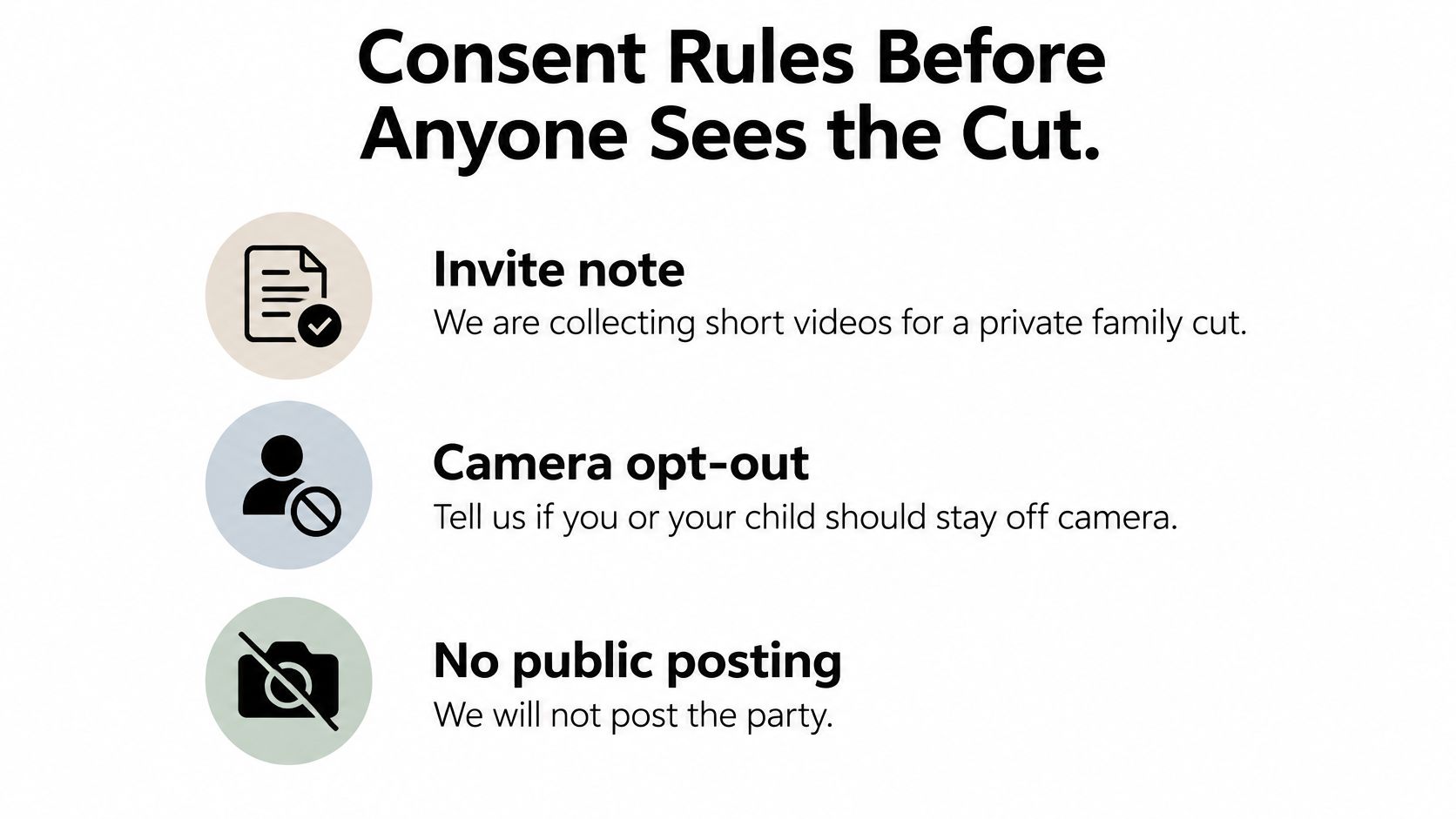
Make the boundaries easy to follow
At the door, repeat the request in plain language: the footage is for the family, and guests shouldn't post other people's children to their own social feeds. One adult, usually a parent of the birthday child, should own the final decision about what goes into the cut and who receives it. A clear approver keeps the group from treating every guest's upload as automatic permission to publish.
A 2025 Rutgers survey of 923 New Jersey parents and 202 teens found that roughly three in ten parents weren't confident monitoring their child's social-media use, according to the Rutgers survey report. A private family archive puts control with the people responsible for the children, instead of relying on every guest to remember the rules after the party.
Avoid showing a child's full name, age, school, or recognizable home details if the video might travel beyond the invited family. If someone asks to have a clip removed, take it out of both the shared gallery and the exported video. Deleting it from one chat doesn't remove it from a separate saved copy.
Keep a short yes list, do-not-film list, and one approver. Share a captioned family cut with relatives, adding subtitles in another language when the family needs them. Don't make a public post unless every parent whose child appears has agreed. If you want a ready-made consent document to adapt, use this photo consent form guide.
How to Collect Clips From Every Guest
A good edit starts with a tidy batch of files, not a long search through messages. Set up one collection point before the party, tell guests how to use it, and give yourself a clear moment to close collection.
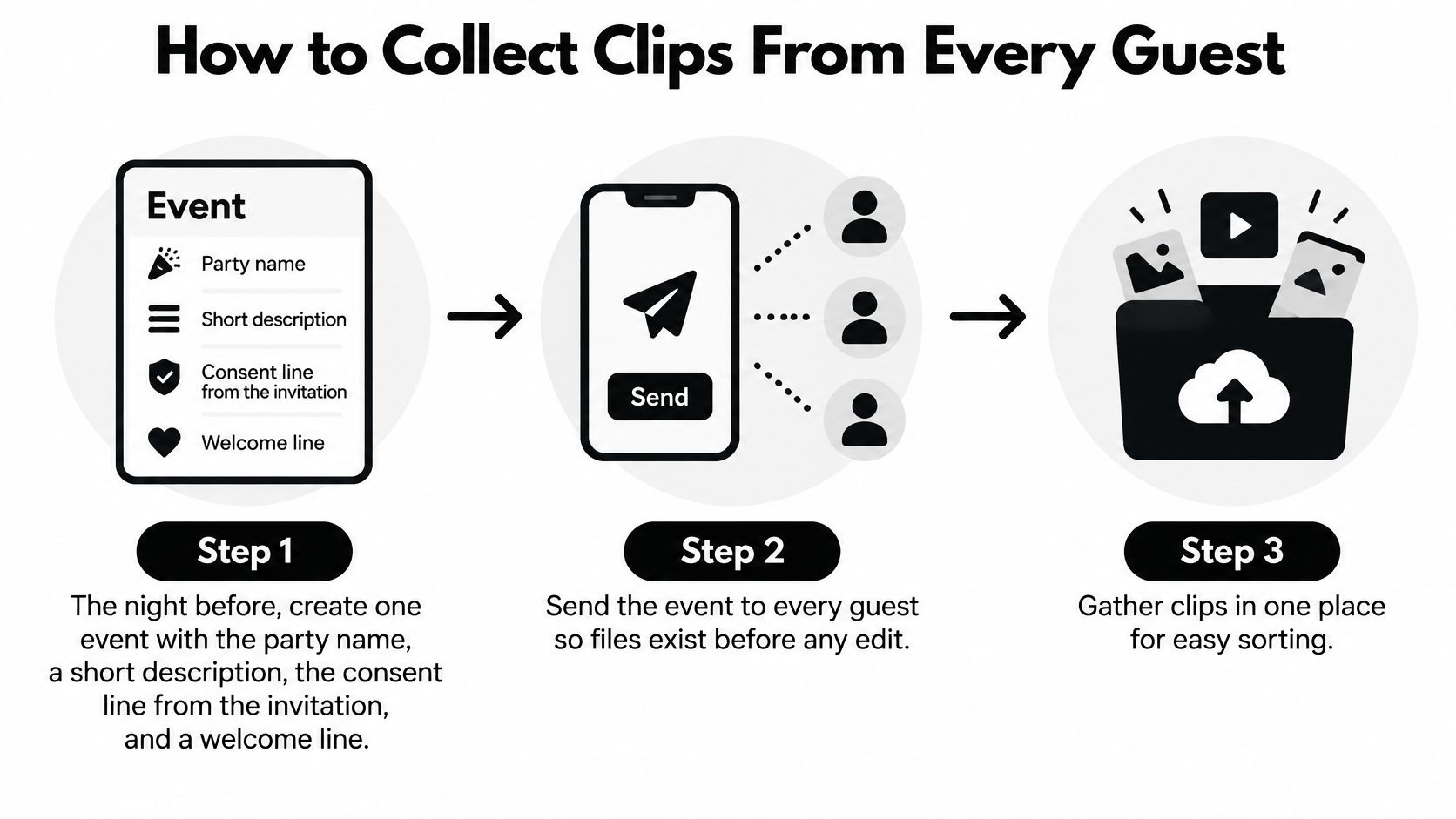
Create the event the night before. Use the party name, a short description, the invitation's consent line, and a welcome message guests will read, such as “Upload videos of Noah turning 40, cake first.” A concise instruction helps guests understand what belongs in the collection.
Choose video-only uploads unless you want stills for title frames. Photos can be useful for a simple opening or closing card, but a mixed batch of stills and clips can make the footage harder to sort. An organizer can set the event to accept only videos, only photos, or both.
Share one link in the morning message and print the matching QR code. Put the QR near the food or cake table, where guests already pause, and make it large enough to scan without bending down. EventUploader gives each event a unique upload link and printable QR code.
Tell guests they can open the link, pick clips from their camera roll, and leave. They don't need a separate app or account. If you're comparing ways to receive footage, this guide to a video upload portal explains the kind of simple handoff to look for.
Ask once at cake time for a quick reaction clip. Invite guests to capture a short “happy birthday” message before they put on their coats. A single clear request is more useful than repeated reminders throughout the party.
Close uploads the next morning. This gives late guests a chance to contribute without leaving the collection open indefinitely. A closing point also gives you a defined batch to review and edit.
Download the full batch in original quality the same day. Save it in one folder you control before opening an editing app, so you have a clean backup and can sort without scrolling through a group chat.
Plan for the small snags
A grandparent's phone may be full. Ask a younger relative to help send the clip, or have the relative film the moment on their own phone. A child's device may be restricted by a parent's account, so check that the upload link works on the phone the child will use. Venue Wi-Fi can also be unreliable; tell guests they may need to allow cellular data for the upload.
Keep the instructions short and practical. The finish line is one folder owned by the host, not a Monday morning hunt through messages, camera rolls, and social posts.
Resolution Frame Rate and Clip Length
Before the first guest arrives, clean the lens, charge the phone, and check that it has enough free space. Test the audio and choose the delivery orientation, then keep one consistent look for the party. University media-production guidance from St. Lawrence University recommends a repeatable phone workflow and notes that 4K UHD can provide room to reframe while using storage quickly.
| Cut | Resolution | Frame rate | Shutter | Hold |
|---|---|---|---|---|
| Social or web highlight | 1080p or 4K | 30 fps | About 1/60 | 5–8 seconds |
| Cinematic family cut | 4K, 3840 × 2160 | 24 fps | About 1/48 | 8–12 seconds |
| Planned slow motion only | 1080p to save space | 60 fps | About 1/120 | 3–5 seconds |
| Song, speech, or toast | Match the rest of the party | 24 or 30 fps, never 60 | Match the frame rate | Full sequence, no cuts |
For a straightforward web highlight, 30 fps is a dependable default. Choose 24 fps if you're aiming for a more cinematic family cut. Use 60 fps only for a planned slow-motion shot, such as confetti or the candle blow. It isn't a good choice for the song, where you want to preserve the whole moment rather than stretch a small fragment.
Three rules that prevent messy footage
Don't pinch to zoom. Walk closer instead, because digital zoom can degrade the image. Don't flip from vertical to horizontal halfway through the party; mixed orientation makes the edit feel disjointed. And don't rely on flash, which can create harsh light and pull attention away from the room.
For guests who won't adjust settings, give them a simple default: 30 fps, horizontal framing, and no digital zoom. A 4K recording can help you crop a wider view into a tighter shot later, but it fills storage quickly, so check capacity and make a backup the same day. Keep the camera steady and capture whole sequences, especially the candle lighting and song, instead of short fragments that leave the editor without a clean start or finish.
Sound Light and Steady Coverage Tips
A clear song beats a sharper cake. Before recording, identify the sounds most likely to drown out a voice: the speaker, blender, open window, and crowd gathered by the cake. Move the phone or the speaker away from those sources, then record a short test and replay it through headphones before guests arrive.
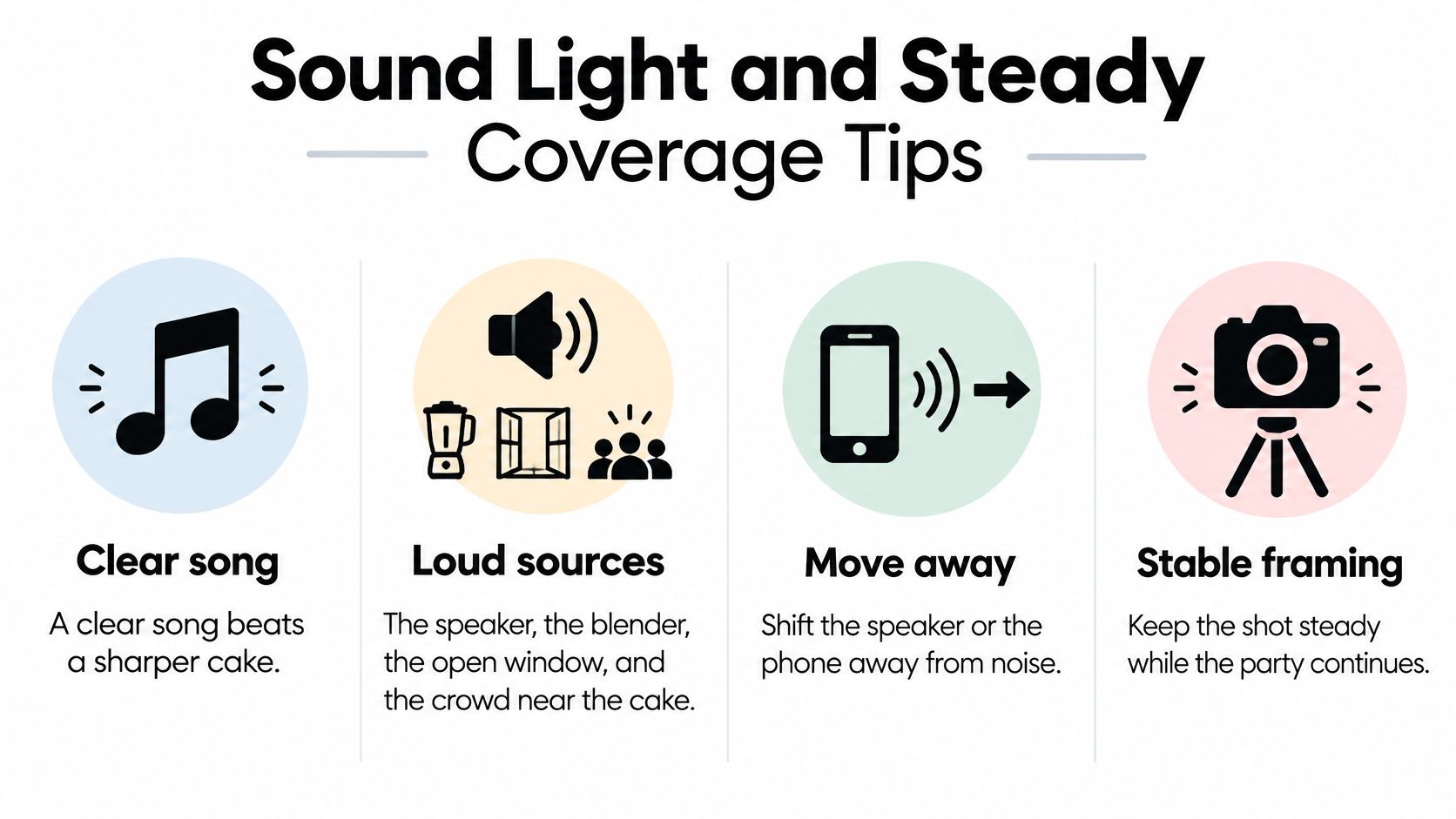
Keep the phone close to whoever's speaking. If someone already owns a small external microphone, use it for a toast or thank-you speech. Don't narrate from behind the camera while someone else talks; your voice can compete with theirs, and the person filming may miss the reaction.
Record a complete sequence
For the main birthday moment, start before the birthday person enters or before the candles are lit, then keep recording through the full song, the blow, the applause, and the first reaction. Beginning and ending each clip while the phone is already steady gives the editor cleaner edges. The birthday-video recording guidance from Folksee likewise emphasizes clear audio, complete moment coverage, and steady framing.
Use three kinds of shots: a wide view that shows the room, a medium view of people together, and a close-up of a face or cake detail. Hold each view long enough to cut on a pause, rather than stopping immediately after the person moves or speaks. For a conversation, move closer instead of zooming in.
Light matters most when faces disappear against a bright background. Put a window or lamp in front of the person, not behind them. If the window is behind someone, tap their face to set focus and exposure before recording. Avoid relying on the phone flash, which can create hard shadows and spoil the room's natural feel.
If the song is clipped or missing, no export setting will save the video. Fix the room and the distance before worrying about filters.
How to Assemble and Export the Montage
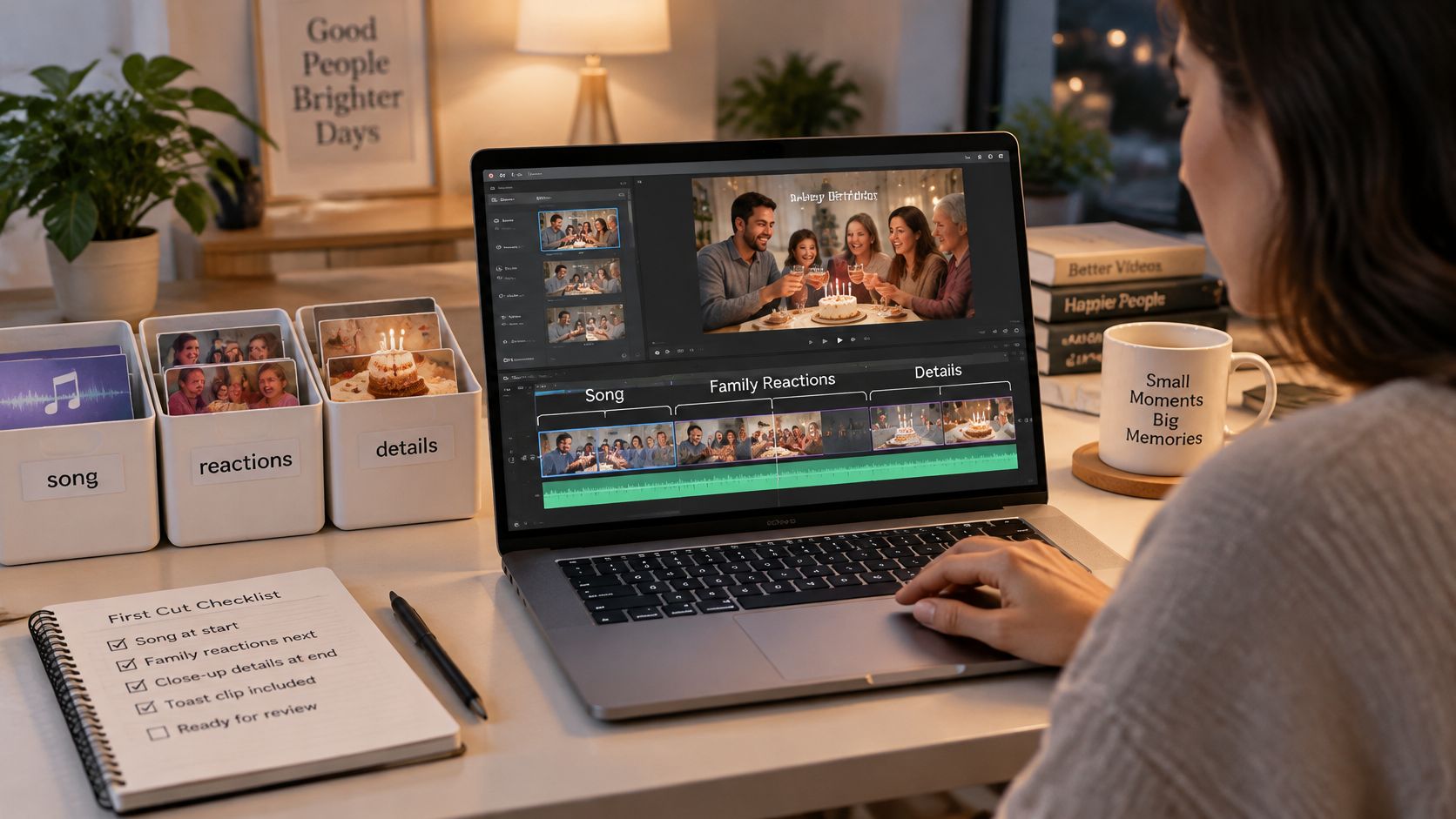
A family record gets built in layers. Sort the downloaded clips into three piles first: the continuous song, reactions, and details. The song pile holds the spine of the video. The other two piles supply the beginning and the ending.
Build the family version first
Lay the complete song clip on the timeline and keep it intact. Lyrics, candle blow, applause and first reaction stay together in one unbroken chain. That chain is the part relatives will rewatch in five years.
Trim only the rough edges with cover footage. A greeting at the door works before the song. A cake detail or gift reaction works after the applause. Keep those inserts off the lyrics so singing and blowing stay clean.
Add a title only with family consent. A name and age give warm context for grandparents and cousins. Leave it off if the cut might travel beyond the family circle.
Duplicate that finished sequence, then trim the copy into a 60-to-90-second highlight. Cut on movement or a pause. Stopping mid-word or mid-expression makes even a short clip feel rushed.
Caption both versions with care. Identify speakers when the scene needs it, write out the birthday-song lyrics, and label key visual beats like candles blown or gift opened. Research on social media video captioning highlights the importance of captions for deaf and hard-of-hearing, neurodivergent, and multilingual viewers, and you can read that work in the Monash study on a decade of social media video captioning. If relatives speak more than one language, prepare subtitles in the languages they need. Export a quieter alternate too, with fewer cuts and lower music, for anyone sensitive to fast edits or loud tracks.
Captions hold the record together when sound is off or hearing is limited. They preserve the exact words of the song instead of asking viewers to guess them later.
The guide to making an event recap video shows how to shape a longer cut as a story with a clear start and finish. For the highlight, export at 1080p, H.264 or HEVC, and 30 fps. Keep a 4K master of the family cut if the source was shot in 4K, plus a smaller shareable file. Name both files clearly with the date, and add a separate subtitle file when the family needs another language.
Here's a video walkthrough to pair with the editing process:
Publish the Gallery Guests Can Rewatch
Once the approver signs off, publish the selected clips and finished montage as a private album on the same link guests used to upload. The organizer can choose which photos and videos to include, and can unpublish the album if plans change. The album's full-screen slideshow can play the photos and videos one after another on a TV or projector, making it easy to revisit the party at the next family gathering.
Keep the gallery movable: EventUploader collects everyone's event media into one gallery owned by the organizer, and the gallery can be downloaded and taken elsewhere. Save the original files on the host's own drive during the same week, rather than leaving the only copies in a chat. For a separate project that turns video into promotional creative, a ShortGenius AI video ad maker may be useful, but a family archive doesn't need to become a public post.
This week, finish the handoff:
- Export both cuts.
- Publish the private album on the upload link.
- Text the link once to the family.
- Store the originals where the host can still open them in a year.
EventUploader gives you one link or QR code for guests to upload birthday videos and photos, without an app or account, and keeps the gallery under the organizer's control. Start a private collection for your party, then invite relatives to add their clips at EventUploader.