Family Picture Sharing Made Simple for Every Generation
Learn practical family picture sharing methods that work for grandparents, parents, and kids. Step-by-step workflows, privacy tips, and tool comparisons inside.
Your family group chat is full of photos, but finding the right one has become a project. A grandmother scrolls through hundreds of unread WhatsApp messages looking for the beach picture someone mentioned in August. A parent has the same images on an iPhone, Google Photos, and a laptop. An uncle saved a few favorites, but nobody knows which version is the original.
Good family picture sharing isn't about convincing everyone to adopt the same app. It's about creating one reliable path that works for the least tech-confident relative, while still giving parents, teenagers, and organizers enough control to manage the collection. The setup below focuses on what each generation will click, scan, open, and remember.
Table of Contents
- Why Family Picture Sharing Still Feels Hard in 2026
- The Four Main Ways Families Share Photos Today
- Setting Up a QR Code Gallery That Any Relative Can Use
- Comparing Cloud Albums and Private Gallery Tools
- A Repeatable Workflow for Family Events and Milestones
- Privacy and Consent Beyond the Obvious Advice
- Your Family Sharing Checklist and Common Questions
Why Family Picture Sharing Still Feels Hard in 2026
The grandmother in this scenario probably isn't unwilling to see the photos. She may already use WhatsApp every day, answer video calls, and open links when someone sends clear instructions. The problem is that the family album is buried beneath birthday greetings, recipe messages, forwarded videos, and unrelated conversations.
Family photo sharing breaks down for three structural reasons. First, interfaces change across generations. A parent might understand shared links, cloud permissions, and automatic backups, while an older relative may be comfortable only with a camera, a familiar messaging app, and a large tap target. Second, families use several devices at once, including Android phones, iPhones, desktop computers, and sometimes smart TVs. Third, links and attachments decay inside chat threads. A useful album becomes difficult to find long before anyone stops caring about it.

The least confident person sets the real limit
A technically elegant system can still fail if one relative needs a new account, a password reset, a special app, or an explanation of where downloaded files went. Every extra decision adds cognitive load, and the organizer usually ends up providing remote support.
A better setup gives each person a simple role:
- Toddler parents: choose what can be shared and approve sensitive images.
- Teenagers and adult siblings: upload quickly from their phones.
- Grandparents: open one link, scan one QR code, or view a printed card.
- The family organizer: maintains permissions, removes duplicates, and preserves the archive.
Practical rule: Design the workflow around the person most likely to need help. Everyone else can handle optional features.
The strongest systems also separate collection from conversation. A group chat remains useful for announcements and reactions, but it shouldn't be the permanent filing cabinet. The family needs one destination that stays recognizable after the event, with a name, a date, and a link that can be printed or saved.
Research helps explain why reducing friction matters. A field study involving seven small groups found that a lightweight photo-sharing workflow raised average sharing from 6.23 photos to 13.69 photos, more than twice the normal behavior in that study, as reported in the Microsoft Research photo-sharing field study. The lesson isn't that every family will achieve the same result. It's that people share more when the system removes export steps, attachment work, and recipient management.
The Four Main Ways Families Share Photos Today
In mixed-device families, the same pattern appears repeatedly: a Drive link for parents, a QR gallery for grandparents, and a cloud album for siblings. Each option solves a different access problem. The right choice depends less on the organizer's preference than on what the least technical relative will actually open.
No-app links
Google Drive, Dropbox, and WeTransfer suit a one-off batch. The organizer uploads the files, copies a link, and sends it in a message. Recipients can often view or download the images without installing an app or creating an account.
The trade-offs show up later. Links disappear inside message threads, permissions are easy to misread, and transfer pages can expire or look suspicious. WeTransfer works well for delivery, not long-term browsing. Drive and Dropbox make better archives, although a folder structure can intimidate someone who only wants to see the pictures.
QR code galleries
A QR code that opens a private web gallery often gives mixed-age families the simplest route. A relative opens the phone camera, points it at the square, and taps the prompt. There is no app-store search and no account setup.
This method fits weddings, birthdays, reunions, and graduations because the code can appear on a table card, invitation, fridge note, or printed family card. The organizer still needs to review privacy settings and test the page on both Android and iPhone. A printed code also gives grandparents a physical reminder instead of another message to find.
Dedicated private galleries
Event gallery tools add organization around the images. Depending on the service, they can provide curated albums, view-only access, download controls, upload pages, and a memorable destination.
They suit families that want a collection rather than a file dump. The cost is reliance on the vendor, so check how long the gallery remains available, whether visitors need an account, and how the organizer can export original files. Review a private photo gallery guide before choosing a service.
Cloud album ecosystems
iCloud Shared Albums and Google Photos shared albums are convenient when relatives already use the same ecosystem. Automatic synchronization reduces the organizer's workload, while family members can often comment or add their own images.
Platform friction remains the main weakness. Apple-focused workflows may feel less natural on Android or Windows. Google Photos can introduce account and sharing prompts that confuse occasional users. Cloud albums also tie the family to one provider's permissions, storage rules, and interface changes.
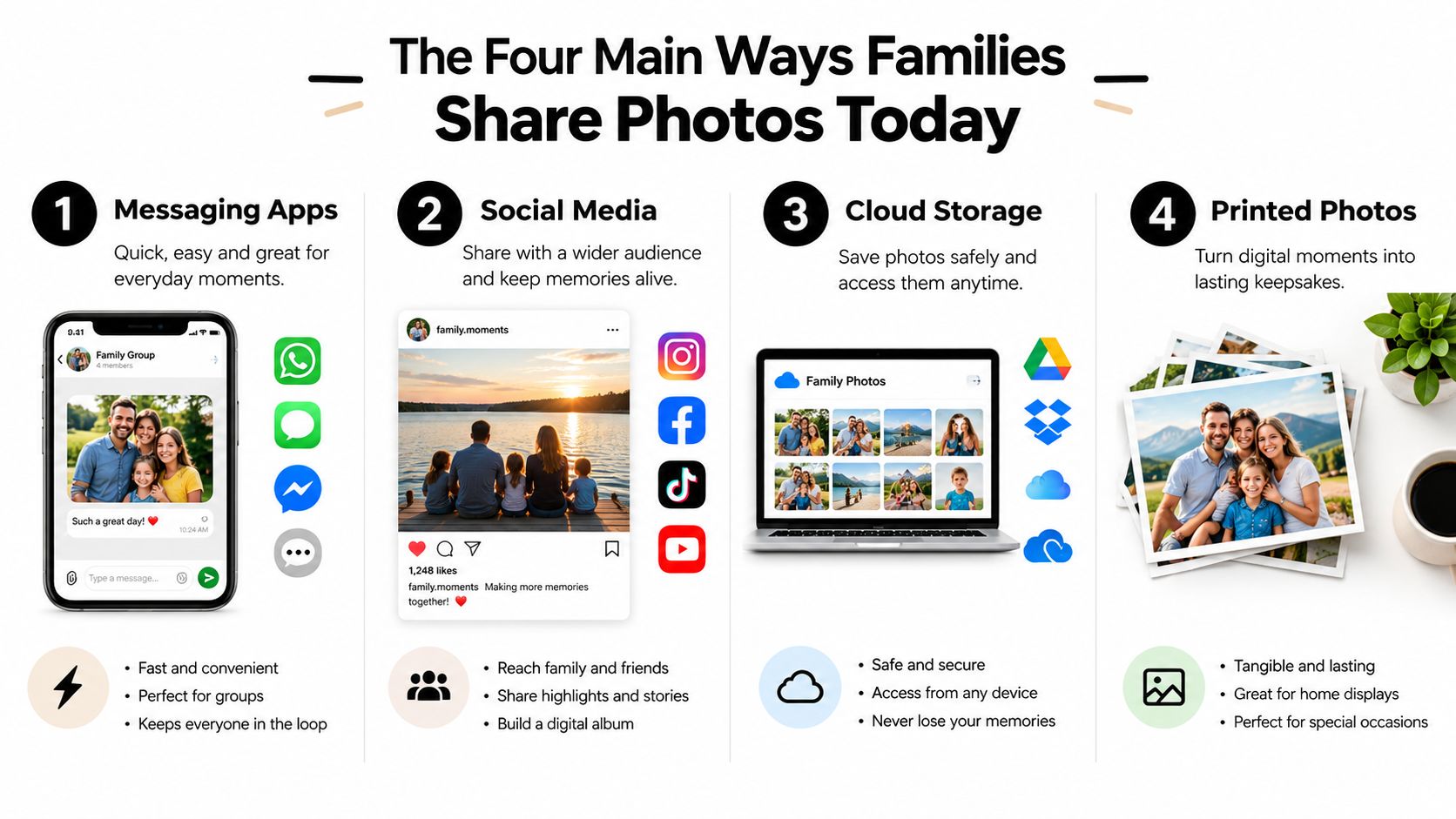
Use this selection rule: choose the method your least technical relative will open without assistance. For families split across devices, start with a browser-based gallery and QR code. If relatives already share one cloud service and someone can manage permissions, an ecosystem album may be enough.
For a visual invitation, printed card, or album cover that needs a shareable destination, the LinkShip image to link tool can support the wider link workflow.
Setting Up a QR Code Gallery That Any Relative Can Use
A QR gallery succeeds when the relative doesn't need to understand the technology behind it. They only need a camera, a visible square, and a short instruction.
Start with one destination
Pick a private gallery tool, a password-protected cloud folder with a short URL, or a static album page. Name it with the event and date, such as “Mia Birthday, May 2026,” rather than “IMG_4821 final.” Clear naming helps older relatives recognize the right collection later.
Upload the first batch, then check the order and orientation. Smaller batches are easier to review, and keeping each upload under 50 photos makes it simpler to spot accidental duplicates or unsuitable images before the gallery is shared.
Add the code and the instruction
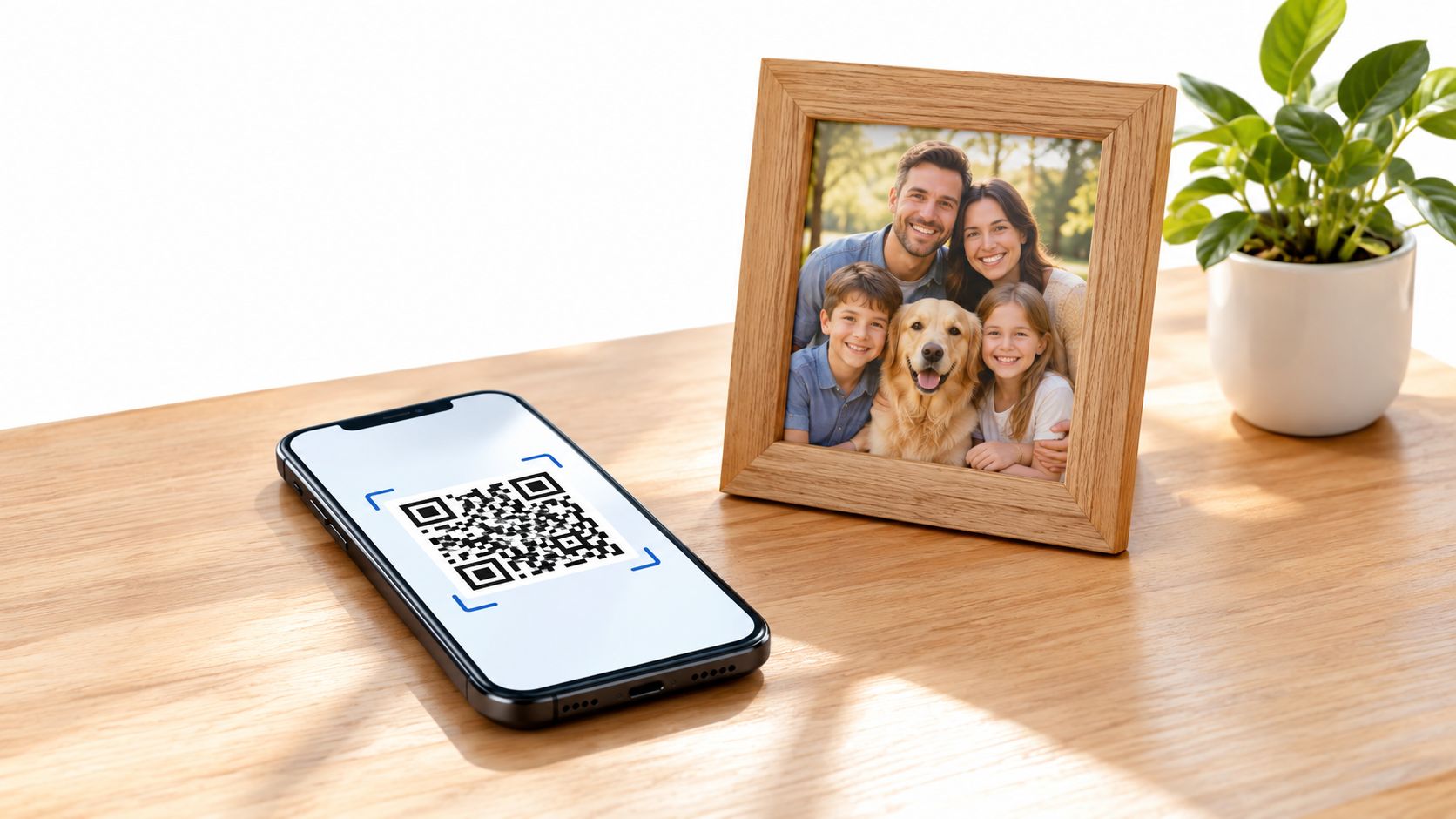
Generate the gallery link, convert it to a QR code, and print it where people will see it. A fridge card works for an ongoing family album. For an event, place the code on tables, near the guest book, or inside the thank-you message.
Tell grandparents exactly this:
Open your phone camera, point it at the square, then tap the link that appears.
Don't write a paragraph of technical instructions underneath the code. Large print, strong contrast, and generous white space matter more than decoration.
Set the album to view-only if relatives should browse but not alter the collection. Add a simple passcode when the images include children or when the link will be printed in a public venue. Explain the passcode in the same message as the QR card, not in a separate thread that can be lost.
Test it as the family will use it
Before distribution, scan the code from an iPhone and an Android phone. Test the page on mobile data, not just home Wi-Fi. Open it while signed out, enter the passcode, rotate the phone, view a photo, and try the download control.
Ask one older relative to perform the test without coaching. If they ask where to tap, rewrite the instruction. For more ideas on structuring a QR-driven album, see this guide to a QR code photo album.
Comparing Cloud Albums and Private Gallery Tools
A grandparent receives the album link on an older phone, while a parent uploads photos from a newer one. The right tool is the one that lets both people complete their next action without account recovery, app installation, or confusing permissions. Brand familiarity helps, but the viewing and upload paths matter more.
iCloud Shared Albums suit families already committed to Apple devices. They appear naturally in the Photos app, which helps relatives who already know where shared albums are stored. Android and Windows users may face a less consistent experience, especially when invitations, Apple accounts, and shared-image locations need explanation. Ask whether the family can support those steps before choosing it.
Google Photos shared albums cover phones and computers through the app or browser. They fit families already using Google Photos, but permission states can confuse occasional users. A recipient might see an account prompt, a join request, or a different screen depending on whether they are signed in. Test the viewing link while signed out before sending it to an older relative.
Dedicated event platforms focus on collecting images from many contributors. A browser upload page or QR code can let guests add photos without installing an app, which suits birthdays, holidays, and reunions. Check whether guests can view without accounts, whether original-quality files can be exported, how long the gallery remains available, and which privacy controls apply after the event.
Self-hosted folders and QR-driven galleries give the organizer more control over names, access, and the viewing route. That control comes with work. Someone must maintain the link, set permissions, keep backups, and explain the process when a relative replaces a phone. A private gallery comparison can help define the questions, but the selected provider's own terms should govern the decision.
| Tool | Free Tier Detail | Cross-Platform Viewing | Account Required to View | Best For |
|---|---|---|---|---|
| iCloud Shared Albums | Storage rules are separate from the user's iCloud storage allowance | Strongest on Apple devices, with browser access for other users | Depends on the invitation and access path | Apple-centered families |
| Google Photos shared albums | Photos count toward Google account storage when applicable | Broad browser and mobile coverage | Viewing may work by link, while some actions require sign-in | Families already using Google |
| Dedicated event platform | Trial and plan rules determine gallery duration and export options | Usually browser-based across phones and computers | Choose guest viewing without accounts | Events with many contributors |
| Private cloud folder | Free capacity and sharing limits depend on the storage provider's plan | Broad browser access | Permission settings determine whether sign-in is needed | A technically confident family administrator |
| QR-driven private gallery | Access lasts according to the gallery host's plan or trial terms | Strong when the gallery uses mobile web | Can use a passcode instead of an account | Grandparents and mixed devices |
For a small local family, use a QR gallery with one organizer and a printed card. For a large distributed family with a technically confident administrator, a cloud album or dedicated platform can support more contributors. If grandparents are the least confident users, choose the workflow that routes around their account management rather than requiring them to learn it.
Photo services may scan or analyze uploads to power search, recognition, or AI features. Read the provider's current privacy documentation before storing children's images, and do not assume that “private” means “unprocessed.” Set the tool according to the relatives who will use it, then test the exact link and permissions before sharing it.
A Repeatable Workflow for Family Events and Milestones
A family organizer shouldn't reinvent the system for every birthday, holiday, or vacation. Use the same sequence each time, changing only the event name and date.
Before people arrive
Choose the destination gallery and create it with a clear title. Generate the upload link or QR code, then send one short message to the family group:
We're collecting photos from Saturday in one gallery. Scan the QR code or open this link, choose your favorite pictures, and tap upload. You don't need an app or account.
Assign one person to answer questions. Don't ask every relative to become a moderator. If the gallery supports separate upload and viewing stages, keep collection open during the event and publish the curated album afterward.
During the event
One person should own the reminder, preferably the host or a designated curator. Mention the gallery at a natural pause, such as after dinner or before guests leave. A table card or printed QR sign keeps the request visible without repeated messages.
The goal is not to stop people taking photos. It's to stop the WhatsApp avalanche from becoming the only archive. Encourage guests to upload their strongest images while the event is fresh, and ask the person with the best connection to check that uploads are arriving.
After the event
Curate the final gallery to roughly 30 to 50 strongest shots. Remove blurry duplicates, closed eyes, accidental screenshots, and images that someone asked you not to share. Add a one-line caption with the event name and date, then notify the wider family group with the same link used for collection.
Archive the raw set separately in a shared drive. The gallery is for browsing. The archive is for preservation.
The most common mistake is letting everyone upload everything without one person removing duplicates. A gallery filled with near-identical frames becomes difficult to browse, especially for relatives on older phones.
For a graduation recap, the curated gallery can also feed a slideshow. If music is part of the plan, use a deliberate source for choosing songs for a graduation slideshow, then keep the finished video separate from the original photo archive.
Privacy and Consent Beyond the Obvious Advice
A private album isn't automatically a safe album. A relative can screenshot an image, save it to a camera roll, forward it to another chat, or publish it elsewhere. Once that happens, the gallery's privacy setting can't retrieve the copy.
Phone photos can also contain metadata, including location information. If a picture identifies a child's school, home, or regular activity, the risk isn't limited to the people invited to the album. Strip EXIF data on upload where possible, avoid sharing exact routines, and use a short-lived link for temporary collections.
Consent belongs inside the family
Parents often think about public posting but overlook second-hand circulation by grandparents, in-laws, caregivers, and cousins. A systematic review reports that roughly 75% of parents share children's pictures, stories, or videos online, while only about 24% ask a child's permission each time and roughly 29% never obtain consent, according to this review of sharenting research. Those figures point to a workflow problem, not just a social-media problem.
Ask before including an estranged relative, a caregiver, or another adult who may not want to appear in the collection. As children grow, give them an increasing say in which images remain available. Guidance on sharing children's photos online also emphasizes asking before resharing and respecting refusal.
For sensitive albums, require sign-in rather than relying only on a link and passcode. Write a short family agreement that says who may upload, who may download, whether resharing is allowed, and what happens when someone leaves the group. If a photo appears in a cousin's public Instagram story, the setup should have anticipated that possibility. A photo consent form can help formalize permission for larger or more sensitive gatherings.
Your Family Sharing Checklist and Common Questions
A family photo system should still work when the organizer is busy and a grandparent has changed phones. Use this check before each event and during the yearly review.
- Organizer: Name one primary and one backup administrator. Record where originals live and who can recover the account.
- Access: Confirm the gallery opens signed-out on mobile data, and that the passcode works without an account prompt.
- Instructions: Put one camera step beside the QR code, using large text and the device language grandparents use.
- Consent: Mark people who must not appear, download, or reshare images.
- After the event: Keep the complete upload set, then make a separate favorites collection for everyday viewing.
- Archive: Use
YYYY-MM-DD_EventNamefor the folder and file batches, so another relative can find the collection later. - Yearly review: Remove former guests, replace sensitive links, and confirm the backup administrator can access the originals.
How do we move photos out of WhatsApp or Facebook?
Export originals in batches, then preserve context in a text file named with the same YYYY-MM-DD_EventName convention. Before uploading, remove embedded location data with a metadata tool such as ExifTool if the gallery will be shared beyond close relatives.
What happens when a grandparent replaces a phone?
Resend the gallery link and the one-sentence camera instruction. Keep a printable QR card, but check that the browser opens the album without a stale account session after setup.
Does the album survive if the organizer leaves or stops paying?
Assign a second administrator in EventUploader or Google Photos while both accounts are active. Confirm that person can export originals and knows the archive location. Provider retention rules still apply, so keep a family-controlled copy outside the organizer's account.
Review the arrangement every twelve months, including resharing permissions and access for the backup administrator.
EventUploader provides a branded upload page, one link or printable QR code, and photo and video collection without requiring an app or account. Visit EventUploader to set up a gallery grandparents can open.