How to Share Photos: QR Codes, Links, and Private Galleries
Learn how to share photos via QR codes, links, email, cloud drives, and private galleries, with setup steps and privacy tips.
The party's over, you're holding your phone, and someone has just asked for the photo of the candles. You've got the cake, your cousin has the reaction, and the family chat has a blurry screenshot. The pictures exist. Getting them together is the job you haven't finished.
Table of Contents
- Why Event Photos Scatter and How to Stop It
- Comparing Link, Email, Cloud Drive, and Private Gallery Options
- Setting Up a Branded Upload Page and QR Code
- Keeping Originals Safe While Serving Fast Galleries
- Protecting Privacy Before, During, and After Uploads
- Helping Older Relatives Join Without Installing Anything
- Sharing the Finished Gallery and Your Next Step
Why Event Photos Scatter and How to Stop It
At a wedding reception, the person closest to the first dance might send their pictures to the couple. Someone else posts a favorite to a private account. A relative saves theirs for later because they don't know where to send them. Nobody has done anything wrong, but the host still ends up chasing photos.
Guests usually share through whatever service they already have open. That's convenient for the sender, not necessarily for the person assembling the album. A message thread preserves a conversation. It doesn't automatically give you a complete collection from the occasion.
Give guests a destination, not another habit
DataReportal's 2025 global overview counted 5.24 billion social-media user identities, equivalent to 63.9% of the world's population. Those identities aren't necessarily unique people, but they show the reach of the channels guests already use.
The practical response isn't to persuade everyone to become a photographer or learn another social network. It's to give them a shared destination for pictures they're already taking. Keep personal conversations wherever guests prefer, but direct event contributions toward the same collection.
Practical rule: Choose where the photos should go before you ask anyone to send them.
Make that destination recognizable. Use the event name guests know, rather than an internal project label. At a retirement party, “Martin's Retirement Photos” gives a relative more confidence than an unexplained folder name.
Define what a finished collection means
Before choosing a service, decide what you need:
- Guest contributions: A straightforward way for people to send pictures from their phones.
- An organizer's archive: A collection you can review, export, and keep independently.
- A finished gallery: A deliberate selection that guests can return to afterward.
These are related jobs, but they aren't interchangeable. A beautiful viewing gallery might be awkward for contributions. An easy upload folder might be confusing to browse.
Knowing how to share photos well means matching the method to your guests, testing the actual journey, and deciding what others should be allowed to see. Start with the relative who needs the clearest instructions. If they can participate comfortably, you've chosen a useful starting point.
Comparing Link, Email, Cloud Drive, and Private Gallery Options
A link is a delivery route, not a privacy setting. It might open a public album, a restricted folder, or an upload page. Judge what happens after the guest taps it, rather than choosing a method because its invitation looks simple.
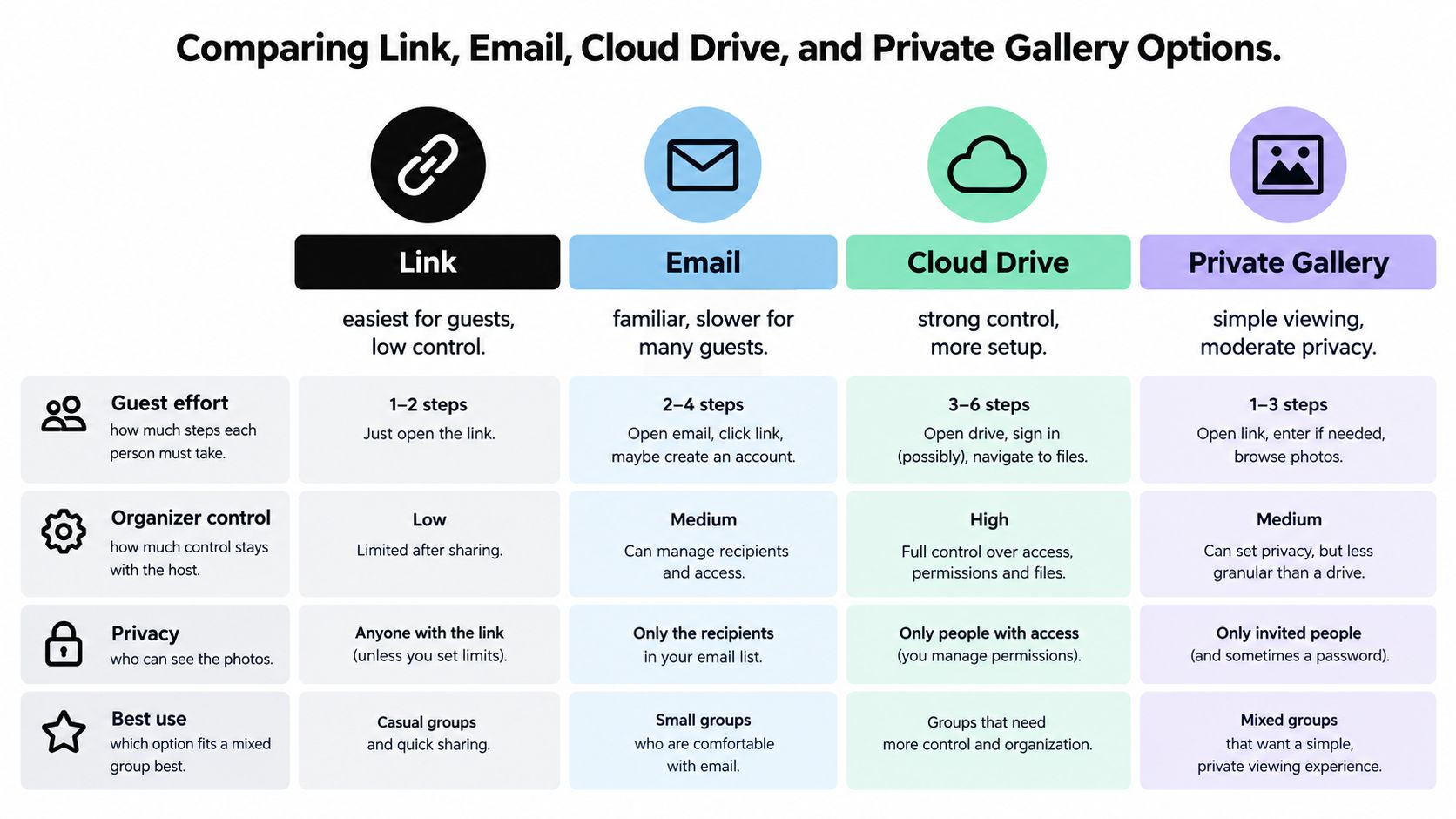
Compare the guest's actual experience
| Method | Guest effort | Organizer control | Practical verdict |
|---|---|---|---|
| Direct link | Depends on the destination and its permissions | Depends on the service behind it | Useful when it opens exactly where the guest needs to act |
| Familiar to guests who already use it | You control your received copies, not forwarded attachments | Reasonable for selected pictures, cumbersome for a whole event | |
| Cloud drive | May involve sign-in, permissions, or folder navigation | Can provide detailed access management | Suits collaborators who already understand the workspace |
| Private gallery | Often straightforward for viewing, but contribution requirements vary | Depends on visibility, review, and download settings | Useful for a mixed audience when guest access is carefully tested |
Email is perfectly reasonable when a relative wants to send you a favorite portrait. It becomes an administrative task when you're saving attachments from unrelated conversations and trying to remember whose pictures you've collected.
A cloud folder can suit a team offsite where everyone already uses the same workspace. For a family party, don't assume that viewing permission also allows uploads, or that an invitation works without an account. Test both actions separately.
Where a dedicated event page fits
EventUploader is an option for collecting contributions through a branded page reached by a link or printable QR code. Guests upload without installing an app or creating an account; the organizer gets a live dashboard, original-quality export, and the option to publish favorites to a shareable gallery at the same address afterward.
That approach separates the guest's simple action from the organizer's management work. Still, browser access alone doesn't establish who should receive the address or whether forwarding is acceptable.
Use this practical guide to sharing a link with guests when preparing your invitation. Give the message enough context that the recipient recognizes the event and understands what you're asking them to do.
Before choosing, ask: Who will be uploading, and on what device? A service that works smoothly on your laptop hasn't necessarily passed the test for a relative's older phone.
Setting Up a Branded Upload Page and QR Code
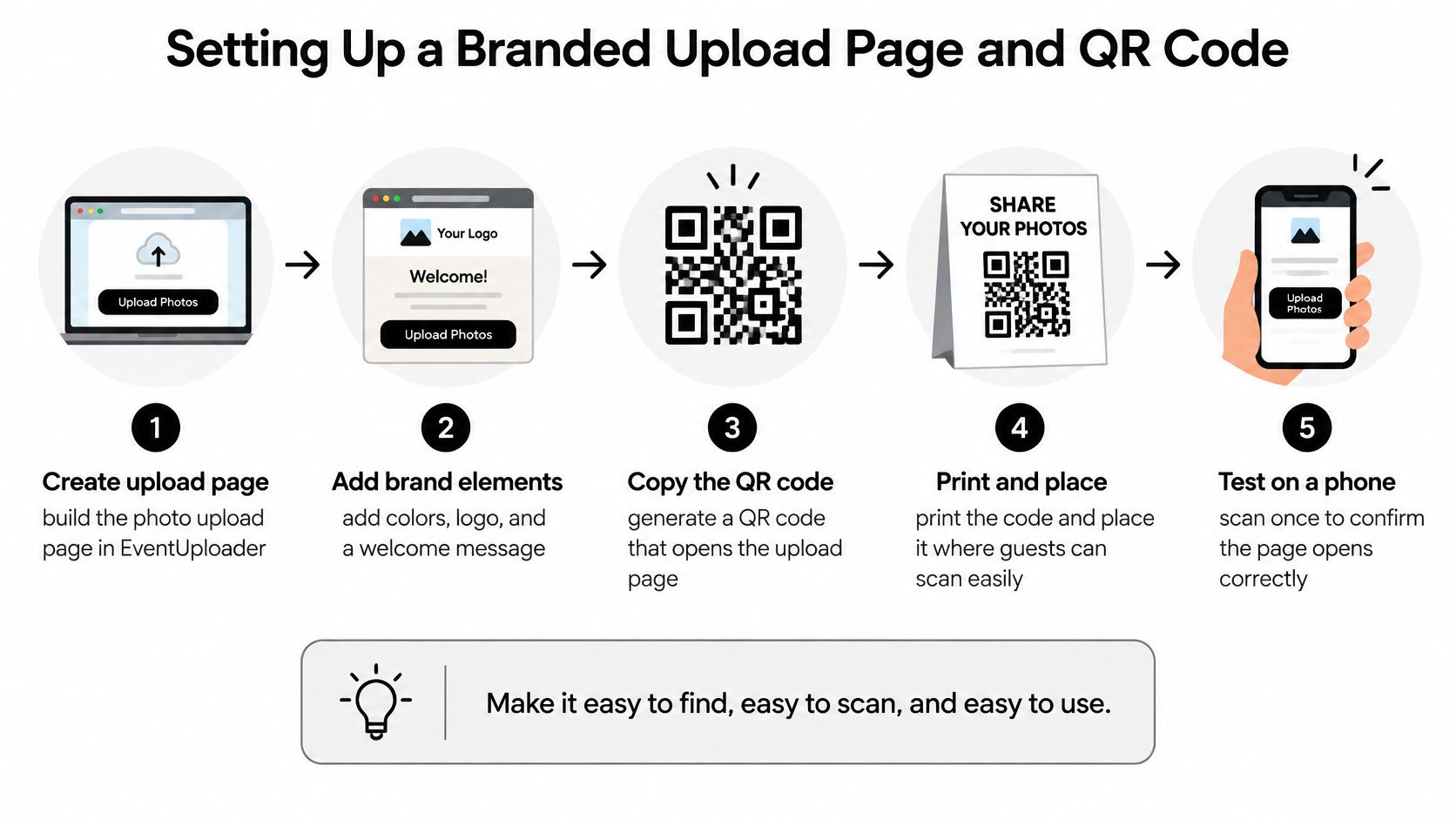
Build the page before designing the table cards. Otherwise, you can spend time making a beautiful invitation to a destination that still needs permissions, instructions, or a working upload button.
Use the event name, your colors, and a recognizable logo or image. Keep the welcome message practical: “Choose the photos you'd like to contribute from today's celebration.” Decorative copy shouldn't push the main action out of sight on a small screen.
Prepare the printed invitation
Generate the QR code from the final upload address. Print a clear instruction beside it, such as “Scan to upload photos,” and include a short text version of the destination as a fallback. A code without an explanation asks guests to guess.
Nielsen Norman Group's QR-code guidance recommends a minimum printed size of 2 cm × 2 cm for close-range scanning, with proportionally larger codes for greater viewing distances. Use a dark code on a light background, and don't sacrifice contrast to match pale wedding stationery.
Check the finished artwork, not just the code displayed on your computer:
- Use different devices: Test with iOS and Android, including an older phone if one is available.
- Recreate the room: Try dim lighting, glare, shadows, and an angled approach.
- Complete the journey: Select an image, submit it, and confirm it arrived.
- Check guest access: Open the page outside your organizer session so saved credentials don't hide a sign-in problem.
Place codes where people can stop
Tables are useful because guests can scan while seated. The cake table or photo-booth entrance can also work, provided the sign doesn't obstruct movement or require someone to lean across decorations.
Don't rely on a distant welcome board as the only invitation. A guest may notice it while carrying a coat, greeting relatives, or looking for their seat.
Test the printed card where guests will use it, not only at your kitchen table.
Check mobile reception at the venue as well. If a submission won't finish, offer a clear option to try again later rather than asking someone to keep retrying during the celebration. Keep the destination stable so the printed cards remain useful afterward.
Keeping Originals Safe While Serving Fast Galleries
The archival photo and the gallery image should be different files. Keep the uploaded original unchanged for export. Use smaller, purpose-built copies for viewing on the web.
That distinction protects competing needs. The family may want the original for a print, while a guest browsing on a weak mobile connection needs a manageable download. Making everyone load the archival file isn't necessary, and compressing the only retained copy sacrifices future options.
Ask what gets preserved and what gets displayed
Google's mobile image optimization guidance reports that its WebP study found files roughly 25%–34% smaller than JPEG at comparable SSIM quality. That supports using modern display formats, but it doesn't mean every event photo will shrink by the same amount.
A sound gallery pipeline creates responsive images matched to the visitor's display width. It serves supported formats and retains an appropriate JPEG fallback. For larger display images, progressive delivery can let visitors see an initial version while the rest arrives.
You don't need to implement that pipeline yourself to ask a provider the right questions:
- Original preservation: Does an export contain the uploaded files, rather than gallery previews?
- Responsive delivery: Does a phone receive a suitable image instead of an unnecessarily large original?
- Orientation handling: Are portrait pictures rotated correctly before orientation metadata is removed?
- Download behavior: Can you distinguish a web-viewing copy from the archival version?
Test the files, not just the thumbnails
Resizing an image with CSS changes its on-screen appearance, not necessarily the amount downloaded. A small-looking thumbnail can still make the visitor's phone fetch a large file. That's a technical detail worth checking rather than judging by appearance alone.
Private metadata also needs separate treatment. Keep the archive restricted, and remove unnecessary EXIF/XMP details from publicly served derivatives. Don't assume that an attractive gallery has also handled metadata appropriately.
Use representative portrait, wide-scene, low-light, and burst images for a trial. Check faces, fine detail, rotation, first render, file size, and downloaded-file integrity on a constrained connection.
The guide to sending photos without losing quality helps distinguish transfer choices from preservation choices. For your own archive, open the exported files before declaring the collection complete. A successful download notification isn't a substitute for checking that the pictures are usable.
Protecting Privacy Before, During, and After Uploads
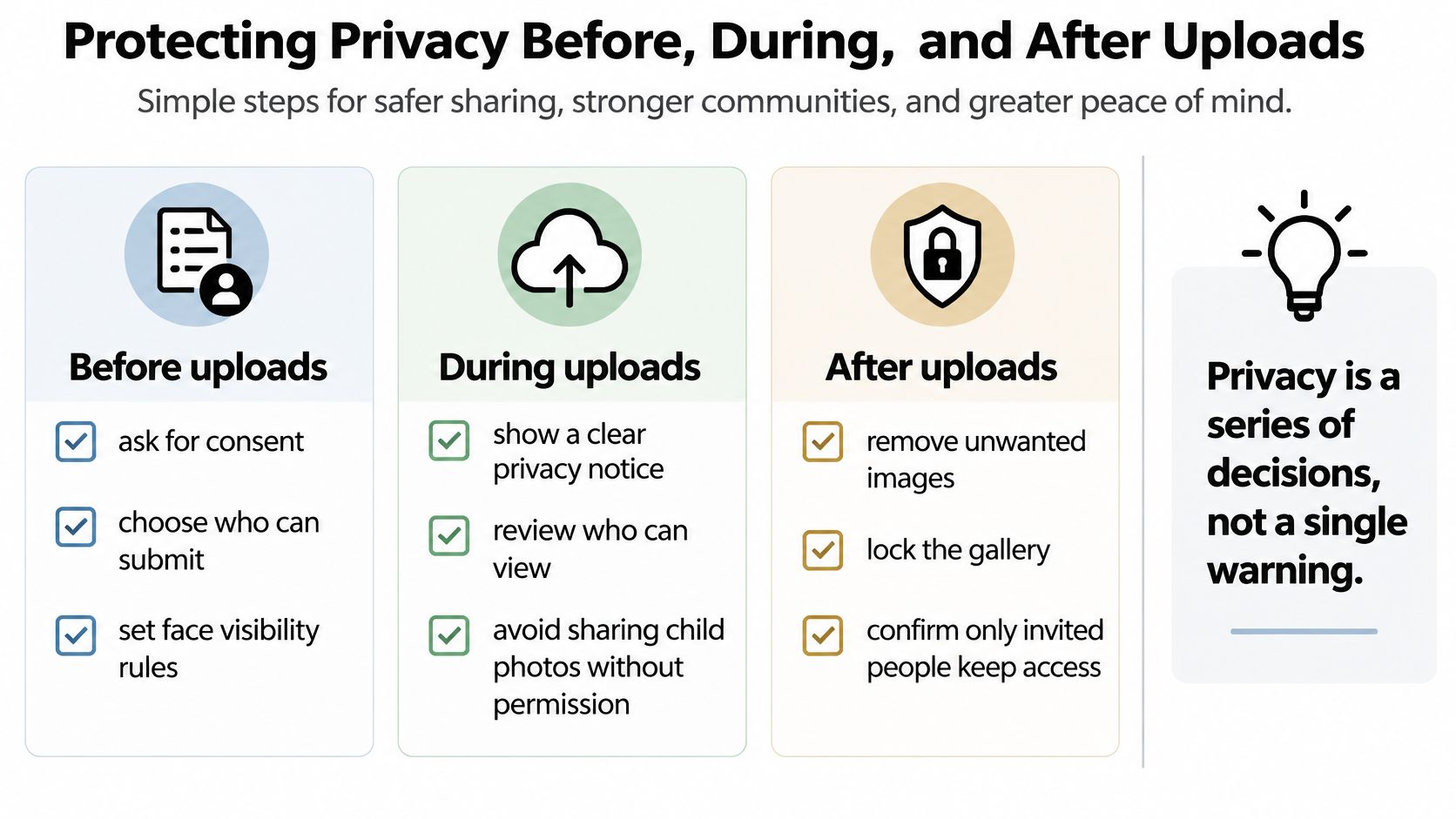
Privacy is an organizing task, not a checkbox beside an album name. Guests can misunderstand the audience, overlook someone in the background, or contribute a child's photograph without realizing it will be visible to unfamiliar people.
A 2025 study on private information in shared images found that 22% to 32% of participants shared private information despite instructions not to, including identifiable faces. A warning is useful, but it isn't a substitute for reviewing contributions.
Make the audience understandable before collection
Tell contributors who will see their pictures. If other guests can browse uploads, say so beside the submission action rather than burying that information in a separate document.
Set a clear expectation for children's images and sensitive moments. Ask guests to check with the relevant parent or guardian before contributing a child's identifiable photograph. Make it equally acceptable to leave a picture out.
A useful welcome notice might ask guests to contribute only images they have permission to share, avoid private documents or identifying details, and contact the organizer about removal. That's suggested wording, not a guarantee that everyone will follow it.
Use an event-day privacy checklist
- Consent: Explain the intended audience and provide a straightforward removal route.
- Visibility: Test what an ordinary recipient can see, not just what the organizer sees.
- Forwarding: Tell invitees whether they may pass the address on. A forwarded access link can reach people you didn't invite.
- Sensitive details: Review faces, children, location clues, and the metadata treatment described above.
- Publication: Check selected pictures before making a broader highlight collection available.
- Retention: Decide when submissions end and how long hosted copies and exports should remain.
Closing uploads stops further contributions. It doesn't automatically revoke viewing access, recall downloads, or delete files. Treat each of those as a separate decision, and verify which controls your chosen service provides.
Keep the internal event archive distinct from anything intended for public promotion. Permission to contribute to a family collection shouldn't be treated as permission to appear in a venue's marketing.
A private collection can contain more than a public highlight reel should.
The common oversights are operational: no named reviewer, no removal contact, an indefinitely open submission page, or an assumption that nobody will forward the address. Assign someone to handle those tasks while you're still planning the event.
Helping Older Relatives Join Without Installing Anything
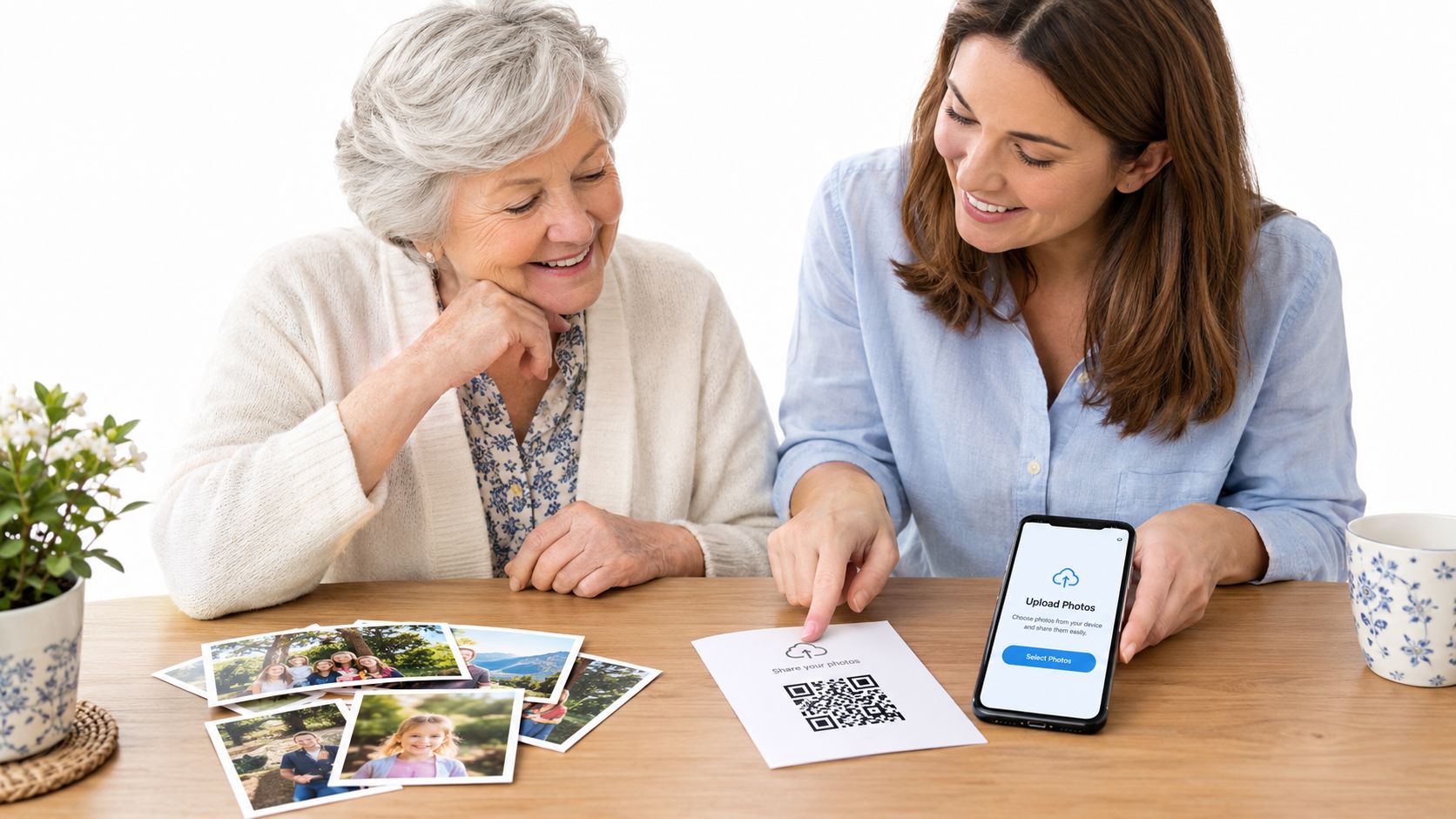
Consider a grandmother who enjoys photographing her garden but gets stuck when asked to install another app. She wants to contribute. The obstacle is the unfamiliar sequence between choosing a picture and sending it.
That distinction matters. A 2025 qualitative study of older adults found that participants exchanged images with family, but some later couldn't remember how to send them. One participant described previously sending flower photographs to a daughter but no longer being able to do so.
Offer the route the guest recognizes
Don't turn scanning a QR code into a test they have to pass. If they're comfortable opening a family message, send the destination there. Let them tap it while you're nearby and explain what they should expect to see.
Print instructions in large, readable text. Describe visible actions rather than technical concepts: open the page, choose photos, then submit. Match the wording to the actual interface so the card doesn't introduce another set of labels.
Keep your spoken instructions short, too. Let the guest finish the current action before explaining the next one. Taking the phone away and completing everything yourself may solve the immediate task without helping them return to the gallery.
Have a dignified fallback
Appoint a patient family helper rather than leaving several people to give competing instructions. Ask permission before handling someone else's phone, and let the owner choose which pictures to contribute.
- Help on their device: Guide the guest through the page without changing unrelated settings.
- Assist with a transfer: If contributing from the helper's phone is necessary, agree on exactly which files may be copied and uploaded.
- Support viewing separately: A relative may want to enjoy the gallery without contributing anything.
Assisted uploads still need the consent and privacy checks already described. Don't browse through a person's camera roll beyond what they've offered, and agree what happens to any temporary copies.
For wider family planning, these family picture-sharing approaches can help you accommodate different levels of confidence. The useful outcome isn't that everyone masters the same interface. It's that nobody is excluded from the memories because they need another route.
Sharing the Finished Gallery and Your Next Step
After the event, turn the collection into something guests will want to revisit. Confirm that the contribution window has ended, resolve removal requests, and select the photographs you're comfortable sharing. An upload collection is raw material, not automatically a finished album.
Publish the selected gallery at the address guests already recognize, where your chosen service supports that workflow. Send a clear follow-up message saying the pictures are ready and identifying the event. Don't make relatives wonder whether an unfamiliar message is another request to contribute.
Select for the people who attended
Choose pictures that help guests remember being there. Include quieter interactions as well as the formal moments: a conversation across the table, relatives greeting each other, or someone laughing beside the cake.
For a reference when thinking about presentation, browse the destination wedding gallery highlights from Princess Apulia®. Keep the distinction clear between a deliberately presented highlight gallery and the fuller collection you might retain for family members.
Avoid publishing every near-duplicate just because it arrived. Keep the fuller archive separately, and make the shared selection easy to enjoy. Where download choices are available, label them clearly so recipients understand what they're saving.
Finish the organizer's handover
Before you put the event folder aside, complete a short handover:
- Verify the archive: Open the exported files and keep them somewhere you control.
- Check the guest view: Visit the finished gallery without organizer privileges.
- Send a useful message: Say what's available and how to request a correction or removal.
- Record the endpoint: Note any planned changes to access, hosting, or retention.
The method, setup, file handling, privacy decisions, and guest support all serve the same purpose: making the collection usable without leaving you as its permanent help desk. A polished page won't compensate for confusing access, and careful archiving won't help relatives who can't find the gallery.
For your next celebration, create the upload page before preparing the stationery. Print a test QR card and scan it on different phones, including the least capable device you can reasonably borrow. Ask a less confident guest to try the journey without coaching, then fix whatever makes them hesitate.
EventUploader offers a branded upload page, browser-based guest contributions, original-quality export, and a finished gallery on the same address. Visit EventUploader to create your next event's page, then test the printed code and guest instructions before everyone arrives.