How to Share a Link: A Practical Guide for 2026
Learn how to share a link on mobile, email, messaging, and print. Includes QR code tips, access control, and best practices for any event or audience.
The room's filling up, someone's asking where to upload photos, and your aunt is holding out her phone because she can't find the message you sent. You've already shared the link. What you haven't done yet is make it easy for everyone to use.
Table of Contents
- The Moment a Link Has to Actually Reach People
- Sharing a Link on Mobile, Email, and Messaging Apps
- When a QR Code Does the Heavy Lifting
- Print, Signage, and On-Screen Display Done Right
- Mixed-Audience Realities the Tutorials Skip
- Access Control and What Happens After the Event
- A Short, Realistic Checklist Before You Hit Send or Print
The Moment a Link Has to Actually Reach People
At a wedding, a birthday dinner, or a company offsite, the same destination has to work for very different guests. Your colleagues want a message they can tap. Your grandparents may prefer a printed instruction. A guest who doesn't know the host needs reassurance before opening an unfamiliar page.
That's the practical problem behind how to share a link. Copying the address is the easy part. The job is getting the right person to the right page, with enough context to act confidently.
Start with the recipient's next action
Before choosing a channel, decide what you want people to do. Register for the event? Upload their photos? Open a menu? Browse a gallery? Give each shared message a clear purpose rather than asking guests to explore a general website.
For an event photo collection, I'd use the same destination in the invitation message and on the tables. The wording can change to suit the setting, but guests shouldn't have to work out which page is current.
Host's rule: A link isn't successfully shared just because you sent it. The recipient needs to recognize it, open it, and understand what to do next.
Keep the setup practical:
- Before guests arrive: Send a clickable link through a channel they already use.
- Inside the venue: Put a QR code where guests can stop comfortably.
- For anyone who needs help: Make personal assistance an ordinary option, not an embarrassing exception.
You don't need developer-grade redirect logic or an enterprise sign-in setup to solve this. You need a mobile-ready destination, sensible distribution, readable print, and a deliberate decision about access. Choose those around your guests, not around whichever sharing button happens to be closest.
Sharing a Link on Mobile, Email, and Messaging Apps
Use the channel your recipients already check. Don't ask relatives to join Telegram for a birthday album if the family conversation happens in WhatsApp. Don't bury an offsite upload page in social DMs when your colleagues expect email.
Send a useful message, not an unexplained address
On your phone, open the intended page and use the browser's sharing control, or copy the address from the address bar. Choose the recipient in iMessage, WhatsApp, or Telegram, then add a short explanation before sending.
A useful message might read: “Add your photos from Saturday's celebration using the upload page below.” Follow it immediately with the link. Keep parking instructions, thank-you notes, and other announcements elsewhere so the requested action doesn't disappear in a long message.
For SMS and social DMs, use the same approach. Identify the event, state the action, and place the destination early. Prefer a recognizable address over an unexplained shortened link. If you already control a branded short domain, use it consistently rather than introducing another unfamiliar identity.
Make email easy to scan
Use the subject line to explain the purpose, not to hold the URL. “Add your photos from the reunion” gives recipients a reason to open the message. Put the clickable destination near the beginning of the body.
In formatted email, descriptive text such as Upload your reunion photos is cleaner than a long address. In plain-text messages, a readable URL is appropriate. Check any generated preview before distributing widely: I'd want a recognizable event title and relevant image, not an old logo or unrelated page description.
Test the destination as a guest, not as the person who created it.
Open it while signed out, then try the main action on both iOS and Android over cellular data. For a photo collection, follow this mobile photo upload guidance when checking the recipient journey.
Don't dismiss loading speed as polish. Google's mobile analysis found that bounce probability rose 123% as load time increased from 1 to 10 seconds, and reported that 40% of users may leave a mobile page taking longer than three seconds to load (Google's mobile page-speed benchmarks). Remove unnecessary landing pages and large decorative media before sending guests there.
When a QR Code Does the Heavy Lifting
Use a QR code when the destination starts on something people can't tap. Table cards, posters, welcome signs, and presentation screens are sensible places. A message already open on someone's phone usually deserves a clickable link instead.
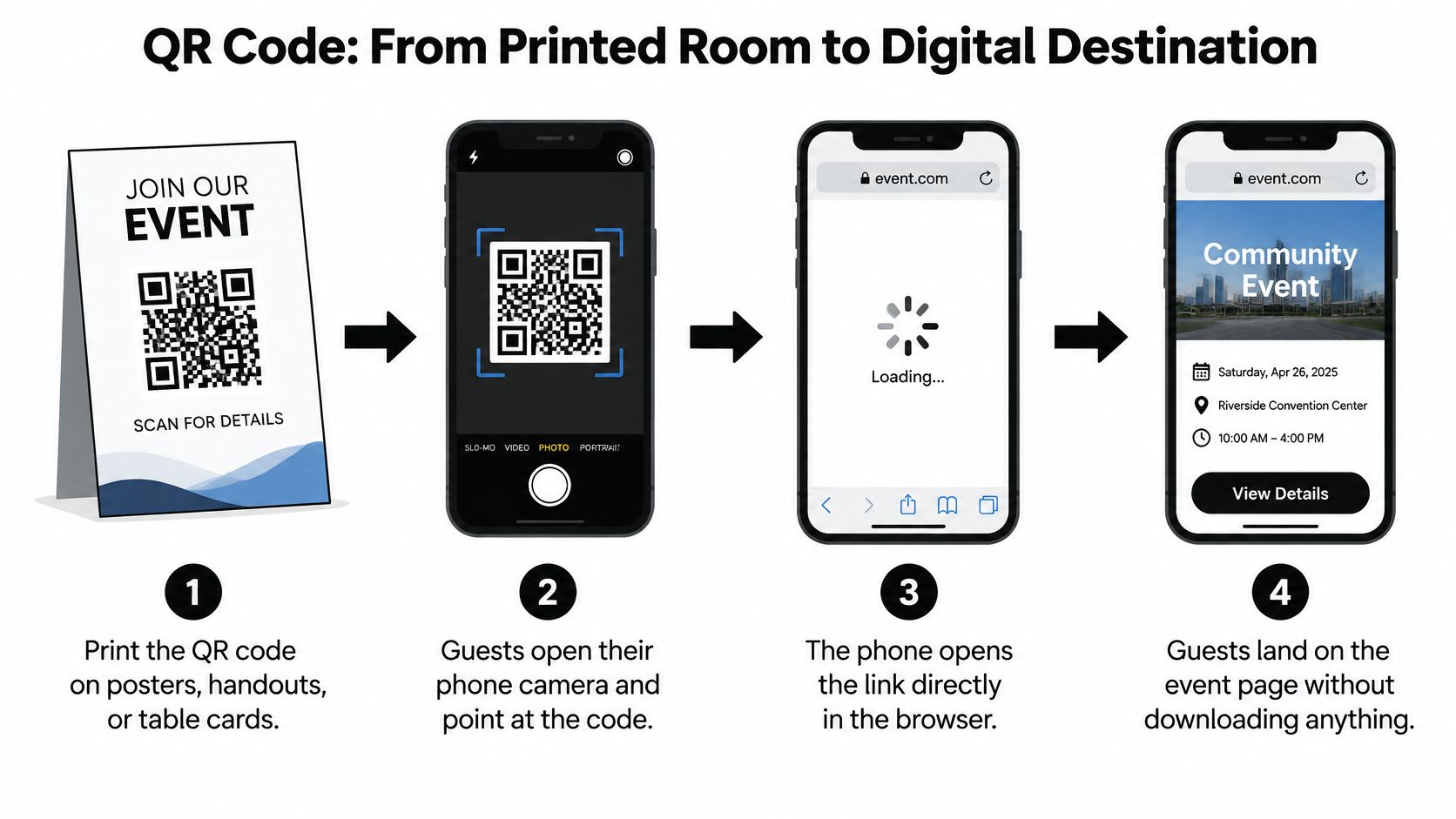
Modern phone cameras can scan QR codes natively, without a separate scanner app, although successful access still depends on the device and the surrounding experience (QR access and usability considerations). Guests point their camera at the code, follow the detected link, and open the destination.
The physical-to-digital journey should be straightforward.
Keep the symbol simple
Encode the shortest stable HTTPS destination you can use without hiding its identity. Preserve the quiet zone, the clear space surrounding the symbol. Use dark modules on a light background, and don't place the code over a photograph or decorative texture.
Error correction is useful, but it isn't permission to make the code tiny. Reed–Solomon error correction has nominal recovery levels of 7% for L, 15% for M, 25% for Q, and 30% for H; higher correction increases resilience but also symbol density, which can reduce practical scanning tolerance at small sizes (QR error-correction and security research).
For ordinary high-contrast print, start with M. Consider H when a logo or obstruction is necessary, then validate the finished result. This guide to branded QR codes is useful when balancing visual identity with a scannable design.
Give guests another route
Print a short, human-readable fallback address beside the code, not inside the surrounding artwork. Keep it large enough to read without photographing and zooming into the card.
- Choose QR: The guest is looking at a physical object or shared screen.
- Choose a clickable link: The guest already has your message on their phone.
- Offer both: You're serving a mixed audience and can't predict their preference.
My recommendation is simple: don't make scanning a test guests must pass. Make it the convenient route, with typing available as backup.
Print, Signage, and On-Screen Display Done Right
A table card lets someone scan while seated. A welcome poster catches people arriving. A presentation slide reaches a room, but only while it remains visible. Choose the placement around the moment people can act.
QR familiarity doesn't remove the need for thoughtful placement. An estimated 68% of U.S. consumers reported scanning a code during the previous year, compared with 83% of Gen Z and 81% of Millennials; website URL codes represented 67.56% of usage in Scanova's platform data (Scanova's QR-code statistics). Those figures describe adoption, not a guarantee that your particular sign will work.
Choosing How to Share by Scenario
| Scenario | Best Method | Why | Add Alongside |
|---|---|---|---|
| Invitation or reminder | Clickable email or message | Recipients can act on their own device | A clear description of the destination |
| Seated wedding or birthday meal | Table card with QR code | Guests can use it without leaving their seat | Fallback address and upload instruction |
| Venue entrance | Welcome sign | Arriving guests can discover the destination | Another placement beyond the entrance |
| Conference presentation | On-screen QR code | The audience can access the page together | A readable address and sufficient display time |
| Moving networking crowd | Badge or handout | Guests can take the information with them | A later clickable follow-up |
Test the location, not just the artwork
Print the finished design and try it where guests will stand or sit. Check the approach angle, table height, shadows, overhead lighting, and reflections. A successful scan from your laptop screen doesn't validate a glossy sign beside a window.
For slides, keep the code visible long enough for someone to notice it, unlock their phone, and aim. At a wedding, show it before a toast or between videos rather than briefly flashing it during a transition. For staffed conference displays, MediaGun Ltd.’s trade show display tips for booth staff offers a relevant operational resource.
Put the action beside the code in ordinary language: “Scan to add your event photos.” Avoid vague wording such as “Connect with us.” Guests should understand the result before reaching for their phones.
Mixed-Audience Realities the Tutorials Skip
No app required isn't the same as accessible. A guest may be comfortable making calls but unfamiliar with camera prompts. Another may understand QR codes perfectly and still hesitate because the destination looks suspicious.
Make help feel normal rather than treating it as a rescue operation.
Explain the result before asking for action
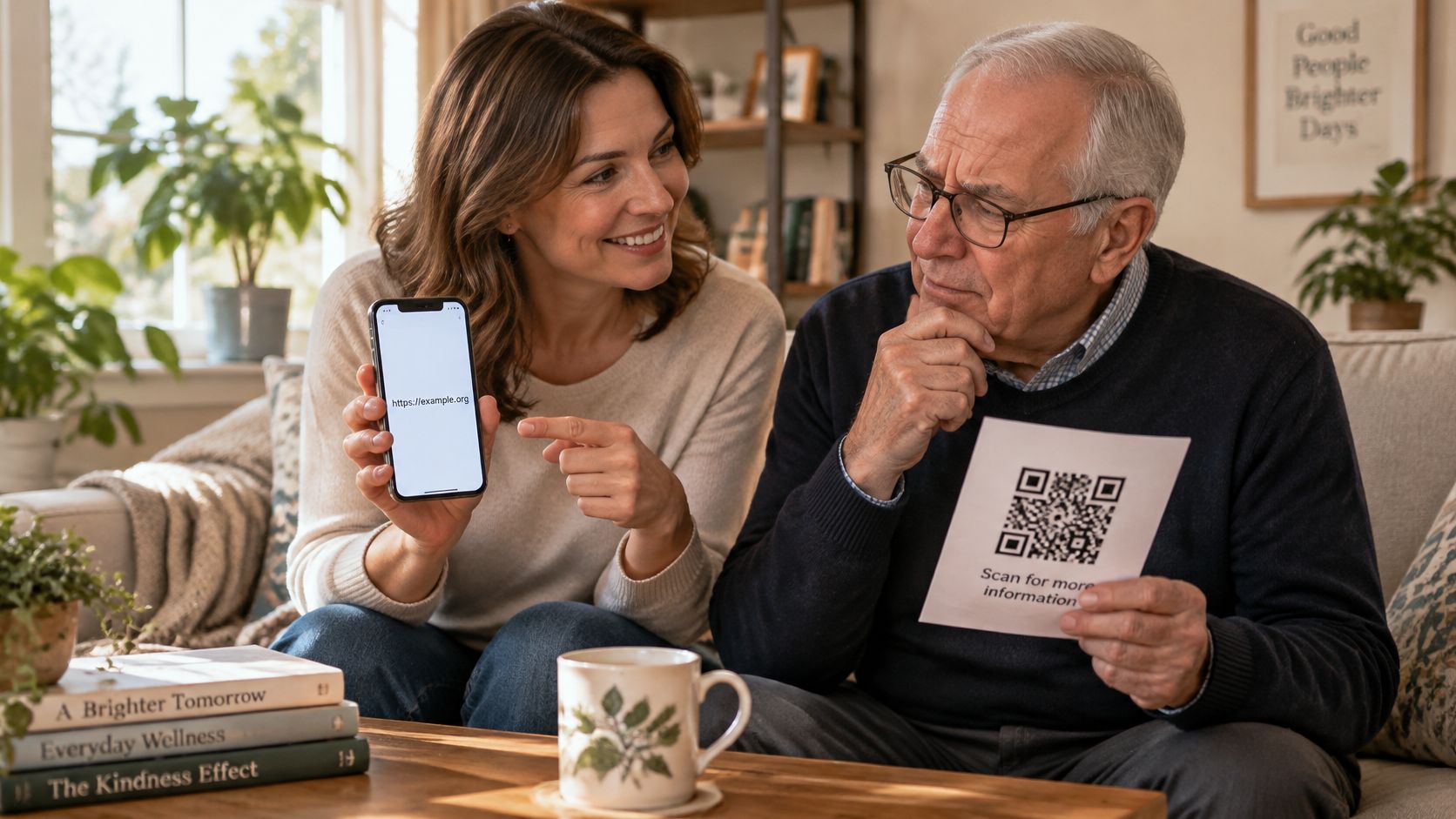
For grandparents or less-confident guests, use large, readable wording at a comfortable height. “Open the family photo page” is more useful than “Access the portal.” If the destination accepts uploads, say that plainly.
Don't assume everyone wants to scan. Offer to send the clickable destination directly, especially when someone has received an image of the QR code on the phone they would otherwise use to scan it.
Trust deserves equal attention. A 2025 consumer survey cited by QR Stuff found that about 58% of U.S. consumers felt confident QR codes were safe, leaving roughly 42% with concerns (QR Stuff's consumer safety findings). Identify the host and event beside the destination, and say whether opening it requires signing in.
Don't tell a hesitant guest that it's easy. Tell them what will happen, then offer to help.
Match the tool to the audience
For a wedding, birthday, or corporate gathering, a dedicated event upload page is one option alongside a shared cloud folder or an existing group chat. With the dedicated-page approach, guests use the same upload destination while the host gathers contributions centrally.
Choose based on the recipient workflow. If avoiding accounts matters, test that promise yourself. If guests need to view photos as well as contribute them, explain whether viewing is available immediately or only after the host publishes a selection.
If a guest would rather see the process, offer a visual walkthrough without making watching it compulsory.
Keep a willing helper available during a quiet moment. Personal assistance should complement the printed instructions, not compensate for confusing ones.
Access Control and What Happens After the Event
Decide access before distributing the destination. Once guests have saved, photographed, or forwarded it, you need a plan for what that address will show later.
Industry summaries citing Global Web Index report that 50.5% of internet users aged 16–64 scanned a QR code in the month before the Q2 2024 survey, up from 44.3% two years earlier, an increase of 6.2 percentage points (Krofile's summary of QR scanning adoption). Familiarity with scanning doesn't tell guests whether your page is public, restricted, or temporary. You have to explain that.
Separate discovery from permission
A public page, an unlisted destination, and an invite-only gallery aren't interchangeable. Don't treat an address that isn't advertised as proof that only invited people can open it. Check the actual restrictions offered by your chosen service.
Think through these access decisions before guests contribute.
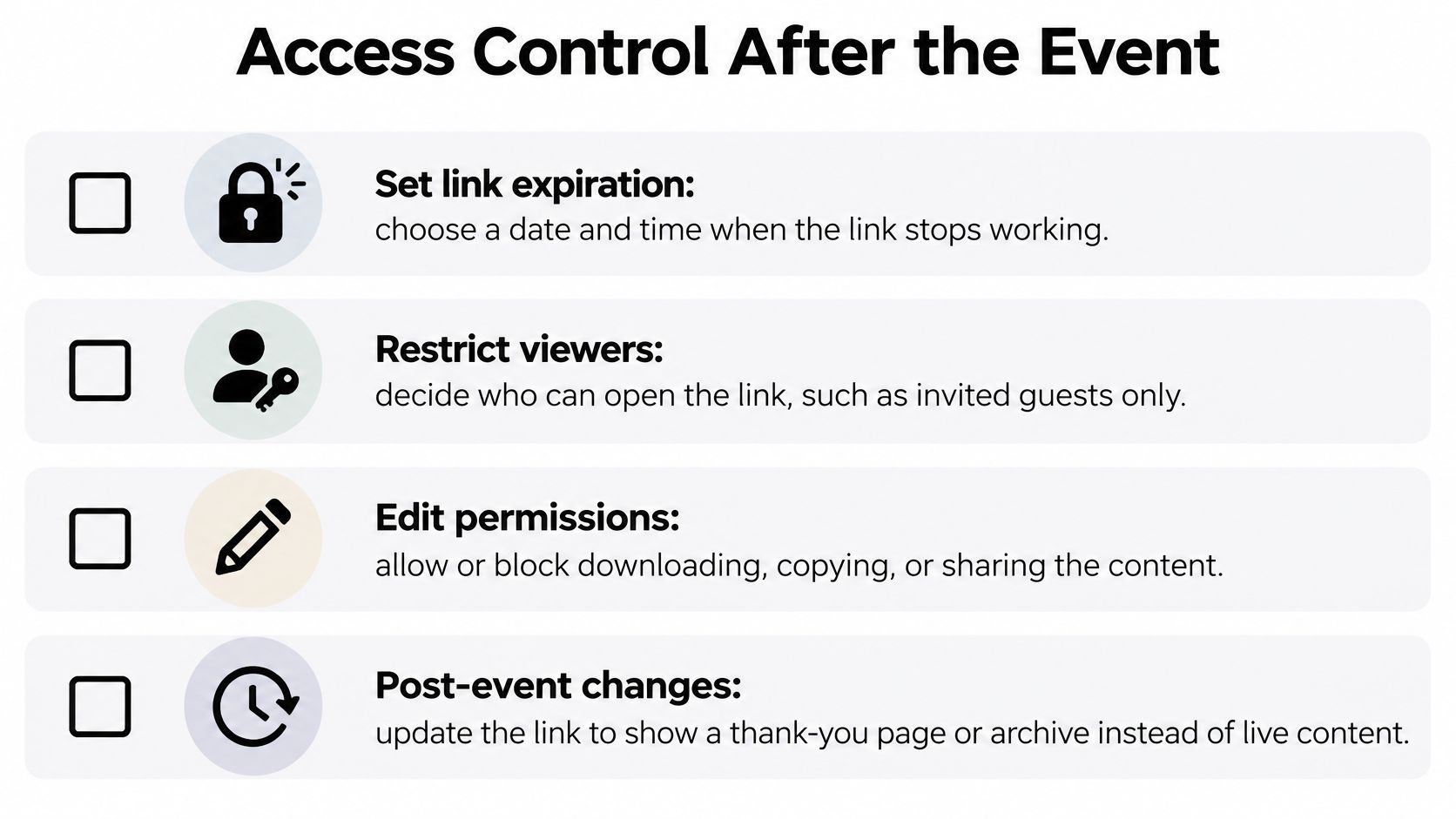
Use this checklist when configuring the event:
- Viewing: Decide who should see the collection, then verify the settings rather than relying on the page name.
- Contributing: Choose when to pause or close uploads.
- Downloading: Check whether originals are available and who should receive them.
- Afterward: Decide whether the destination stays active, closes, or becomes a curated gallery.
Not every service supports every control shown above. Confirm availability before promising expiration, viewer restrictions, or download limits. This private photo gallery guide can help frame those choices.
Give guests a clear ending
For family celebrations, explain whether submitted photos may appear in the shared gallery. For workplace events, establish who reviews material before broader distribution.
Where the service supports it, keeping the original address and changing it from uploads to a gallery avoids another round of messages. Close contributions, retain your originals, and publish the selection you intend guests to see. The address can stay familiar while its purpose changes deliberately.
A Short, Realistic Checklist Before You Hit Send or Print
Run through the actual guest journey before distributing anything. Use a phone that isn't signed into your organizer account, and try the finished print rather than the design file.
- Destination: Confirm HTTPS, mobile loading, and an obvious primary action.
- Message: Put the destination early, describe it clearly, and disclose any sign-in requirement.
- QR design: Check contrast, quiet space, suitable error correction, and the fallback address.
- Venue: Test the final material under the lighting and viewing conditions guests will encounter.
- Access: Confirm who can view, contribute, and download, plus what changes afterward.
- Assistance: Make sure someone can send the clickable version or help without fuss.
When your aunt holds out her phone, you should have a clear next step ready, not another explanation of where the message went. And once uploads close, a thoughtfully chosen gallery can turn the same destination into somewhere guests return to enjoy the day.
EventUploader offers a branded event upload page and printable QR code so guests can contribute photos and videos without downloading an app or creating an account. Set up your destination, test it as a guest, and share it through your messages and venue materials. After the event, close uploads and publish your favorites to a gallery on the same link.