Video Upload No Login: Frictionless Event Collection Guide
Learn how to enable video upload no login for events. Discover QR code workflows, privacy implications, and best practices
You've asked guests to share their event videos. Then someone holds up a phone and asks whether they need to download an app. Another guest can't remember a password. A third says they'll upload everything later, which usually means the footage stays buried in a camera roll forever.
That's why video upload no login has become a practical requirement rather than a minor convenience. Guests contribute when the path is obvious, fast, and available in the browser they're already using. Organizers get far more value when they plan not only for the upload, but also for privacy, file size, retention, and retrieval after the lights go out.
Table of Contents
- Why Friction Kills Guest Participation
- Setting Up Your EventUploader Workflow
- The Data Behind No-Login Collection Success
- No Login Does Not Mean No Privacy
- Handling Large Videos and Retention Realities
- Your Final Event Checklist for Success
Why Friction Kills Guest Participation
At a wedding, conference, birthday, or reunion, guests aren't attending to complete a software onboarding flow. They're eating, talking, dancing, watching speeches, and recording moments from different angles. Every extra step competes with the event itself.
An app download creates an immediate interruption. Account creation adds another decision. Password requirements introduce a future task that guests may never complete. Even a short form can push someone from “I'll send this” to “I'll deal with it later.”
The easiest route wins because guests contribute in short bursts. They scan a code while sitting at a table, choose a clip while waiting for dinner, or upload a few files after recording a speech. A browser-based page respects that behavior. It lets them move from scan to file selection without asking them to change tools or create an identity first.
Practical rule: If a guest needs instructions longer than the upload itself, the workflow is already too complicated.
The difference between collecting photos and collecting the event
Photos are usually smaller, faster to select, and easier to upload in batches. Video creates more friction because files take longer to transfer and guests may hesitate when a platform imposes limits or asks them to compress footage.
That matters because video is often the record of the moments still photographs can't capture, including a toast, a speech, a surprise announcement, or the reaction immediately after a reveal. In a 2026 analysis of 203 real weddings, video accounted for only 5.1% of guest media, with 2,078 videos among 40,531 total guest media items. The figures are reported in the wedding guest-generated content analysis.
The lesson isn't that guests don't want to share video. It's that video needs a better collection design. If the upload page is slow, the file limit is restrictive, or guests have to register, many of the most valuable clips never leave the phone.
Design for the moment guests actually participate
A QR code hidden on a welcome sign asks guests to remember to act later. That's weak event design. Put the invitation to upload where people naturally pause, such as a table card, bar counter, entrance display, event program, or projected screen.
Promotion before the event also matters. A short message in the event email or group chat can tell guests what the code does and what kind of footage is welcome. For practical ideas on encouraging participation before guests arrive, review these pre-event promotion tactics.
The strongest message is direct: scan, choose your photos or videos, and send them. Don't promise a complicated content campaign. Give guests one clear action and remove every unrelated task.
Setting Up Your EventUploader Workflow
A no-login collection workflow should be ready before guests arrive, not assembled while the first toast is happening. Set up the page, test it on several phones, print the QR materials, and decide how you'll handle the files after the event.
The practical setup is straightforward.
Start with the upload page
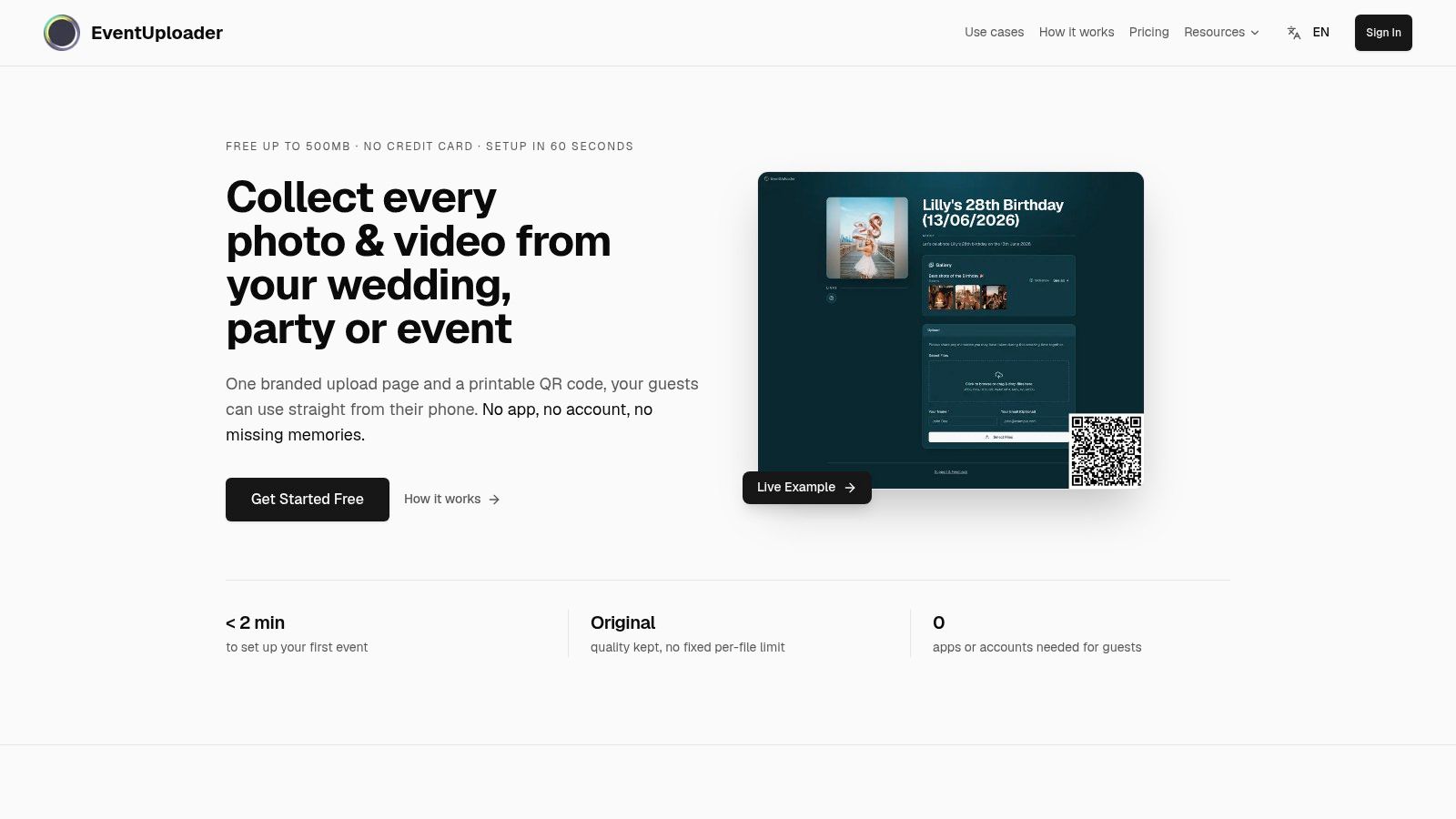
Create a dedicated event page with a recognizable name, event details, and a short welcome message. If the tool supports branding, use the event colors and logo so guests immediately know they're in the right place. A branded page also helps prevent confusion when several events are taking place in the same venue.
Keep the message short. “Share your photos and videos from tonight” is better than a long explanation about file formats, permissions, and gallery settings. Put any important privacy instruction in plain language, but don't bury the upload button beneath unnecessary copy.
Before publishing, test the page as a guest:
- Open it from a QR scan rather than a saved administrator link.
- Confirm that it loads in a mobile browser.
- Select both a photo and a video from a phone gallery.
- Check whether the upload starts without account creation.
- Verify where the submitted files appear in the organizer dashboard.
If you need a more detailed reference for the QR setup itself, use this guide to create a QR code upload page.
Generate one link and one QR code
Use one primary destination for the event. That link can be shared in the invitation, event chat, email reminder, and printed materials. The QR code should point to the same page, so guests don't encounter different versions of the gallery depending on where they found it.
Print the code at a size people can scan without leaning across a table. Add a short instruction beside it, such as “Scan to share your photos and videos.” A code without context looks like decoration. A code paired with a clear action becomes an invitation.
Place copies in several participation zones:
- Tables: Guests have time to browse their camera rolls while seated.
- Entrance: Early arrivals can upload before the schedule gets busy.
- Bar or refreshment area: People naturally pause and look at their phones.
- Main screen: A projected code reaches guests who never notice printed signs.
- Event chat: Remote participants and guests who miss the printed code still get access.
Don't rely on a single sign in a corner. Visibility creates reminders without requiring a staff member to chase people around the room.
Make the guest experience boring
That's a compliment. Guests should scan the code, see the event page, select files, and submit. They shouldn't install anything, compare account types, confirm a password, or search for a verification email.
Use a mobile-first page with a large upload control and readable text. Test it on both strong and weak venue connections. If the first screen takes too long to load or the upload control is hard to find, guests will assume the system isn't working.
A live wall can encourage more contributions because guests see that their media has reached the event collection. It also gives the host an opportunity to spot failed uploads while there's still time to fix the setup. Don't make the wall the only reason to participate, though. The core promise is simple access and safe collection.
Assign one person to check the workflow during the event. They don't need to supervise every upload. They only need to confirm that the QR code scans, the page opens, and files are appearing. That small check catches the failures that otherwise become an empty gallery the next morning.
The Data Behind No-Login Collection Success
A guest scans the QR code during a reception, sees an upload page, and reaches an account prompt. The contribution usually ends there. No-login collection removes that avoidable interruption, but it does not fix slow pages, unclear instructions, weak connectivity, or galleries that stop serving files after the event.
The available comparison is clear. One industry guide reports 65% average guest participation for QR code event sharing, compared with 40% for app-based alternatives. It also reports a 91% scan-to-upload success rate when guests can finish in under 30 seconds without creating an account or remembering a password. Those figures appear in this analysis of QR code event photo sharing.
Engagement Metrics
| Method | Avg. Participation | Success Rate |
|---|---|---|
| Browser-based QR sharing | 65% | 91% scan-to-upload when the flow stays under 30 seconds |
| App-based sharing | 40% | The cited comparison does not provide a matching scan-to-upload rate |
The gap reflects the commitment required before upload. An app asks guests to install software, learn a new interface, and often create an account. A browser workflow keeps the request focused on the contribution itself. That difference matters at busy events, where guests have limited patience and several competing distractions.
Placement changes the result
A QR code hidden on one sign has a short working life. Put it on tables, near the entrance, beside the photo booth, or next to another natural pause point. Guests need to see the invitation when they have a photo or video ready, not only when they first walk into the venue.
The same QR sharing guide reports that a visible live photo wall can lift upload rates by 2.3x compared with static QR signage alone. Use that finding practically. Show recent contributions so guests can see that the collection is active, while keeping the upload instructions readable and immediate.
Answer three questions on the display:
- What is this? “Share tonight's photos and videos.”
- What should I do? “Scan, choose files, and upload.”
- What happens next? “Your media appears in the event gallery.”
Keep the upload under 30 seconds
Guests may not time the process, but they notice every delay. The page should open quickly, place the upload control on the first screen, and avoid forms, redirects, permissions, and account prompts before submission. Remove optional fields from the initial flow. Ask for names, comments, or email addresses after the upload, and keep them optional.
Measure more than scans. Check how many people reach the upload page, begin selecting files, and complete submission. A high scan count with few completed uploads points to a technical problem, unclear instructions, or file-size friction.
No-login access removes an account barrier. It does not guarantee that large videos upload reliably or remain available after the event. Confirm the platform's retention rules before promising guests lasting access to the gallery, then test the complete flow on the venue connection you will use.
No Login Does Not Mean No Privacy
“No login” describes the guest's access experience. It doesn't automatically describe what the platform knows, stores, or records.
A guest may upload without registering while the service still processes technical information such as an IP address, cookies, browser details, or file metadata. A private or unlisted link may limit public discovery without making the uploader or viewer fully anonymous. Recent coverage of anonymous video hosting highlights this distinction, including the difference between skipping an account and minimizing identity linkage.
Organizers need to stop treating these terms as interchangeable. No account, private gallery, unlisted link, and anonymous upload describe different privacy conditions. Ask what each one means before putting a QR code on every table.

Questions to ask before the event
Get concrete answers from the platform or its privacy policy. Don't settle for “secure” as a marketing description.
- Uploader identity: Does the system require a name or email, or can guests submit without identifying themselves?
- Viewer identity: Can anyone with the gallery link view the files, or does the organizer control access?
- Technical data: Does the service collect IP addresses, cookies, device information, or analytics?
- File metadata: Does the original file retain location, device, or creation metadata?
- Consent: Can the page display a clear consent prompt before collection?
- Control: Can the organizer delete individual uploads, close submissions, or remove the gallery?
- Visibility: Are uploads publicly indexed by search engines, or are they accessible only through the event destination?
Privacy policies differ, so hosts should read the relevant policy rather than infer protection from a QR code. For another practical example of how an event business explains its approach, understand Forever Party Rentals' data practices.
Friction and privacy can coexist
Removing registration doesn't require removing every safeguard. A well-designed upload page can keep the guest path short while giving the organizer control over gallery visibility, consent language, moderation, and deletion.
The mistake is collecting more information than the event needs. If the purpose is to gather wedding footage, an email address shouldn't become a hidden requirement unless there's a clear operational reason. Optional contact capture can support follow-up, but it changes the privacy expectation and should be presented transparently.
Hosts should also tell guests how the media will be used. “Uploads will be available to attendees in the event gallery” is clearer than a vague promise that content may be shared. If the organizer plans to publish clips publicly, obtain appropriate permission and say so before people upload.
Use this data security best-practices guide as a checklist for evaluating the system, then verify the actual settings on the account you'll use.
The right standard is not “anonymous at all costs.” It's minimum necessary data, clear expectations, controlled access, and an upload path that doesn't pressure guests into unwanted registration.
Handling Large Videos and Retention Realities
The upload isn't finished when a progress bar reaches the end. For event organizers, the test comes later. Can you still retrieve the original file? Is the gallery open when the couple returns from their honeymoon? Does the link remain useful after guests stop checking the event chat?
Video exposes weak retention policies quickly. A temporary sharing service may prioritize immediate playback but provide limited storage or a short access window. One no-account sharing example limits free sharing to 48 hours unless the user creates a free account, as described on this browser-based video sharing page. That may be acceptable for a quick exchange. It's a poor fit for an event archive unless the organizer has a separate export plan.
Large files need room to breathe
Guests record speeches and candid footage in original quality. Asking them to compress files before upload adds work and can reduce the value of the footage. The organizer should choose a workflow that handles large files without forcing guests to become editors.
An independent 2026 dataset covering 84,473 uploads from 799 events reports that more than 45% of uploaded data was video files larger than 200 MB. The same source says that removing file-size restrictions up to 1 GB helped capture more speech and candid footage. These figures come from the event QR sharing case-study dataset.
That evidence changes the priority list. A photo-only workflow may look fine in a quick test, yet fail when guests upload the actual content that matters most. Test a longer video, not just a small image, and confirm that the organizer can download the original file afterward.
Use a five-step retention process
- Capture the original. Tell guests they can upload the footage they recorded, rather than asking them to edit or compress it first.
- Test the transfer. Upload a representative large video before the event. Check the device, connection, progress behavior, and failure message.
- Monitor during collection. Watch for stalled submissions while the event is still active. A guest can retry immediately if someone notices the problem.
- Export the archive. Download the complete collection in original quality once the event is over. Don't assume that a dashboard is a permanent backup.
- Create a second copy. Store the export in a location controlled by the organizer, then decide which files belong in the shareable gallery.
A storage calculator can help you estimate the space required before collecting a large event library. Use the photo storage calculator to plan capacity, then allow additional room for video rather than budgeting only from the expected photo count.
Don't confuse access with ownership
A live gallery is useful during the event, but it isn't the same as an archive. Ask whether the host can export all files, whether downloads preserve original quality, how deletion works, and whether the collection closes automatically.
If you plan to share selected footage on social media, keep the original files separate from the versions prepared for publishing. Re-encoding and platform processing can introduce quality loss. Guidance on how to avoid Instagram compression artifacts is useful for the publishing stage, but it shouldn't replace an original-quality event archive.
Retention is part of the product decision. If a service can collect footage but doesn't explain how long the files remain available, treat that uncertainty as an operational risk and get the answer before printing the QR code.
Your Final Event Checklist for Success
A guest scans the QR code, reaches the upload page, and then stops because the form asks for an account, the video is too large, or the privacy terms are unclear. That failure happens before the organizer sees anything in the gallery. A successful workflow requires decisions before the event, clear prompts during it, and careful file handling afterward. The QR code opens the process. It does not make the process work.
Before guests arrive
Set up and test the workflow in this order:
- Define the collection purpose. Decide whether you want every upload, selected memories, behind-the-scenes footage, or material for a private gallery.
- Write the guest instruction. Give guests one clear action: scan, choose photos or videos, and upload.
- Test the browser path. Use a phone that is not signed into the organizer account. Confirm that a guest can submit without registration or an app.
- Test a real video. Use a longer, larger file. Confirm that the transfer finishes and that the original file can be retrieved afterward.
- Review privacy settings. Check whether the gallery is private, unlisted, or publicly discoverable. Identify which information guests must provide and which fields remain optional.
- Prepare QR materials. Print table cards, entrance signs, and a screen version. Add the written link to the event chat and digital invitation.
- Assign ownership. Name one person to check the page, monitor incoming files, answer guest questions, and export the archive.
During the event
Place the code where guests naturally pause, including tables, bars, entrances, photo areas, and presentation screens. One decorative sign is easy to miss. Put the instruction beside the code so guests do not need to search for context.
Keep the journey mobile-first and browser-based. Every extra page, account request, or required field creates another reason to abandon the upload. Ask for only the information needed to manage the collection, and make the privacy conditions visible before submission. A no-login page can feel private to guests while still exposing files through a public gallery or shareable link, so test the actual access behavior instead of relying on the label.
Use a live display when it supports participation. It should show that uploads are arriving and remind guests to contribute, not become a technical attraction. If new files stop appearing, check the connection and upload page before telling guests to submit again. Repeated failed attempts damage confidence quickly.
After the event
Close the workflow while the collection is still fresh:
- Export everything: Download the complete collection in original quality.
- Verify the archive: Open a sample of photos and videos, including larger clips, from the exported files.
- Create a backup: Keep a second copy outside the event dashboard.
- Review permissions: Remove files that should no longer be available and confirm who can view the gallery.
- Publish selectively: Share only the images and videos that fit the consent given to guests.
- Tell guests what happens next: Send the gallery link or download instructions while the event remains familiar.
A QR code collects memories. A retention plan keeps those memories available.
Choose a service for the entire workflow, not just the phrase “no login.” Confirm the upload path, privacy controls, video handling, guest instructions, and export process before printing anything. Retention is part of the decision. A gallery that works during the event is not automatically a permanent archive, and unclear storage terms leave the organizer responsible for finding out too late.
EventUploader provides a branded upload page, one shareable link or printable QR code, and browser-based photo and video collection without an app or account for guests. Set up the workflow, test a real video, and visit EventUploader to give guests a direct way to contribute while keeping the collection under the organizer's control.