How to Share Large Video Files Without Losing Quality
Need to share large video files? Use a transfer link, cloud folder, or event page, and keep the original plus a lighter watch copy.
You've got the wedding speech on your phone, the conference recording on a camera card, or the birthday clip everyone's asking for. Email rejects it. The group chat accepts something, but the version that comes back looks softer than the original, and the venue Wi-Fi won't finish another upload.
The reliable way to share large video files without losing quality is to separate two jobs: delivering an untouched file to its owner and giving everyone else a copy they can watch. Choose the channel for the recipient, then plan the upload for the connection you have, not the broadband you wish you had.
Table of Contents
- Pick a Channel That Can Carry the File
- Original Masters and Watchable Copies
- Sharing When the Venue Wi-Fi Is Weak
- How to Send the File Without Losing It
- Fixes for Failed or Unplayable Transfers
- Collect Every Clip Into One Gallery
Pick a Channel That Can Carry the File
Ways to share a video that email cannot hold
| Channel | Best for | Size comfort | Quality | Main catch |
|---|---|---|---|---|
| Email attachment | A short note, not footage | Must fit the sender's and recipient's attachment limits | File itself if it sends | Rejects real video |
| Chat app | One quick look for one person | App-specific caps and sending modes | Usually reduced in video-sharing mode | Unsafe as the only copy |
| Temporary transfer link | One master to one recipient | Files within the service's transfer allowance | Original when sent without conversion | Link expires |
| Cloud folder | A team returning to one library | Files within upload and storage allowances | Original file, preview may be lighter | Accounts and permissions |
| Event upload page | Many phones at one event | Phone clips, cap set by the organizer | Original if stored as uploaded | Weak venue networks |
| Physical drive | Camera masters in the same building | Camera folders that fit the drive | Bit-for-bit when copied and verified | Nobody remote can watch it |
Email is a delivery method for the link, not the footage. Even when a short clip fits, attaching separate copies makes it harder to know which version the recipient has. If you need an attachment, Taja AI's guide to fix oversized video attachments is useful for preparing a smaller viewing version, not replacing the camera master.
Chat apps serve a different purpose. They're convenient for showing someone a moment immediately, but video-sharing modes can resize or re-encode the file. A document or file attachment mode may behave differently, so don't assume that a clip appearing in a conversation proves the original arrived.
Match the channel to the handoff
A temporary transfer link suits a videographer sending a finished master to an editor or client. Check the transfer allowance before uploading, and choose an expiry that gives the recipient time to download. A successful upload isn't useful if the link disappears before the editor opens the message.
A cloud folder works better when collaborators will return to the same material. Give them download access, not merely permission to watch a browser preview. Keep the library under an account the owner controls, rather than leaving the only accessible copy in a freelancer's personal storage.
For a wedding, match, or conference, the problem is collection rather than a single handoff. An event video upload portal gives guests one destination instead of asking the organizer to reconcile separate messages and transfer links.
Know when the internet is the wrong route
Professional footage can be far larger than a phone clip: MASV reported that its average uploaded video file reached 64 GB in 2025, up from 45 GB in 2024. That describes its professional transfer workload, not the typical wedding guest's recording.
When the editor and camera operator are in the same building, a physical drive can be the simpler handoff. Copy the camera folder, verify the destination, and keep the source card intact.
Before opening an upload window, pick a row in the table. Write down who's sending, whether this is a clip or a collection, and whether the recipient needs the untouched master.
Original Masters and Watchable Copies
A wedding highlight that looks sharp on a projector can still stutter on a phone over venue Wi-Fi. The owner keeps the master; everyone else gets a version suited to their screen and connection. Producing a smaller watch copy leaves the original untouched.
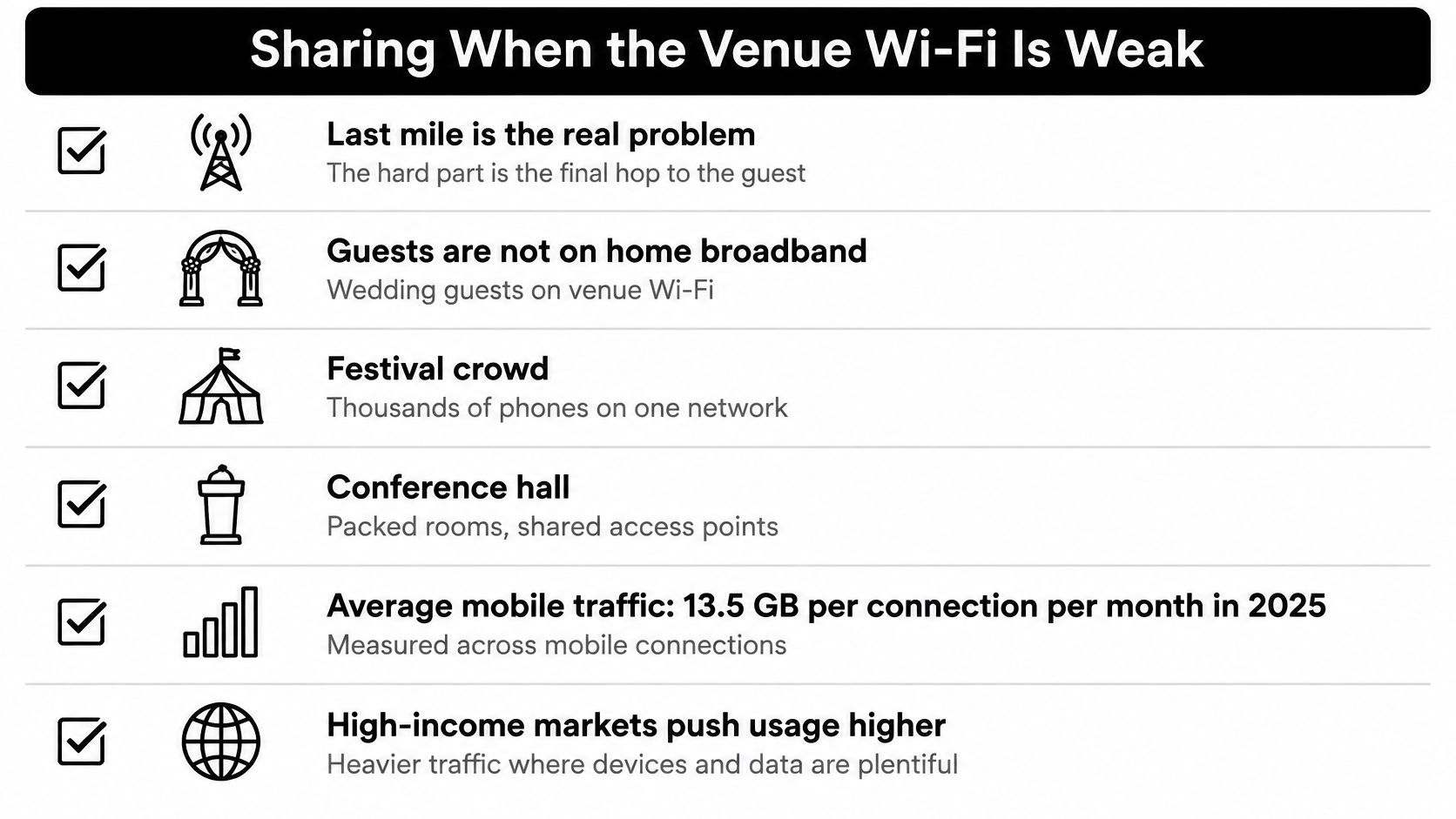
The image below lists common causes of weak venue Wi-Fi, from last-mile connectivity to crowded networks and mobile data limits. Those are the conditions a lighter viewing file is built for, which is why it deserves a place beside the archive.
Choose what needs preserving
The TransferNow file-size guide gives approximate sizes of 80 MB per minute for smartphone 4K HEVC and 1.4 GB per minute for ProRes 422 HQ at 1080p, making ten-minute examples about 800 MB and 14 GB, respectively.
What to keep and what to send
| Clip | Approx size | Keep the original | Send instead |
|---|---|---|---|
| One minute smartphone 4K HEVC | About 80 MB | Yes if it will be edited or projected | 1080p or 720p watch file |
| Ten minutes smartphone 4K HEVC | About 800 MB | Yes as the owner archive | 720p or 1080p watch file for constrained connections |
| One minute ProRes 422 HQ 1080p | About 1.4 GB | Always | H.264 MP4 viewing copy |
| Ten minutes ProRes 422 HQ 1080p | About 14 GB | Always | Proxy plus a master transfer link rather than a chat app |
| Phone or laptop viewing | Set by export settings and duration | Owner still keeps the master | 720p preview when bandwidth matters |
The gap comes from recording format versus delivery format. An editing-friendly camera file can weigh far more than a viewing export with the same frame dimensions, so resolution alone is a poor guide to size.
Keep the untouched file when someone will grade color, repair audio, crop a shot, or cut a recap. Baking those future decisions into a reduced export before the editor receives the footage removes options the owner may need later.
Archive rule: Compression is a choice for the viewing copy. The keeper stays untouched.
Export for the actual audience
I'd start with 720p for mobile-data viewing and 1080p for a family television or modest projector, then check the result on the intended display. Faces, presentation slides, motion, and low-light noise all affect whether an export holds up.
Use HandBrake or your editing application to export H.264 in MP4 for a broadly practical watch copy. HEVC in MP4 or MOV also works when the receiving devices support it. Test playback on one recipient's device before sending it to the whole family.
This video provides a companion walkthrough for preparing a smaller file.
If the destination really is email, SwiftNet Wifi's guide to shrink large files before emailing provides additional compression guidance. Export from the master rather than compressing an already reduced copy a second time.
Use a clear pair of names, such as Reception_Speeches_ARCHIVE.mov and Reception_Speeches_WATCH.mp4. Keep them side by side until playback is confirmed, and separate browser previews from original-quality video downloads when handing files to the owner.
Sharing When the Venue Wi-Fi Is Weak
The last mile is often the bottleneck. A phone showing a strong Wi-Fi signal can still be connected to an access point sharing a constrained internet uplink with the entire room.
The GSMA connectivity report reports average mobile traffic of 13.5 GB per connection per month in 2025, a worldwide median fixed upload speed of 51.49 Mbps, and fixed uploads 4.4 times faster than cellular. Those figures describe broader connectivity conditions, not a promise about the connection beside the dance floor.
Give guests a practical upload checklist
Choose the connection deliberately. Use venue Wi-Fi only if it's progressing. Otherwise, save the heavy file for home broadband rather than repeatedly switching between weak networks.
Send the watch copy on cellular. Reserve the master for a dependable connection, particularly when guests have limited allowances. Avoid roaming for original footage unless the sender understands their plan.
Keep the phone powered and the upload visible. Plug it in where possible and leave the upload screen open. A browser or operating system may suspend work after locking or switching apps.
Test interruption recovery. Before the event, try an upload, interrupt the connection, and reconnect. Don't advertise resumable or background uploading unless the chosen service supports that behavior on guests' devices.
Reduce competition. Stagger large submissions and set an appropriate per-file cap. A professional camera master shouldn't compete with guests trying to send ordinary phone clips.
Hosts should describe the expected file size in the invitation using an actual sample recording. Duration alone isn't enough, because recording settings change how much data the upload consumes.
A speed test is a planning aid. The upload's sustained progress is the test that matters.
Budget time without promising a finish
For a time estimate, divide the file's size in bits by the measured upload rate, not the advertised download rate. Treat the result as a best-case floor, then allow for network sharing, interruptions, and the service's processing.
A phone clip that looks manageable at home can become an awkward commitment on crowded guest Wi-Fi. A camera master belongs on a wired connection or an unattended broadband upload, not on a guest's phone while they're leaving the reception.
The fallback should be simple: stop an upload that isn't progressing, send the lighter version, and schedule the master for later. Don't delete the waiting file just because someone has received a preview.
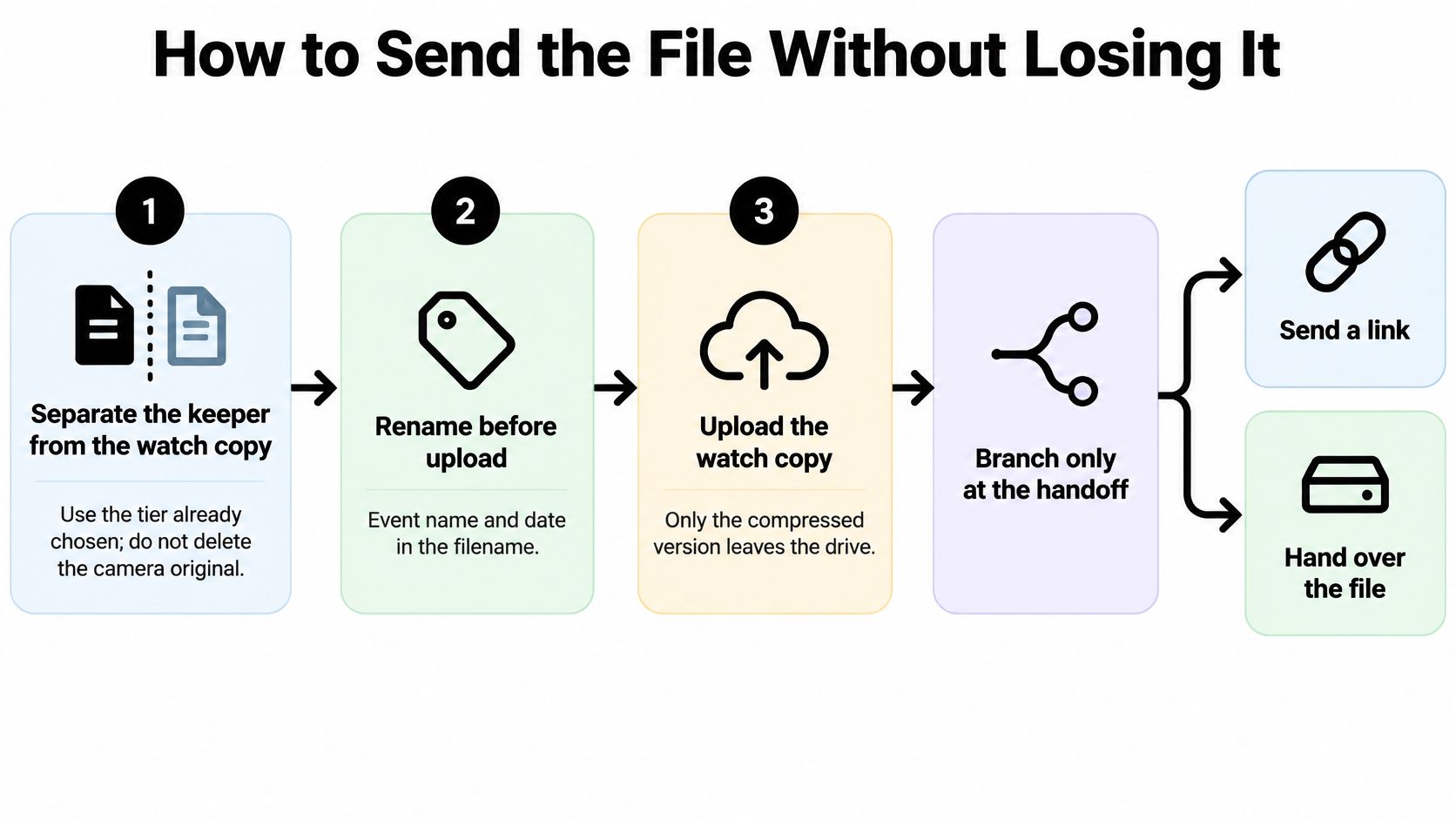
This workflow keeps the original separate while the watch copy travels.
How to Send the File Without Losing It
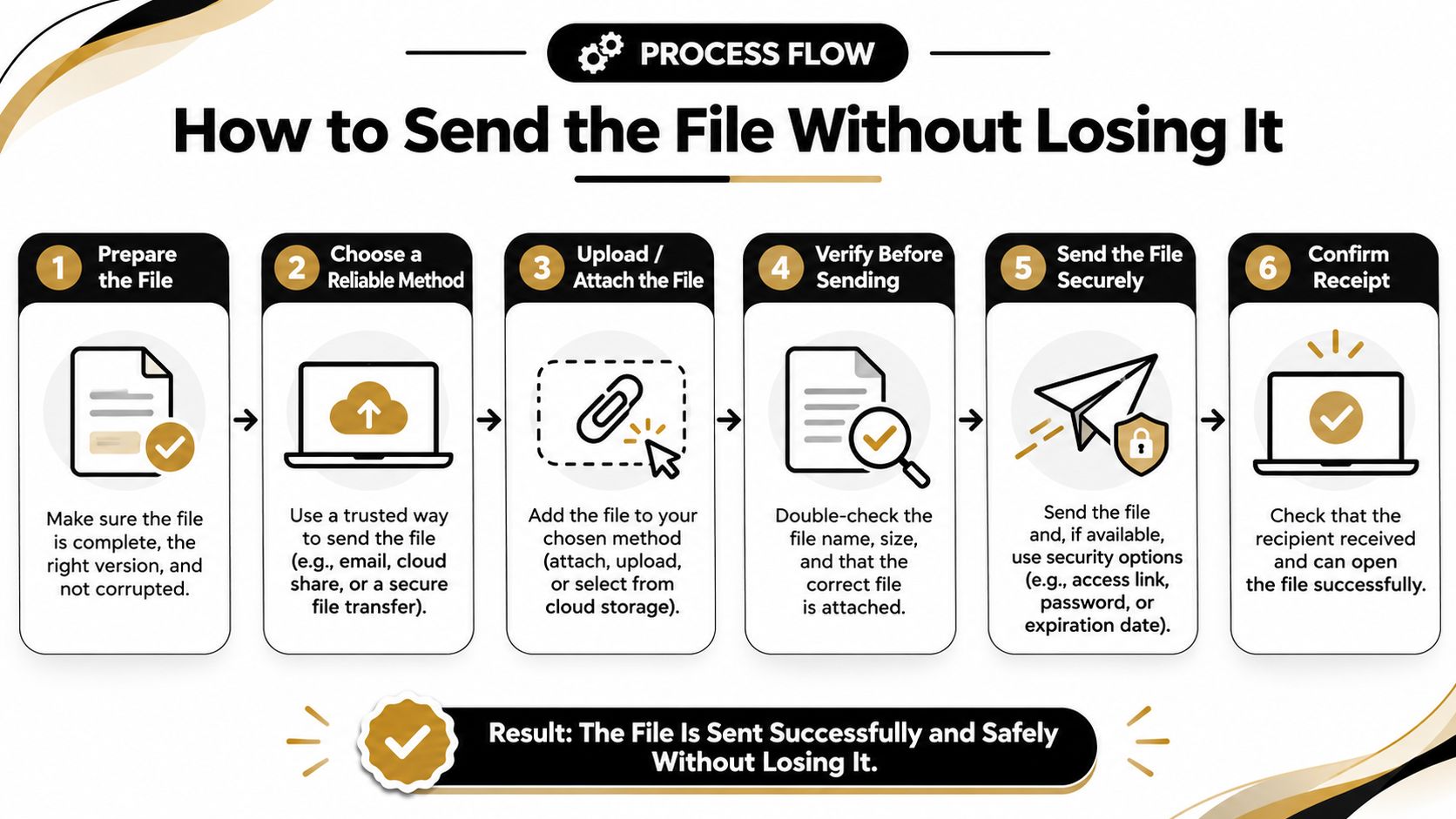
A dependable handoff needs an identifiable file, the right access, and confirmation from the person receiving it. An upload-complete message only confirms the sender's side of the transaction.
Prepare before opening the upload window
Separate the keeper from the watch copy. Put archive files and viewing exports in clearly labeled folders. Export into the viewing folder so an accidental save doesn't replace the camera original.
Rename before uploading. Include the event, contributor, and a short description, such as
Conference_Morgan_ClosingTalk_WATCH.mp4. Preserve the original camera filename in your archive notes if an editor needs to reconnect footage later. Leaving everything under camera-generated names makes duplicates difficult to distinguish.Check the file locally. Play the opening, scrub into the middle, and check the ending with sound enabled. In QuickTime's movie inspector, VLC's codec information, or MediaInfo, identify the codec and container. A
.movextension alone doesn't tell the recipient what their computer must decode.Prepare the destination. Confirm there's enough storage, the file fits the upload allowance, and the intended recipient can use the service. Don't discover an account requirement after uploading the whole collection.
The handoff diagram is a useful checklist to keep beside the sending device.
Branch only at delivery
For a transfer link, send the intended master. Choose file transfer rather than a conversion workflow. Set an expiry that fits the recipient's schedule and add a password when available, sharing it separately for sensitive footage. Paste the URL into your message with the filename and expiry clearly stated.
The common slip is sending a short-lived link into a chat that people won't revisit until much later. Ask the named recipient to download it, rather than assuming the conversation itself preserves the file.
For a cloud folder, share the folder rather than separate file messages. Upload into the owner's library, grant the appropriate download rights, and test access from outside the owner's signed-in session. A preview that works for you doesn't prove that a collaborator can retrieve the original.
For an event page, distribute one destination. Put the upload link in the invitation or print its QR code where guests can use it. Explain whether you want full recordings, selected highlights, or both, and include the network instructions before people start uploading. Each contributor should send from their own phone instead of forwarding clips through another guest first.
For a physical drive, verify before disconnecting. Open files from the destination drive, not from the source folder still visible on screen. For important masters, compare checksums as well as file counts and sizes.
Get receiver confirmation. Ask the recipient to open the intended version and check picture and sound. Editors should confirm that they downloaded the source file, not merely viewed a proxy.
Keep the confirmation message with the delivery details. If the receiver can't play or retrieve the version they need, the share hasn't happened yet.
Fixes for Failed or Unplayable Transfers
Diagnose the symptom before exporting again. Access failures, playback failures, and damaged transfers need different fixes, and another compression pass won't repair a permissions error.
When the recipient can't reach the file
Expired link or rejected password. Create a fresh link to the existing cloud upload when the service permits it. Extend the availability window and resend the URL, rather than uploading another identical master unnecessarily.
Folder permission error. Check both the invited account and the download setting. A recipient signed into a personal account may be unable to open a folder shared with their work address.
Storage or plan restriction. The organizer must confirm that uploaded files are accessible and downloadable. A sender's completed progress indicator doesn't establish that the owner can retrieve everything.
If the footage already exists at an accessible remote address, uploading video by URL may be worth considering for a supported workflow. Don't assume that a watch-page address is a direct media-file address.
When the file arrives but won't behave
Black picture or missing audio: A codec incompatibility is one possibility, but incomplete files and export errors can produce similar symptoms. Test the downloaded file locally, then make an H.264 MP4 watch copy with compatible audio if the master plays correctly on the sender's machine.
Soft or cropped picture: Compare it with the source. If a chat app changed the video, replace that delivery with a file-preserving transfer rather than enlarging the softened copy.
Upload stuck at a percentage: Check whether the service supports resuming before cancelling. Change to a stable connection, then resume or restart cleanly and remove any incomplete destination entry.
Matching camera filenames: Keep both files until you compare their contents. Rename them by contributor and moment before deciding whether either is a duplicate.
Never erase the camera-roll version until another person has played the intended delivered file.
For conference footage destined for a public channel, solve delivery and playback before publication. A YouTube upload scheduling tool from Social Media Scheduler belongs after that check, when you're arranging release timing, not troubleshooting a broken master.
Collect Every Clip Into One Gallery
The useful outcome isn't a trail of successful sends. It's a collection the owner can find, manage, and hand back to the people who attended.
For footage from a single videographer, keep the workflow narrow: receive the master into owner-controlled storage, verify it, and distribute a viewing export. There's no reason to make every relative open an editor's delivery folder.
A room full of contributors needs a different collection point. Give guests one page before the event, keep the invitation language consistent, and decide who will review the incoming material afterward.
Give every phone the same destination
EventUploader is the event-page option for this job. We provide a branded upload page shared through a link or printable QR code, and guests upload through their browser without creating an account or installing an app.
Guests can send MP4, MOV, AVI, and MPEG video alongside JPEG, PNG, GIF, WebP, and HEIC/HEIF photos. They can select several files at once, with a separate progress bar for each upload.
- Control what arrives. We let organizers accept photos, videos, or both, and set a per-file size cap up to their plan's limit.
- Keep collection private. Files travel directly from the guest's phone into a private AWS S3 bucket in the EU using short-lived signed URLs.
- Manage the handback. Organizers can publish selected photos and videos as an album on the same link guests used to upload, then unpublish it whenever needed.
Curate before sharing
Private collection and shared viewing are separate decisions. Publishing an album makes the selected material visible to everyone who has the link, so review background conversations, children's footage, and conference slides before including them.
The album slideshow can display photos and videos full-screen on a television or projector, while the organizer downloads the originals for safekeeping. That gives the event a watchable collection without turning the public-facing album into the only archive.
Tonight, label the keeper, deliver the watch copy through the channel you chose, and put the collection destination into your next guest message. The next memorable clip shouldn't depend on someone remembering which conversation it landed in.
EventUploader gives your guests one branded page for sending event photos and videos straight from their phones. Create your upload page, share its link or printable QR code, and collect the footage in an organizer-controlled gallery instead of chasing it through chats.