Upload Video by URL: Steps, Fixes and Safe Methods
Learn how to upload video by URL, which links work, how to fix common errors, and safer alternatives when a direct link fails.
A guest sends you a cloud-storage link to a wedding speech. It plays perfectly on your phone, but when you paste it into the upload form, the job fails without a useful explanation. The video may be fine. The receiving service may be unable to retrieve it.
To upload video by URL, you need more than a playable address. You need a source the uploader can access, permission to retrieve the file, and enough time before that permission expires. Check those conditions before you spend time retrying.
Table of Contents
- Why a Pasted Link Fails Before the Upload Starts
- Which Video Links Work and How to Test One
- Upload a Video from a URL Step by Step
- Fix Upload Errors by Cause
- Who Can Reach Your Video and How Long It Stays
- Alternatives When a Direct URL Will Not Work
- Choose Your Method and Confirm the Upload
Why a Pasted Link Fails Before the Upload Starts
In a typical remote upload, the receiving server requests the file, not your browser. Your browser may already have a Google account session, saved cookies, or permission to view a private folder. The receiving server doesn't inherit any of that access.
A pasted URL is an instruction to another machine: go to this address and retrieve its contents. If that address returns a sign-in screen, preview page, or embedded player, the machine hasn't received the video, even though you can watch it yourself.
What the receiving server needs
A usable source must pass these checks:
- Reachability: The address responds, and any redirects lead somewhere the service is permitted to access.
- File delivery: The response contains video bytes rather than a web page. Content type and expected size help identify mistakes, although neither proves the file is valid.
- Continued access: The source remains available until retrieval finishes, including any retries the uploader needs.
A filename ending in .mp4 is helpful, but it isn't proof. A host can return an error page under a video-looking address, and a valid download endpoint might have no file extension at all.
Practical rule: Test what the address returns, not just what its name suggests.
Classify the link before changing the video. Re-exporting a perfectly good recording won't fix an address that leads to a permission screen.
Which Video Links Work and How to Test One
| Link type | Usually works? | Why | What to do |
|---|---|---|---|
| Direct file link ending in .mp4 or .mov | Yes, if accessible | The server receives video bytes directly | Confirm it downloads in a private window |
| Google Drive share link | Sometimes | Large files can return a size-warning page instead of the file | Use a supported direct download link or upload the file itself |
| Dropbox share link | Sometimes | The preview address returns HTML, not the file | Switch to the host's direct-download option |
| Social platform or video page URL | No, for ordinary remote ingestion | Returns a web page with an embedded player | Ask the owner for the original file export |
| Login-protected link | No, without supported authentication | The server receives a sign-in page | Create an appropriately permissioned public or signed link |
| Signed link past its expiry | No | The access window has closed | Generate a fresh link before starting |
The distinction isn't academic. Brightcove's remote-upload documentation says remote sources must be publicly available and notes that Google Drive size-warning pages can prevent ingestion, typically for files above 100 MB.
Run the preflight in this order
- Open a private window. Paste the address without signing in. Confirm that you receive the full video file, not a branded page containing a player. A standalone browser player is encouraging, but inspect the response if you're unsure.
- Follow the redirects. Watch the final address or use your browser's Network panel. A redirect to a login or preview page is a failed test, even if the starting address looked correct.
- Check expiration. For a signed URL, use the host's displayed expiry information or its documented parameters. Don't guess at an unfamiliar timestamp format.
- Inspect the size. Compare the downloadable object with the original. A tiny response where you expect a substantial recording often indicates an error or warning page.
- Confirm automated retrieval is allowed. A host may permit interactive viewing while blocking downloads from another service. Use a supported export or storage endpoint rather than trying to bypass that restriction.
This is the trade-off: URL upload moves work from transferring a file to clearing permissions and delivery restrictions. If obtaining a usable address becomes harder than saving the original, local upload is the simpler method.
Upload a Video from a URL Step by Step
Use this workflow only with a service that explicitly supports remote-file ingestion. A field for embedding a video player isn't necessarily an import feature.
Keep the link and format checks together before submitting.
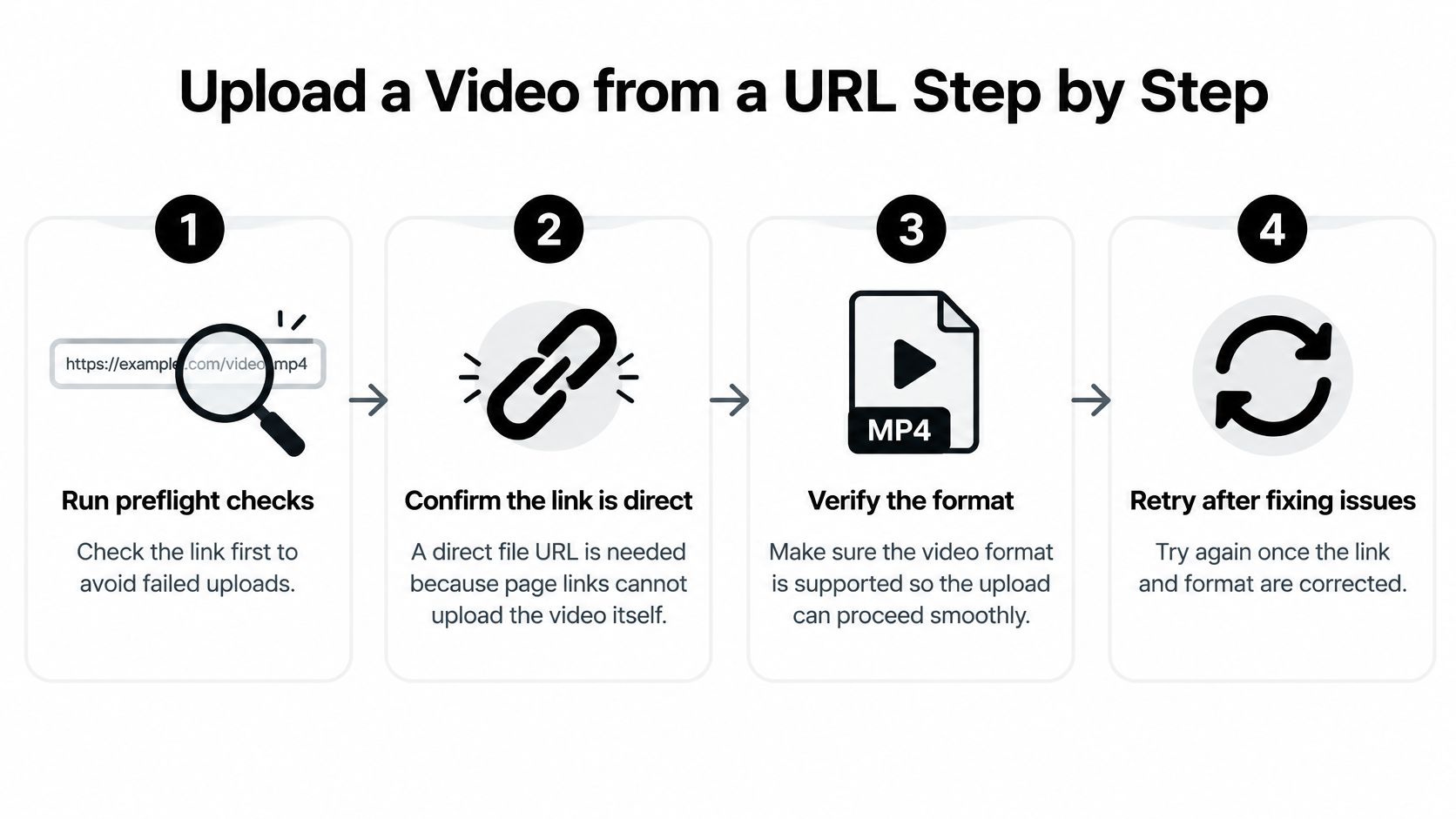
Finish the source preflight. Use the tested file address, not the browser page from which you originally found it. Confirm that its container and codecs meet the destination's requirements, because successful retrieval doesn't guarantee successful processing.
Find the remote-import control. Look for an option such as Add from URL or Import from link. If the service offers only file selection, use a supported alternative rather than pasting an address into an unrelated description field.
Enter the URL and required details. Supply the title, rights confirmation, and any required media or size information before submitting. These fields let the platform validate and organize the job, but changing a file-type field won't convert the source.
Start the job and track its status. Common stages include queued, fetching, and processing, although labels differ between services. Fetching means retrieval has begun; processing means the service is inspecting or preparing what it received, not necessarily that the asset is ready.
Verify the completed asset. Play it from beginning to end, compare its duration with the source, and listen for missing or displaced audio. Compare file size when the destination preserves the original; a transcoded output can legitimately be smaller or larger.
Use the API only as documented
For a developer workflow, submit a POST request to the provider's documented import endpoint with authorization and the source URL. A field might be called source_url, but use the actual schema rather than assuming that name is universal.
Store the returned job identifier and poll its status at the documented interval. Treat a final asset identifier and successful playback as completion, not merely an accepted request.
For a visual companion to the workflow, use the video below.
If your actual goal is distributing the finished recording, the guide to share a video with Upfling addresses that separate task. For contributor collection instead of remote ingestion, consider the video upload without login workflow.
Fix Upload Errors by Cause
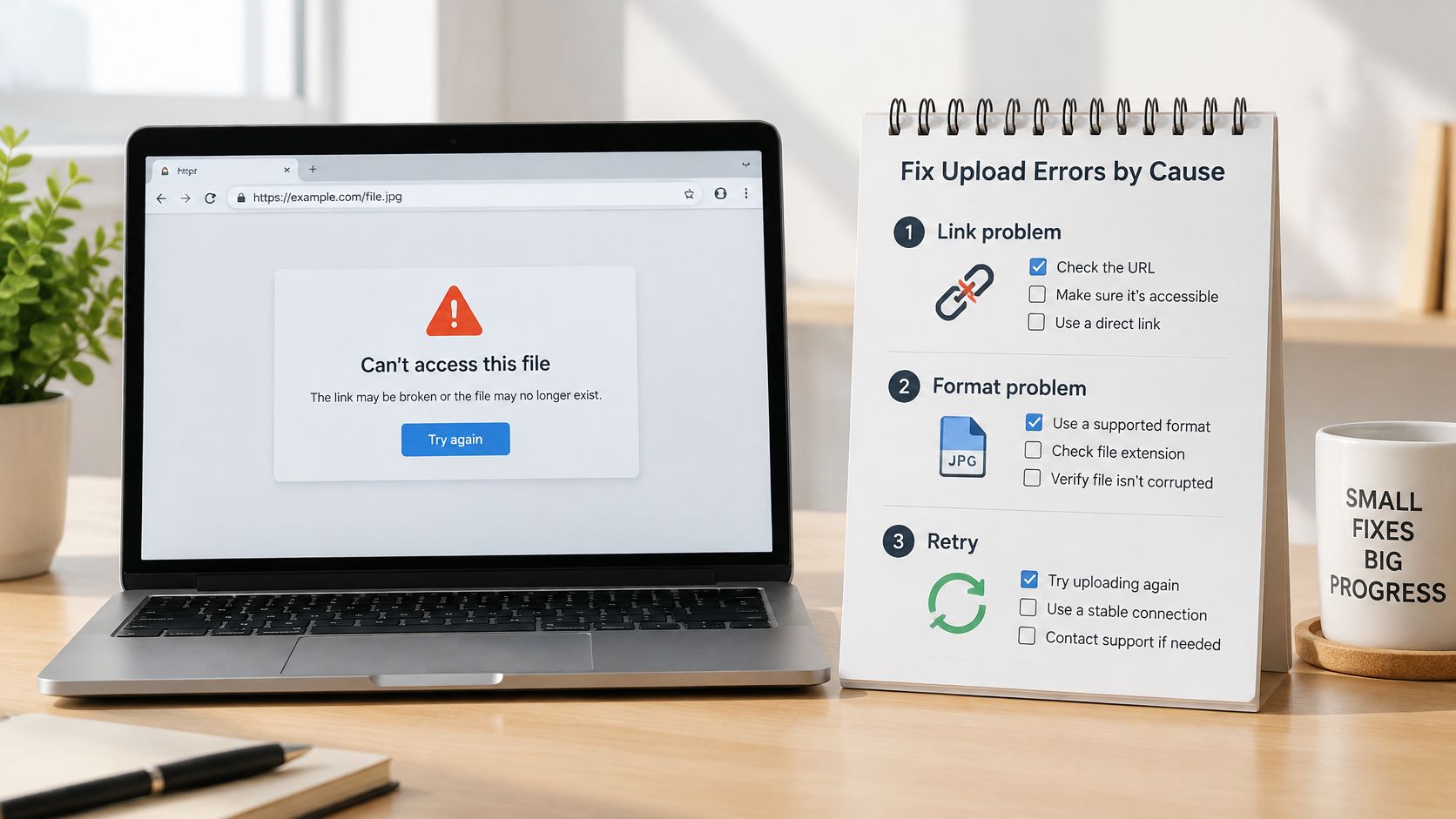
Fix access first, format second, and retry last. Repeating an unchanged job won't repair an expired permission or turn an HTML response into a video.
Use the error message and the last completed job stage to narrow the cause.
| Error or symptom | Likely cause | Fix |
|---|---|---|
| Job returns an HTML page | The link is a share or preview page, not the file | Switch to a direct download link |
| Timeout or transfer stalls | Large file, slow source connection, or host throttling | Retry with backoff, or use a source supporting range requests and an uploader that can resume |
| Unsupported format or codec | The container or codec isn't accepted; a service may accept MP4, MOV, AVI, or MPEG but reject other inputs | Re-export as MP4 with H.264 video and AAC audio, then check the destination's requirements |
| Size limit exceeded | The file exceeds the permitted upload size | Check the applicable limit, then compress or split the file if appropriate |
| Browser CORS error when fetching in the page | The source doesn't permit the required cross-origin read | Use an authorized server-side fetch or a host with suitable CORS settings |
Separate access failures from browser restrictions
A 403 response usually means the host refuses access. Check source permissions, token validity, and whether automated retrieval is allowed. A 404 response calls for checking the source location and copying the address again, although some hosts also conceal private files behind that response.
Browser-based fetching has another restriction. The MDN CORS implementation guide explains how Access-Control-Allow-Origin controls cross-origin access. A video can play in an element while remaining unavailable to scripts or restricted for canvas reuse.
A permitted server-side fetch avoids browser CORS enforcement. It doesn't bypass authentication, ownership restrictions, or the source host's access policy.
Recover without creating duplicate jobs
For stalled transfers, check whether the destination can resume the existing job. Resume from its recorded position instead of submitting another copy; range support at the source helps only when the receiving system knows how to use it.
If you're building the importer, follow Cloudflare R2's storage guidance for multipart handling rather than routing an entire large recording through a synchronous application request. Validate destinations and redirects, enforce transfer bounds, and inspect the actual file before publishing it.
Save the job identifier and error details before retrying. Without them, you can't reliably distinguish a recovered transfer from a duplicate.
Correcting a copied address is usually straightforward. Re-exporting a long recording takes more work, so don't convert anything until access and retrieval have passed.
Who Can Reach Your Video and How Long It Stays
An obscure URL isn't private storage. GitHub's documentation on anonymized URLs warns that anyone receiving such a media address may be able to view the file and recommends authenticated or private hosting for sensitive material.
HTTPS protects the connection during transfer. It doesn't, by itself, establish who can access the stored copy, whether operators can inspect it, or when the destination deletes it.
Say a guest shares a cloud recording with access set to anyone possessing the link. The receiving platform imports its own copy, and the guest then deletes the source. That deletion doesn't automatically remove the imported asset or revoke access to a published gallery.
Ask about the destination copy
Before submitting sensitive footage, resolve these questions:
- Source access: Who can retrieve the address while it's valid, and could forwarding it expose the recording?
- URL logging: Does the destination record the full source address, including its access token?
- Original retention: Does the platform preserve the submitted original, create derivatives, or retain both?
- Failed-job cleanup: What happens to incomplete transfers, duplicates, and quarantined files?
- Withdrawal: Can the sender request deletion after submission, and does that cover published copies?
- Export: Can the organizer retrieve important files before closing the event?
Event footage can include children, home addresses, religious ceremonies, medical information, or unreleased corporate material. Obtain appropriate permission before collecting or publishing it, and tell contributors how you intend to use their recordings.
Separate collection from publication
Use expiring or permissioned source access where the ingestion method supports it. Avoid exposing a public master file merely to solve an upload problem, and keep gallery permissions separate from administrator credentials.
Our files go directly from the guest's phone into a private AWS S3 bucket located in the EU, using short-lived signed URLs. That describes the transfer and storage arrangement, not a promise that every subsequent sharing choice is private.
Build consent, access review, and deletion handling into your event process using these data security best practices. Decide what guests may view separately from what they may submit.
Alternatives When a Direct URL Will Not Work
| Method | Best for | Main limit | How it starts |
|---|---|---|---|
| Download, then upload from your device | A file you can open | Needs a local copy and download time | Manual file selection |
| Platform cloud connector | Files already in Drive or Dropbox | Account linking and folder permissions | Select files inside the platform |
| Shared guest upload link or QR code | Many contributors at an event | Organizer has less control over file names and order | Each guest uploads from a phone browser |
| Official API with a source URL | Developers and bulk jobs | Needs valid authorization and a fetchable source | Scripted POST request with job polling |
Choose according to who controls the original. If you're holding the only usable copy, downloading and selecting the file is often the most predictable route. If contributors still have the originals, asking them to upload can avoid a chain of cloud-sharing permissions.
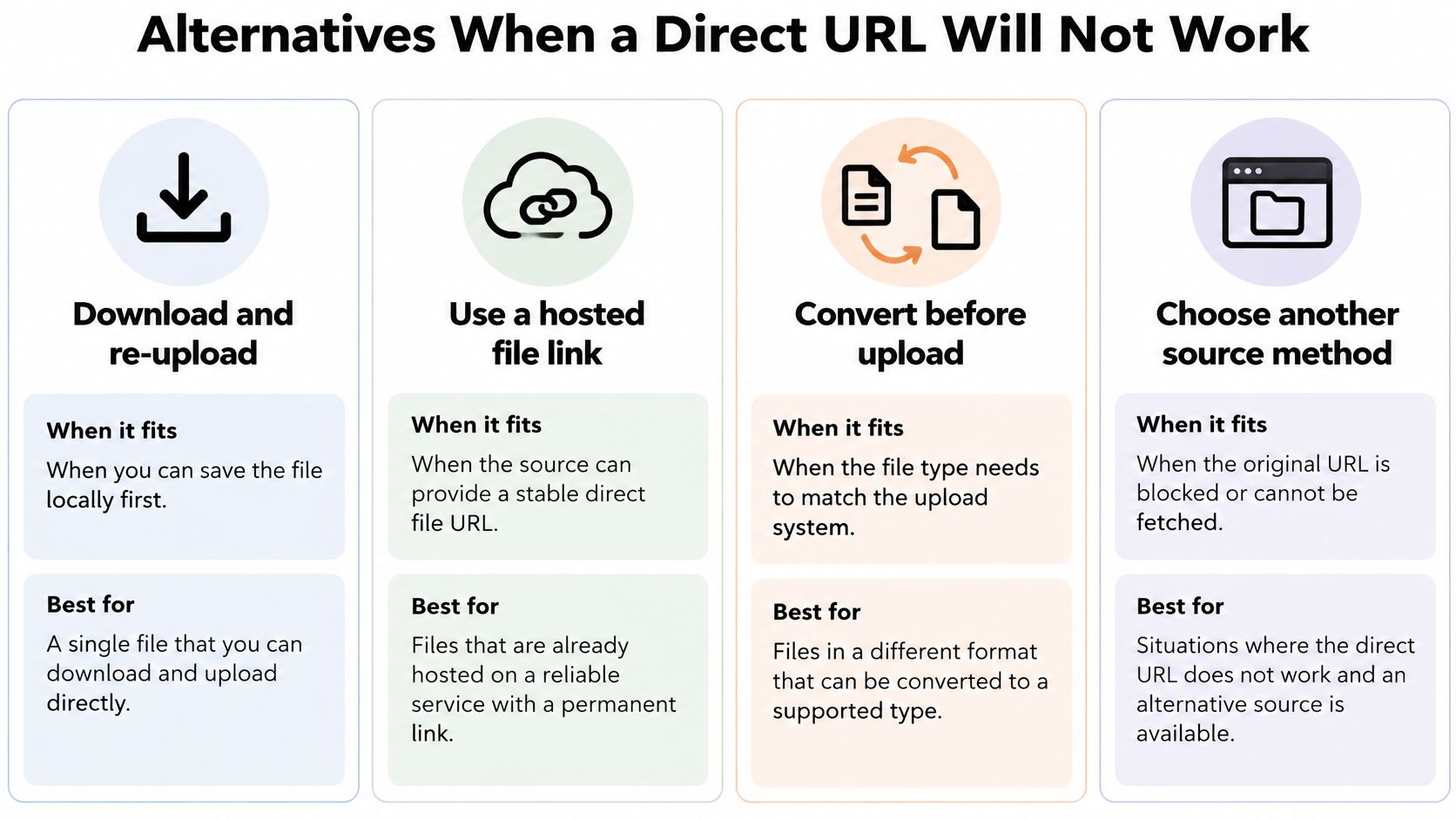
The alternatives below summarize ways to change either the source or the transfer method.
Match the workaround to the owner
Download and re-upload suits an accessible recording that you have permission to save. Keep enough local storage available and retain the original until the destination passes verification. For an authorized technical download from a supported source, RenderIO's yt-dlp video download guide provides a separate workflow; it isn't permission to bypass access controls.
A cloud connector makes sense when the destination offers an official integration. Review the requested account and folder permissions, especially when your cloud account contains unrelated personal or business material.
For an event, use a shared guest upload page when the recordings belong to different attendees. Our attendees upload photos and videos straight from their phones using the organizer's unique link or QR code. They don't need an app, account, or password, just the browser they already have.
A guest upload link points to a place to send files. A remote source URL points to a file another server must retrieve.
Say a conference organizer has recordings scattered across speakers' and attendees' cloud accounts. Collecting individual share addresses creates permission work for every owner; a common submission page lets each person select their own original.
Set naming expectations before collection, such as including the session name in the submission details where supported. A video upload portal helps define the collection workflow, but contributors may still submit files in an unpredictable order.
Use an official API when a developer can maintain authentication, job tracking, retries, and source availability. Automation reduces repetitive work, not the requirement for usable inputs.
Choose Your Method and Confirm the Upload
Choose the method based on the source you have, not the method you hoped would work.
- Direct, accessible file: Submit the tested address through the destination's remote-import feature.
- Share or preview page: Obtain a supported direct source or save the original and upload it from your device.
- Footage from many people: Send a common submission link or QR code instead of assembling a collection of cloud addresses.
Keep an original copy of important footage. Record the expiry of signed sources, and test an address again when someone re-shares it rather than assuming its access remains unchanged.
Before considering the job finished, run the playback, duration, audio, and appropriate file-size checks in the final verification step. A completed status is useful, but it isn't a substitute for checking the recording.
For organizers, our setup follows a straightforward sequence: create and customize the event, share the link or QR code to collect uploads, then manage and download the files. Choose the collection route before asking guests to send anything, so they receive a clear instruction.
A link that plays is not a link that uploads.
EventUploader lets you collect event photos and videos through a shared link or QR code, with guests uploading directly from their phones. Create your event, share its upload page with contributors, and manage the submissions in one place instead of troubleshooting separate cloud-sharing links.