Pictures of Guests: How to Collect, Protect and Share Them
Collect pictures of guests with QR upload pages, get consent before publishing, organize originals and deliver a shareable gallery for your event.
In 2021, an estimated 1.2 trillion photographs were taken worldwide, and more than 92.5% were captured with smartphones, according to an IEEE Future Directions analysis. Pictures of guests already sit on dozens of phones before the cake is cut. The hard part isn't asking people to shoot. It's gathering originals, protecting the people in the frame, and still including guests who never open a QR code.
Table of Contents
- Compare Five Ways to Collect Guest Photos
- Consent, Privacy and Ownership Before You Publish
- Set Up the Upload Page and Get Guests to Upload
- Framing Shots Guests Will Actually Want
- Including Guests Who Cannot Upload from a Phone
- Organize Originals and Publish the Gallery
Compare Five Ways to Collect Guest Photos
Which collection method suits this event? Guest effort, whether you keep full-quality files, and how much labour falls on the host decide it more than the look of the signage.
| Method | Guest effort | Originals at full quality | Best for | Main drawback |
|---|---|---|---|---|
| QR code upload page | Scan and pick photos, no app | Yes, if originals are uploaded | Weddings, parties, conferences | Needs a phone with signal |
| Shared cloud album link | Sign in to a cloud account | Yes | Guests already using the same service | Many guests give up at sign-in |
| Group chat or messaging app | Send files one by one | No, apps often compress | Small gatherings | Files scatter across threads |
| Disposable cameras | Take and drop off film | Prints only, scanned later | Retro, low-tech events | Scanning costs and waiting time |
| Host-assisted collection | Host or helper gathers files | Yes, if transferred directly | Grandparents, guests without smartphones | Labour-intensive for the host |
A QR code upload page is the default for weddings, parties, and conferences when most guests have a phone and a signal. They scan, pick files, and send originals without an app. A shared cloud album keeps quality, but only if people already live in that service. Sign-in screens are where casual guests quit.
Group chats are fine for a dinner of eight. Messaging apps usually compress pictures, and the good shots end up buried in three threads. Disposable cameras give a retro feel and a physical object to hand around. You pay for it later in scanning time and a wait for prints. Host-assisted collection covers grandparents and anyone without a smartphone. A helper takes the files. That works, and it costs the host an hour they didn't budget.
In 2024, 46% of surveyed Britons said they planned to use, or had used, a wedding website or hashtag to collect the best guest shots, a figure HONOR published from a Censuswide survey of more than 10,000 consumers. A shared destination is already normal. A hashtag still leaves files on other people's accounts.
Practical rule: If most guests have phones and reliable signal, start with a QR page and add host-assisted collection as the backup.
Settle three things before you design anything else: the method, how many QR placements you'll print, and the upload deadline.
Consent, Privacy and Ownership Before You Publish
A bigger pile of pictures of guests isn't automatically a better record. Maximising uploads can sit badly with trust. The gallery can hold bystanders, minors, a private moment, or someone who doesn't want to be online at all.
Event-planning guidance published in 2025 recommends asking attendees about comfort with photography, social-media use, tagging, and untagging, and it warns that privacy obligations can apply under regimes such as EU and California law. That ask belongs in the invitation or a short survey, not in a speech after the first dance.
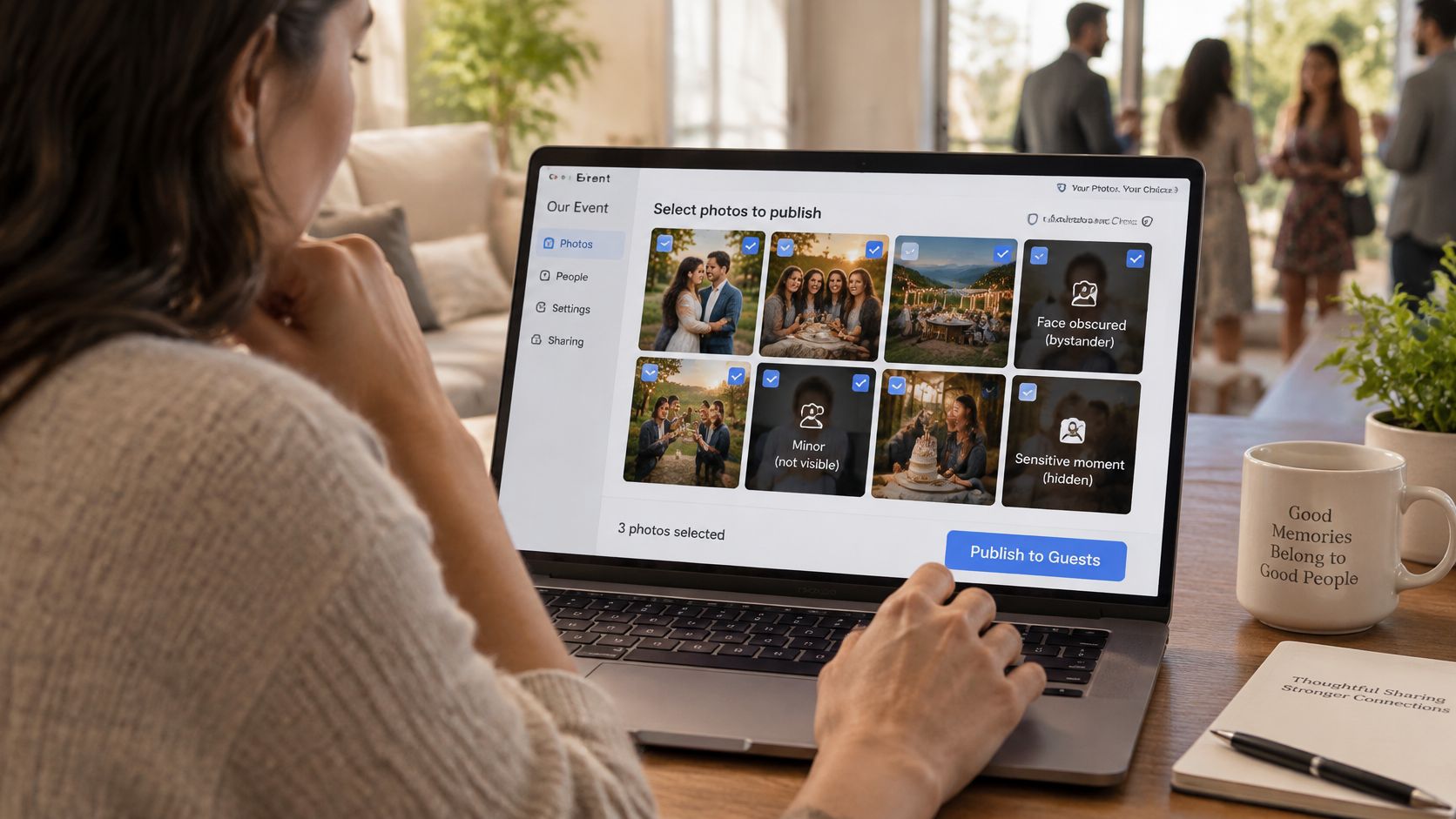
Uploads stay private by default. Guests see each other's photos only if the organiser chooses to share them. A private event gallery and a public post are different decisions. Publishing is the step that needs a second look.
Children, takedown, and who owns the files
Confirm parental consent before any public use of a child's photo, and decide in advance whether those frames stay in the private gallery. Gender reveals, christenings, school events, conferences, and workplace gatherings usually carry tighter expectations than a generic wedding tip list.
State the takedown path on the upload page. A guest emails one named person. That person removes the file from the shared view within 48 hours and confirms by reply. Don't leave removal as "message us sometime."
The gallery belongs to the person who created the event. They can download it in full and take it elsewhere at any time. Guests contribute files. They don't inherit the album.
Before a public gallery goes live:
- Strip location data: Remove GPS and other sensitive metadata where it doesn't need to travel with the file.
- Get a yes for public use: Private collection isn't the same permission as a website or social post.
- Keep originals private: The event owner still needs the full-quality files after the public set is trimmed.
A fuller walk-through of wording lives in our guide to photo consent forms. A line that fits the upload page: "By uploading, you confirm you have permission to share these photos with the host. This gallery stays private unless the host publishes selected albums. Email us to request removal."
Set Up the Upload Page and Get Guests to Upload
A workable flow has three stages: people can find the code, the capture takes almost no effort, and they see that the file landed. Research on event-photo practices, summarised in an Inria paper on collaborative event photos, finds that guests already take and share images during and after social events. A shared private destination fits that habit better than asking everyone to pass files around one by one.
Each event gets a unique printable QR code. Guests don't need an app, an account, or a password. They scan, or they open the same link in the browser they already have.
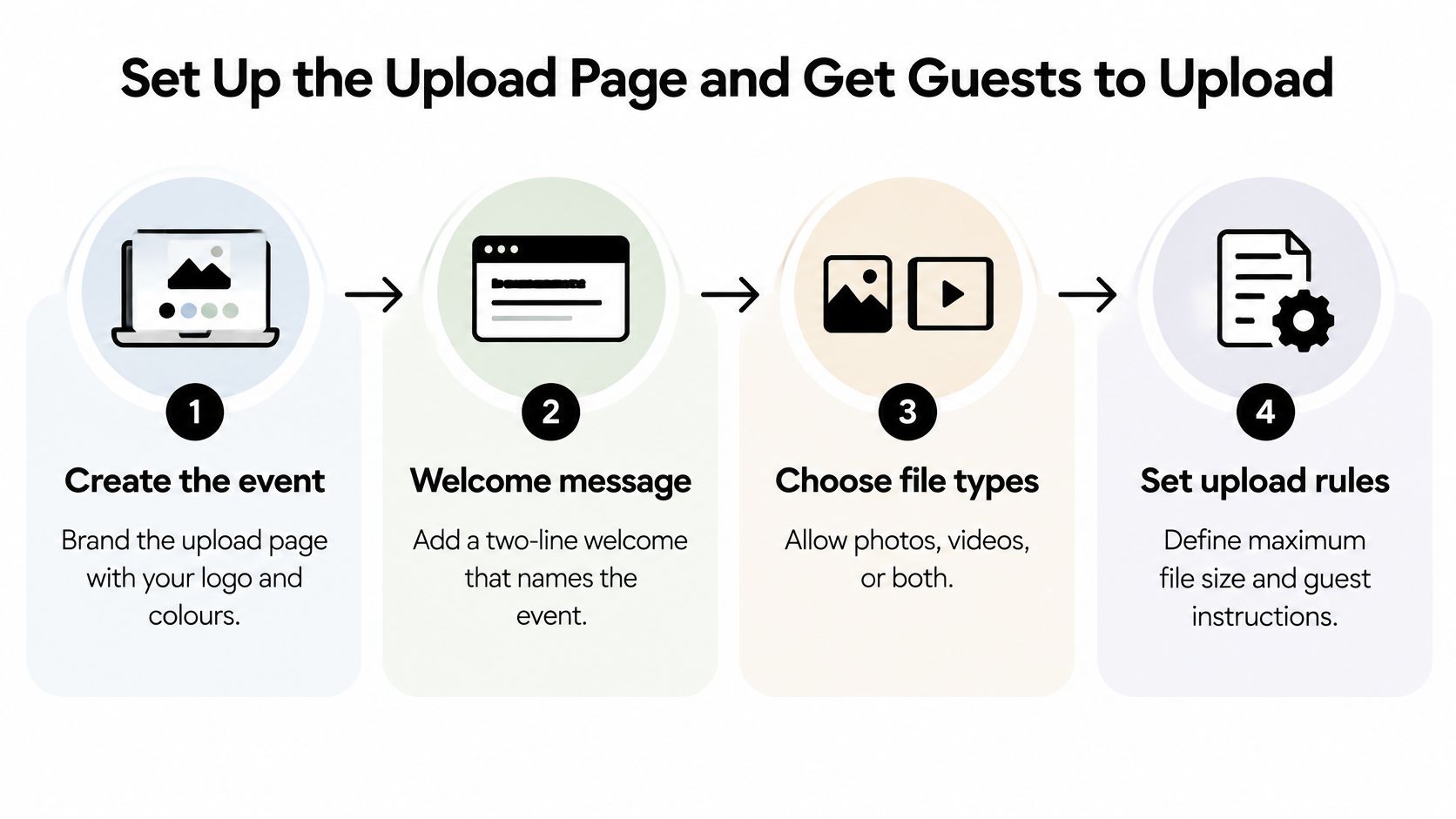
- Create the event and brand the page. Add your logo, colours, and a two-line welcome that names the event. Guests should know they're in the right place in one glance.
- Choose what they may send. Photos, videos, or both. Set a maximum file size and, if you want, a cap per person. A low cap keeps the gallery tidy and blocks the 20-second clip someone wanted to share. I'd rather allow both and close uploads on a clock than surprise people with a silent reject.
- Print the code and copy the link. Make the code large enough to scan from about a metre away. Put the same URL in the invitation and the family chat.
- Test the whole journey on a current iPhone and an Android phone. Scan, open the page, select three files at once, watch each progress bar, and confirm the files appear in the dashboard. iPhone HEIC photos are accepted exactly as they are, so guests don't convert anything.
- Place codes at eye level on tables, entry signage, seat backs, and the photo area. One line is enough: "Scan to upload your photos." For a larger room, use separate placements so you can see which spot produces completed uploads, not just glances.
What to measure, and when to fix it
A scan isn't an upload. Track each stage on its own.
| Stage | What to measure | Warning sign |
|---|---|---|
| QR scan | Scans per placement | Scans with no page load |
| Landing page load | Pages opened in the browser | Blank or slow pages on older phones |
| Upload start | Guests who select files | Many page visits, few file selections |
| Successful upload | Completed files per placement | Failed uploads, especially large videos |
| Duplicate submission | Repeat uploads of the same file | Guests retrying because they are unsure it worked |
| Drop-off | Abandoned uploads | A spike at a sign-in or form step |
The benchmark is one scan, one browser page, and one upload action. Every extra field, account, or app install is another place to quit.
At the halfway point, compare upload starts with successful uploads. A wide gap means the page is confusing or the files are failing. Reprint with plainer wording, or move a code to a busier spot such as the bar queue. Set a closing time so late files don't arrive after you've already compiled the gallery. You can pause collection, and guests then see a short notice instead of a broken page.
If you want the clicks in motion, this short walk-through shows the guest side of the same flow.
Framing Shots Guests Will Actually Want
The frames people keep are simple. A portrait at the entrance. A candid at each table. A group shot for every table of eight to ten.
Set the portrait station near a window. Put a plain backdrop one to two metres behind the guest so faces stay even and flash doesn't blow out the forehead. Shoot at eye level. Hold the phone steady in portrait for groups, because those same frames will fill a slideshow later. If a bystander walks into the background, move the guest or step sideways. Cropping a face out afterward looks worse than a slightly wider frame.
Ask before any close portrait of a child, and leave the station open to anyone who wants a picture, not only the couple or the guest of honour.
Hand a helper this list and stop briefing:
- Entrance portrait: One clear face as people arrive, before coats and bags pile up.
- Table group: Everyone at that table, phones down, in a wide shot.
- Guest of honour: The couple, or the birthday person, with whoever just walked up.
- Candid laughter: Mid-conversation, not a posed grin.
- Empty room: The venue before guests arrive, lights already set.
After the first hour, look at the batch. Dark faces mean you move closer to the window. Cut-off heads mean the helper is shooting from too high. The Merrill Hotel's wedding photography guide is a useful companion here if you want the candid, documentary feel rather than a lineup of stiff poses.
A 2026 look at 114,296 guest photos and videos from 371 weddings found a median of 236 guest items per wedding, and 78.6% of photos included at least one person, according to the Gather and Group wedding photo report. People are already the subject. Your job is to make those people readable.
Including Guests Who Cannot Upload from a Phone
Pictures of guests are an inclusion question, not only a logistics one. A QR-only plan assumes everyone can scan, has a connection, and is comfortable sharing from a phone. That leaves people out.
An Internet Governance Forum 2025 discussion cited an estimated 2.6 billion people still offline worldwide, and it highlighted affordability and accessibility gaps even where mobile coverage exists. UNESCO warned in the same year that the digital divide disproportionately marginalises older people and people with disabilities. Your guest list is smaller than the world, and the same pattern still shows up as a grandparent, a child, a guest with low vision, or someone who arrived with a basic phone and almost no data.
| Fallback route | Who it suits | How to run it |
|---|---|---|
| Host-assisted upload | Grandparents, guests with limited data | A trusted helper photographs prints or moves files from a guest's phone |
| Later offline transfer | Guests with no signal at the venue | Collect files on a laptop or USB drive and upload afterwards |
| Accessible printed signage | Guests with low vision | Large print, high contrast, short readable URL, plus a spoken prompt |
| Multilingual instructions | Mixed-language guest lists | The same two-line instruction in two or three languages |
| Email submission | Guests who prefer email | Accept emailed files and upload them on the guest's behalf |
Say these routes on the invitation, in the same sentence as the QR code, so they don't feel like a consolation prize. Thank every contributor the same way in the gallery, whether they scanned or handed over a USB stick. A short note on how to upload pictures to a website helps the helper who is doing this for someone else.
Ask one older guest, or a guest with a disability, to try the flow before the room fills. Write down the exact step where they stalled, then fix that step, not the whole design.
Organize Originals and Publish the Gallery
Keep the original file beside any compressed preview. The preview is a second file, used on phones and projectors, and it never replaces the upload.
Guests can send JPEG, PNG, GIF, WebP, HEIC/HEIF, MP4, MOV, AVI, and MPEG. Handle each type on purpose, or you either bloat the gallery or damage a file you cannot get back.
| File type | Common source | Handling advice |
|---|---|---|
| HEIC or HEIF | iPhone camera | Keep original, make a JPEG preview only |
| JPEG | Most phone and digital cameras | Keep original, resize only for web previews |
| PNG | Screenshots and edited images | Keep as received, check file size |
| GIF | Animated moments | Keep original, expect large file sizes |
| WebP | Some messaging apps | Keep original, convert only if a viewer fails |
| MP4 or MOV | Phone video | Keep original, check length before publishing |
| AVI or MPEG | Older cameras and camcorders | Keep original, convert for slideshow only if needed |
The American Society of Media Photographers digital photo guide recommends preparing images for the viewing or print size you need, embedding an ICC colour profile, and retaining standards-based metadata such as EXIF, IPTC, IPTC Core, and PLUS.
Quality checks in order
Work through this sequence and don't skip ahead:
- Validate the file after upload so a half-sent video doesn't sit in the gallery looking complete.
- Preserve the original binary before anyone resizes anything.
- Create responsive previews for phones and for a projector.
- Keep metadata in the original or a linked sidecar. EXIF holds capture date, camera model, lens, ISO, and white balance, which is what makes chronological sorting and photographer credit possible. IPTC-style fields hold creator, copyright holder, and keywords.
- Normalise orientation so portrait shots don't arrive on their side.
- Check colour on a phone and on a desktop. A screen that looks warm in the venue can look orange at home.
Common mistakes are stripping metadata while resizing, turning HEIC into a mushy JPEG, renaming files so date order breaks, and leaving GPS coordinates in anything that goes public. A published frame can show where someone lives. Remove location from the public album, and leave it on the private original if you still need it for sorting.
Publish, then take a full copy
Add names to photos and videos. Guests can search one name and see every item tagged with that person, which is more useful than a folder called "dancing." That search also helps a guest who never used the upload page find the shots someone else took for them.
Name the event folder with the date and the event title, and back up before you edit. Review the full set and pull anything a guest would not want shared: a medical moment, a child in a crowd they did not agree to, a private conversation on video. Uploads stay private until you choose to show other people's files. Group favourites into as many albums as you want. Keep drafts visible only to you, then publish the albums on the same page guests used to upload. You can unpublish an album later if someone withdraws consent. Each published album can play as a full-screen slideshow, photos and videos one after another, which suits a reception TV or a projector.
Hold the public album until files that arrived later, from a laptop or a USB stick, are in the same original set. Publish before those files land, and the gallery only represents guests who could scan.
Before you unpublish anything, download a complete copy of the original gallery. The gallery belongs to the person who created the event, and that export is how you take it elsewhere. The guide to download them all covers that export. I recommend taking the full set within a week, while the login and the helpers are still easy to reach.
EventUploader collects every guest photo and video into one gallery you own, from a branded page and a printable QR code, with no app and no account for your guests. Originals stay intact, albums publish on the same link people already used, and you can still take the full download with you. If you're planning the next wedding, birthday, or offsite, set up the page at EventUploader before the invitations go out.