Send a ZIP File on Any Device in 2026
Learn how to send a ZIP file from Windows, Mac, iPhone and Android, with size limits, sharing options and a checksum step that confirms it arrived intact.
You've got a folder of photos from a christening spread across three phones, and your daughter wants them as one file she can forward to the godparents. So you zip the folder, attach it, and hit send. Then the replies start arriving. Your mother can't find the photos anywhere. Your brother says the email never came. The godmother's phone warns there isn't enough storage to open it.
The ZIP did its job. It made a pile of files into one. What it didn't do is make them easy to receive. Sending an archive is a delivery problem, and it breaks in three places: on your device when the archive is built badly, in transit when it exceeds a limit, and on the recipient's phone when nobody can work out where the extracted files went. Handle those three and the send works. Ignore them and you'll be re-sending the same file for a week.
Table of Contents
- Create the ZIP File on Your Device
- Pick a Sharing Method by Size and Recipient
- How to Send a ZIP File Step by Step
- Help Recipients Open the Files on Their Phones
- Why ZIP Files Get Blocked and How to Avoid It
Create the ZIP File on Your Device
Every operating system you're likely to hand this job to already has a ZIP tool built in. That's not luck. The format was released into the public domain on February 14, 1989, specifically so other developers could build compatible tools, as the documented history of the ZIP format) records. Decades later, that openness is why you don't need to install anything to make an archive.
On Windows 11, right-click the selected files, open Compress to, and choose ZIP file. On Windows 10, right-click, go to Send to, then Compressed (zipped) folder. Same result, different menu path, and the path shifts again with feature updates.
Here's the built-in route for each device:
| Device | Built-in method | Where the ZIP appears | Watch for |
|---|---|---|---|
| Windows 10 | Right-click the files, choose Send to, then Compressed (zipped) folder | Same folder | Menu names differ slightly by update |
| Mac | Right-click the selection and choose Compress | Same folder as Archive.zip | Generic name, so rename it |
| iPhone | Files app: select items, tap More, then Compress | Same folder as the originals | Photos app cannot create a ZIP |
| Android | Files by Google: select items, open the menu, then Compress | Chosen folder or Downloads | Not every phone has the option; install a file manager if missing |
The iPhone row catches people most often. Photos lives in its own sandbox, so there's no compress option inside it. You have to move the selection into Files first.
What the ZIP is actually doing to your files
Modern tools compress with DEFLATE, a lossless method documented in RFC 1951 from May 1996, which blends repeated-sequence substitution with Huffman coding. Lossless means extraction gives back the original bytes, not an approximation. Good for contracts, scans and camera originals.
It also means the compression number will disappoint you. JPEG, HEIC and MP4 are already compressed, so an album of phone photos barely shrinks. A folder of phone snapshots can come out almost the same size it went in.
The real win: one container the recipient can't split into six separate message threads.
That's why you archive media at all. Not for size, but for a single file with a name on it, holding its folder structure and a checksum for every entry inside.
Name the archive so the recipient knows what it is before they open it. Smith-Wedding-Photos-2026.zip tells someone everything. Archive.zip, which is what a Mac gives you by default, tells them nothing and gets buried in a Downloads folder alongside four other files with the same name.
Pick a Sharing Method by Size and Recipient
The channel decides whether your archive ever arrives. A ZIP that's too big for the route you chose doesn't fail loudly. It bounces at submission, gets rejected by the recipient's server, or lands in a quarantine queue nobody checks.
Start with the two variables: how big is the archive, and how many people need it.
- One person, small archive: attach it to email and be done. This is the only case where the attachment approach is the right call.
- One person, a few hundred megabytes to a couple of gigabytes: send a transfer-service link. The recipient taps one button and downloads; nothing to sign into.
- Ongoing access or a file that will be updated: use a cloud folder you can re-share, accepting that the recipient may need an account.
- Many people contributing or many people receiving: skip the archive entirely and use a gallery.
| Channel | Typical size ceiling | Recipient needs | Best for |
|---|---|---|---|
| Email attachment (Gmail) | About 25 MB | Just a download | Small archives, one recipient |
| Email with cloud link | Set by the cloud provider | A browser | Medium archives, one recipient |
| Cloud folder (Google Drive, OneDrive, Dropbox) | Plan-dependent, often large | Browser, sometimes a sign-in | Ongoing sharing |
| Transfer service (WeTransfer) | Free tier around 2 GB, check current limit | A download link | One large archive, one person |
| Event gallery link | Set by the organizer's plan | Browser, no account | Many contributors and guests |
Two things trip people up on that table.
First, the email row measures the encoded message, not the file on your disk. Mail systems wrap attachments in text encoding that adds weight in transit, so a file that looks comfortably under the cap can still be rejected. Second, your provider's send limit doesn't override the recipient's receive limit. The smaller of the two always decides.
Limits move, so confirm the current figure on the provider's help page before you promise anyone a delivery window.
When the material is confidential, channel choice becomes a policy question, not a convenience one. The considerations in sharing source documents with Ciphar apply to an event archive holding passports, contracts or invoices just as much as to work files.
A ZIP of video is still the same size as the video, which is why video collections are the usual culprit. The comparison in sharing large video files is worth reading before you pick a transfer service on the strength of its advertised ceiling.
Where guests are the ones producing the files, an archive is the wrong shape of solution. Set up a gallery link or QR code and guests upload from their phone with no app and no account, while the organizer can download single files or export the whole event as a ZIP on our Light and Pro plans. You collect once and deliver in whichever form the recipient can handle.
How to Send a ZIP File Step by Step
- Check the archive against the channel before you send. Open the file properties and read the actual byte count. If it's a handful of megabytes under the cap, assume it will bounce, because transit adds weight. The slip here is sizing the file on disk and assuming the mail server measures it the same way.
- Rename the archive. A descriptive filename plus a date prevents the "which one is the final version" thread later. Keep spaces out of the name; use hyphens.
- Send through the channel you picked for that size and that person. Attachment, transfer link, cloud folder, gallery. Don't improvise at the last minute with a channel you haven't tested.
- Watch the upload all the way to the end, then look again. A progress bar hitting 100% proves your browser handed over the bytes that it thinks it had. It does not prove the archive on the server is complete. This is the slip that produces a "corrupted archive" complaint hours later.
- Record the size and a SHA-256 checksum before sending. On Windows, run
certutil -hashfile yourfile.zip SHA256in Command Prompt. On a Mac, runshasum -a 256 yourfile.zipin Terminal. Send the resulting string in a separate message so the recipient has something independent to compare against. - Ask the recipient to download fully, then compare the checksum before opening anything. If the two hashes differ, the file is damaged in transit and extraction will fail or, worse, half-succeed.
- Confirm receipt in writing, then delete the temporary copy from any shared folder or transfer service. Leaving a link live for weeks is how the wrong person ends up with the album.
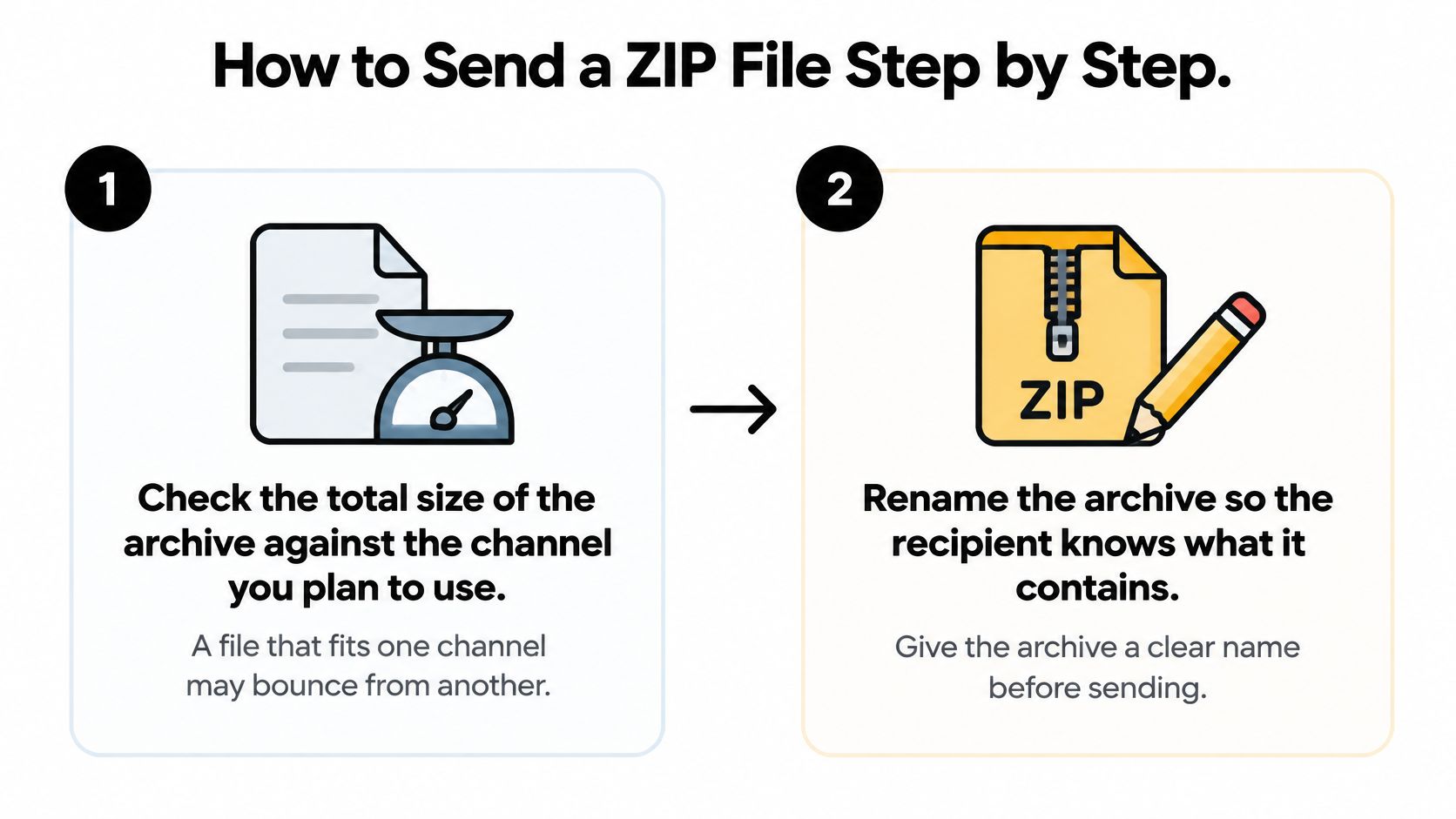
Steps 1 and 2 happen before you touch a send button, and they're the two that prevent most of the re-sends.
How to verify the archive without special software
ZIP carries its own integrity data. Each entry stores a CRC-32 value plus compressed and uncompressed sizes, so extraction tools catch many accidental transfer and storage errors on their own. Treat that as error detection, not authentication: CRC-32 isn't collision-resistant and proves nothing about who made the file or whether it was tampered with on purpose.
For anything that matters, an independent SHA-256 hash is the check that counts. The IANA registration for the ZIP media type sets out the format's standard compression method and the per-file integrity data it requires, which is why the CRC check is reliable for accidental damage and useless against a deliberate edit.
Inside the archive, add a short README. Event name, creation date, file count, total uncompressed size, and the checksum. Two minutes of work, and the recipient can confirm the contents match what you described without opening a single photo.
For phone-shot footage, the size check in step 1 is where the plan usually fails. The workflow in sending large videos from an iPhone covers how to trim and export before you archive, which is far easier than explaining a bounce to a client.
A send is only done when three things are true: the hashes match, a test extraction of the archive succeeded on the recipient's machine, and they've replied to say so. An upload that finished is none of those.
Help Recipients Open the Files on Their Phones
A grandparent receives a christening album as a ZIP from their daughter and taps the attachment in Mail. Something downloads. Then nothing obviously happens. There's no folder of photos on the home screen, the Files app has thirty items in it already, and the phone is warning about storage.
That's the ordinary experience, not an edge case. Archive instructions assume a recipient who can find a download, extract it, locate the media folder inside it, and manage device storage. Research on digital skills for seniors calls for targeted training and age-appropriate design, and the OECD report on digital skills for seniors notes that 59% of people aged 70 and over feel technology is not designed with them in mind. A ZIP workflow is exactly what that describes.
Here's how the recipient's questions land, in the order they hit them.
Does it open on an iPhone or Android phone? Yes, without extra software. iPhones open ZIPs in the Files app; recent Android versions have it in Files by Google or a preinstalled manager. Older Androids sometimes need an app, which is where the process stalls.
Where did the photos go? Into the same Files app location as the ZIP, or a Downloads folder. Nothing lands in Photos automatically. On iOS, images must be moved or saved into the photo library one at a time or as a batch from Files.
What if the phone is full? Extract on a computer, or delete the archive after saving what's needed. Never extract a large archive onto a phone that's already near capacity; a failed extraction mid-way leaves a partial folder that's hard to clean up.
Can they just look at a few pictures? Not from inside a ZIP. That requires extraction of everything. This is the question that decides the delivery method: a browsable gallery, or a per-file download link for the three shots someone wants, avoids the whole extract-and-search sequence. Sending one shareable link with a preview grid rather than an archive is a better fit for most family groups, and sharing a single link explains how to set that up so nobody has to manage a folder.
Include a short written note with the archive: tap the attachment, wait for the download, open Files, tap the archive to extract. One paragraph prevents most of the follow-up calls.
Phone users have no practical way to compute a checksum, so don't ask them to. Tell them you've verified it on your end, and ask for a one-word reply once the files open cleanly.
One archive suits a confident recipient who wants everything at once. A gallery suits everyone else.
Why ZIP Files Get Blocked and How to Avoid It
The archive leaves your outbox and disappears. No bounce, no error message, just a note from the recipient three days later saying nothing arrived. Check the spam folder and it isn't there either.
Mail security systems treat compressed archives as high-risk because attackers use them to hide payloads. The scale is not trivial: individuals and corporate users encountered more than 144 million malicious or potentially unwanted email attachments in 2025, a 15% year-over-year increase, according to Kaspersky's reporting on malicious email attacks. Gateways respond by quarantining anything that looks like a container they can't see inside.
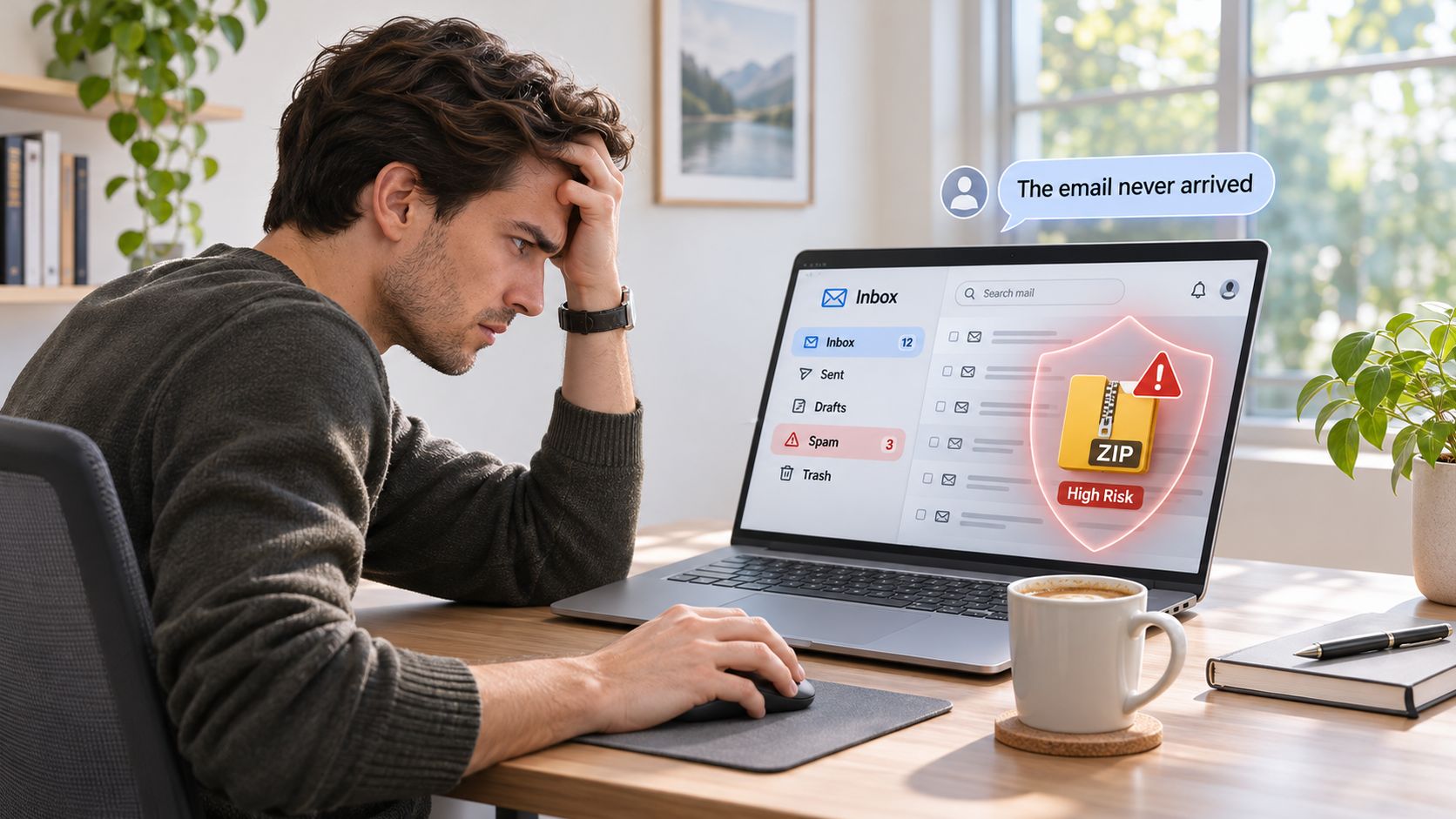
CISA's counter-phishing guidance is direct about the receiver's side of this: analyze compressed and encrypted formats such as ZIP and RAR, and consider blocking encrypted ZIP files outright when they can't be inspected. If your recipient sits behind a corporate gateway, that's the rule your archive is being measured against.
The practical countermeasures are boring and effective. Send a download link instead of an attachment once the file passes a few megabytes. Tell the recipient what's coming, from which address, and roughly what size. If the archive came from someone else, scan it before you forward it.
The password myth
Encrypting a ZIP feels like the responsible move. It isn't automatically safer. Encryption stops security tools from looking inside the archive, which is exactly why attackers adopted the technique: a password-protected archive sails through a gateway that would have quarantined a plain one.
Uptake is already falling. In June 2026, password-protected ZIP file sharing represented 6.2% of emails with file attachments among HENNGE One users, down from 12.4% in July 2024, per HENNGE's PPAP trend data. Organizations are moving away from the pattern, not toward it.
If you do add a password, send it through a different channel than the archive: a text message or a phone call, never the same email. Weak archive encryption, which is what most consumer tools produce, offers little real protection anyway.
This walkthrough shows what happens to a suspicious attachment between the sender's outbox and the recipient's inbox.
Before forwarding an archive you didn't create, scan it. The categories of payload that hide inside documents and archives are set out in My Cyber Guard malware guide, which is worth a read if you handle client files regularly.
Three signs the archive should not go out as-is:
- You don't know the sender. Unexpected archives are the most common malware delivery route into a family inbox.
- It's encrypted when nobody agreed on a password. Unrequested encryption is a deliberate choice by whoever built the file.
- Someone asks you to extract and run an executable inside it. Photos don't need a program to open them.
EventUploader solves the delivery half of this problem: one branded upload page, one link or printable QR code, and guests send photos and videos straight from their phones with no app or account, so nothing has to survive an email filter or a recipient's extraction skills. Organizers watch uploads arrive live, then hand memories back through a shareable gallery on the same link, or export the whole event in original quality as a ZIP on the Light and Pro plans. If you'd rather skip the archive conversation entirely, start an event at EventUploader and let the files come to you.